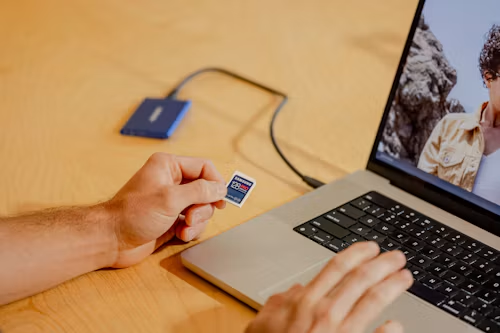
An empty-looking SD card is not always an empty SD card. When you delete a photo or format a card, the file system mostly forgets where the picture lives. The picture’s data stays put until something else claims that space. So there’s a window, sometimes a long one, where recovery is possible.
How long that window stays open is mostly up to you. Keep shooting on the card, and you shrink it. Leave the card alone, and you give yourself the best odds. Even then, nothing is guaranteed. Overwritten data is gone, and a damaged card may be beyond DIY help.
What to Do Before Recovering Deleted Photos
Take the card out of the camera and stop using it. That’s the whole first step. A camera or drone that writes even a few new files can overwrite the very space you’re hoping to scan. Don’t format the card, and don’t ever save recovered files back onto it.
Before you scan anything, check whether the photos exist somewhere else. Look in your import folder, the Photos library, Time Machine, and iCloud. Apple’s Photos import screen can offer to delete the originals from the card once an import finishes, and it’s easy to click through that without thinking.
Then look at the card itself. If it never appears in Disk Utility, Apple says the Mac or the storage device may need service. Cards that are cracked, bent, or repeatedly disconnecting belong with a professional recovery lab. Each scan on a failing card is another chance for it to give out.
How to Recover Deleted Photos from an SD Card on Mac
I’ve ordered these from cheapest to most involved, so start at the top.
Method 1: Check the Trash and Existing Backups
Photos deleted on the camera itself never pass through the Mac’s Trash, so finding it empty tells you little. Check anyway.
- Open the Trash with the card still inserted. If you deleted the files in Finder, they may be sitting there. Right-click and choose Put Back.
- Search Finder and Photos by filename or date. A copy may already exist in your import folder.
- Check iCloud or any other cloud service you use, then go to Method 4.
Method 2: Recover Photos Using Stellar Photo Recovery for Mac
If no copy exists, you need software that reads the card directly. Stellar Photo Recovery for Mac is a dedicated SD card recovery software. According to its product page, it works with memory cards and cameras on Apple silicon and Intel Macs, so confirm the current macOS requirements before you download it. Menu labels change from version to version, which means your screen may not match the steps exactly.
- Connect the card through a compatible reader or your Mac’s slot. If Photos opens, close it without importing.
- Launch Stellar and choose what to recover. Its guides describe selecting Photos.
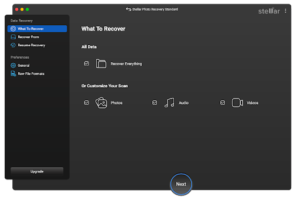
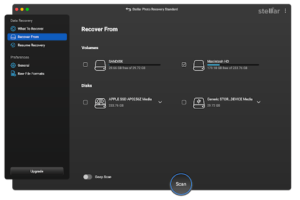
- Pick the SD card, listed as its own drive. Advanced Settings lets you adjust the scan.
- Click Scan and let it finish.
- Look through the results by File Type, Tree View, or Deleted List, and preview files where you can. If the quick scan doesn’t find your shots, try Deep Scan.
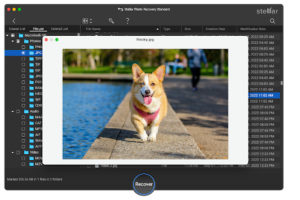
- Select the photos you want and click Recover.
- Choose your Mac’s internal drive or a healthy external drive as the destination. Not the card.
The free edition recovers up to 10 files of up to 100 MB each, per Stellar, so a big shoot needs a paid edition. And a preview that looks fine doesn’t prove the file will open cleanly.
Method 3: Recover Photos from a Time Machine or Other Backup
This only helps if the photos reached your Mac while Time Machine was running.
- Connect your backup disk.
- Open the folder where the photos used to be.
- Click the Time Machine icon in the menu bar and choose Browse Time Machine backups.
- Step back through the timeline, select the photos, and click Restore. They return to their original location.
A backup can’t restore something it never captured. Photos that lived only on the card won’t be in there.
Why Deleted Photos May Not Be Recoverable
Overwriting is the most common reason. New photos, videos, or copied files replace the old data, and no software can undo that.
Hardware is the next problem. A card the Mac can’t see, or one with failing flash memory, needs a lab, not another scan. Corrupted file systems are easier, since software can often work around the damage, but fragmented files may still come back incomplete.
Encryption matters too. Stellar notes that an SD card set up as internal storage on an Android phone is encrypted, so this approach doesn’t apply.
TRIM and garbage collection come up a lot in recovery discussions, but they’re mostly SSD concepts. Don’t assume every SD card behaves that way. Some cards and devices may still clear freed space themselves, which is one more reason not to wait.
How to Prevent Photo Loss from SD Cards
Copy your photos off, then open a few of the copies to make sure they’re intact before formatting the card. Keep two backups of anything that matters. Don’t yank a card while it’s being written to, and use a reader that works with your Mac. A card that keeps producing errors is not worth trusting with another shoot.
Conclusion
The sequence is short. Stop using the card, look for copies, pick a recovery method, and save results to a different drive. Time Machine and your Photos library are free to check, Stellar Photo Recovery suits people who want previews and a guided interface. If the card is damaged or invisible to your Mac, a professional service is the safer call.