



Microsoft Access database files (ACCDB and MDB) can become corrupted for several reasons, including unexpected system shutdowns, hardware failures, and software errors. When corruption occurs, you may experience difficulties opening your database, accessing records, or loading essential objects such as tables, forms, and queries.
These problems can disrupt daily operations and potentially put important data at risk. Fortunately, several methods can help you repair a corrupted Access database and recover your information.
In this guide, we’ll explore practical ways to repair damaged ACCDB and MDB files, including restoring from backups, importing database objects into a new file, using Microsoft’s built-in Compact and Repair utility, and considering professional recovery software when necessary.
Before proceeding, back up the affected database to protect the original file. You can also explore an online Access repair tool as an alternative recovery option.
How does Corruption Occur in an Access database?
Corruption in an Access database file can occur due to various internal and external factors, such as:
- Issues in the hard disk where the database file is saved.
- Sudden restart of the Access application.
- Hardware or software issues.
- System crashes due to sudden power failure.
- Insufficient storage space on the hard disk where the Access database file is located.
- Malware infection in the system where the database is stored.
Methods to Repair and Recover Corrupted Microsoft Access Database
You can use the methods below to repair and restore the .accdb/.mdb file.
1 – Restore from Backup
If you have a healthy copy of the database backup file, you can restore it and replace the affected file. To restore the file from the backup folder,
- Go to your system’s File Explorer
- Search for the backup folder (where you’ve saved the database file).
- Find the file and then copy it.
- Next, paste the file at the original location where the problematic database file is saved.
- You will see a dialogue box asking to replace the existing database file with the backup copy. Click
2 – Import Data from Affected Database into a New Database
If you don’t have an updated backup, you can import the database objects into a new Access database file. This can help you recover most of the data, including forms and queries. Here are the steps:
- In your MS Access application, click External Data
- Then, select Import Access Database
- In the Get External Data – Access Database window, select the “Import tables, forms, reports, macros, and modules into the current database”
- Select the objects from the database that you want to import into the new database and then click
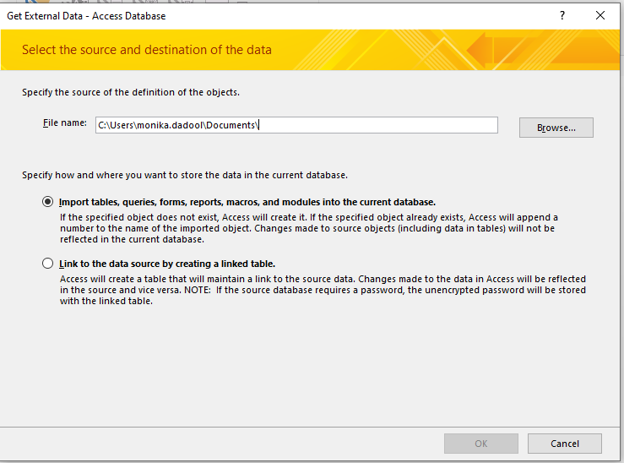
This imports all selected objects from the source database into a new database file. However, it may not restore severely corrupted objects, and large databases can take considerable time to process.
3 – Use Compact and Repair tool
You can use the built-in Compact and Repair utility in MS Access to repair the database. It can efficiently resolve minor corruption in the database file. To use this utility, first make sure you have the necessary permissions and that no other user is using the database.
To use the Compact and Repair utility, open the database, click Database Tools, and then click Compact and Repair Database.

Once the repair process is complete, the application saves the repaired file in the same location as the original database file.
If the database is not opening, then follow the steps below to run this tool:
- Open the Microsoft Access application.
- On the Templates window, double-click the Blank Database
- Navigate to File and then click Close.
- Click Database Tools and then select Compact and Repair Database.
- On the Database to Compact From window, browse and click on the desired database you want to repair. Click Compact.
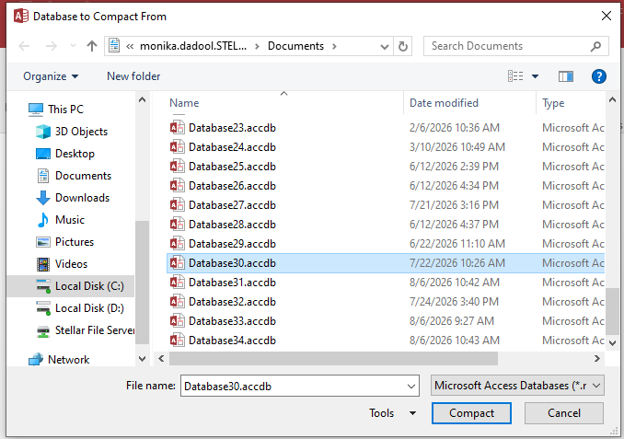
Next, select a location where you want to save the repaired database file and then click Save.
The Compact and Repair tool in Microsoft Access may fail to fix severely corrupted database files. Also, running the tool while other users are connected to the database increases the risk of further corruption.
Recover Corrupted Database using Professional Access Repair Software.
If the above methods fail to repair a severely corrupted file, consider a reliable Access database repair tool, like Stellar Repair for Access. It can repair severely corrupted database files regardless of the size. Also, it supports repairing split databases and password-protected ACCDB/MDB files. In addition, the tool helps recover all database objects and preserves the original table formatting and relationships. Try the software’s trial version to preview the database’s recoverable objects.
Tips to Prevent Microsoft Access Database Corruption
Here are the best practices you should follow to prevent corruption in Access database files:
- Split a large database into front-end and back-end to minimise corruption
- Create a backup regularly to ensure recovery in case of corruption
- Always close Access properly to prevent incomplete write operations
- Make sure you keep Microsoft Access updated.
Conclusion
Corruption in an Access database can prevent you from opening it. However, by following the above-listed methods, you can repair the database files. You can use the Compact and Repair tool to fix minor corruption. However, if your Access database file is severely corrupt or large, you can use a professional Access database repair tool, such as Stellar Repair for Access. It restores all the data, including tables, macros, modules, and other database objects, while maintaining data integrity. It also helps resolve VBA-related issues caused by corruption. The tool supports Windows 11 and earlier versions.