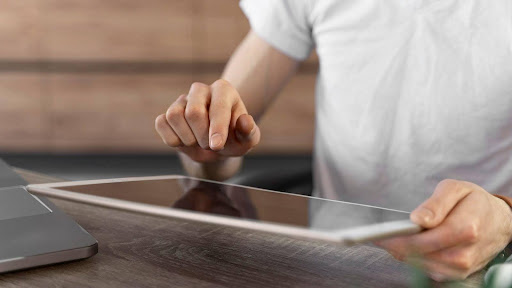
We live in a tactile world. From the smartphone that wakes you up to the kiosk where you order your morning coffee and the tablet you use to sign for a package, our daily existence is mediated by glass rectangles. We tap, swipe, and pinch our way through the day, rarely stopping to think about the complex engineering sitting just millimeters beneath our fingertips. That is, until it stops working.
There is nothing quite as frustrating as a ghost touch that opens apps you didn’t click, or a dead spot in the corner of a screen that makes the “send” button impossible to hit. We often assume that these devices have a built-in expiration date, destined to fail after two years. But the truth is, most screen failures are self-inflicted. We treat these sophisticated pieces of hardware like simple windows, ignoring the delicate sensors and chemical coatings that make them function.
Whether you are responsible for maintaining a fleet of industrial monitors for a business or simply want to keep your personal devices pristine, a little knowledge goes a long way. By understanding the fundamentals of touchscreen technology, you can shift from being a user to a preserver, significantly extending the lifespan of your hardware.
Here are the practical, non-obvious ways to keep your digital windows clear and responsive for the long haul.
1. Stop Using Chemical Products
The single most common way people ruin their screens is by trying to clean them. It seems logical: the screen is glass, windows are glass, so window cleaner should work, right? Wrong.
Modern touchscreens are not just glass. They are coated with specialized chemical layers—most commonly an oleophobic (oil-repellent) coating. This microscopic layer is what allows your fingers to glide smoothly across the surface and prevents fingerprints from becoming a permanent, greasy haze.
When you spray ammonia-based cleaners (like standard window cleaner) or high-concentration alcohol on a screen, you are essentially stripping away that coating. Over time, this causes the screen to feel sticky or high-friction. It makes fingerprints harder to wipe off and can even cause the glass to become brittle or cloudy.
The Fix:
- Dry First: Start with a dry, high-quality microfiber cloth. Do not use paper towels or napkins; they are made of wood pulp and will leave microscopic scratches that dull the screen over time.
- Water Only: If you need moisture, use a small amount of distilled water sprayed onto the cloth, never directly onto the screen. Spraying the screen directly risks liquid seeping into the bezel edges, where it can short out the digitizer.
2. Respect the Mechanics
It is important to remember that there are different types of touch interfaces.
- Resistive Screens (often found on older ATMs or signature pads) rely on pressure to connect two layers.
- Capacitive Screens (most modern phones and tablets) rely on the electrical charge from your skin.
If you are using a capacitive screen, pressing harder does absolutely nothing. The sensor reacts to proximity and conductivity, not force. Yet, when an app is lagging or a website is slow to load, our instinct is to press down harder, as if we are physically pushing a stuck door.
This button-mashing habit can damage the sensing layer beneath the glass. It can compress the liquid crystals in the LCD display (causing those weird ripples of color) or desensitize the grid of electrodes that register input.
The Fix: Train yourself to use a featherlight touch. If the screen isn’t responding, the issue is likely software lag or a dirty surface, not a lack of pressure.
3. Avoid Direct Sunlight
Electronics and heat are natural enemies, but touchscreens are particularly vulnerable to solar radiation.
Liquid crystal displays (LCDs) and organic light-emitting diodes (OLEDs) are organic, chemical-based technologies. When you leave a tablet on the dashboard of a car or a POS terminal in a window exposed to direct afternoon sun, you are cooking those chemicals.
Extreme heat can cause:
- Delamination: The glue bonding the glass to the sensor layer can melt and bubble.
- Color Shift: The liquid crystals can lose their ability to filter light correctly, leading to permanent yellow spots or color bleeding.
- Battery Swelling: While not technically the screen, a swelling lithium-ion battery will push against the back of the screen, causing it to crack from the inside out.
The Fix: Treat your device like a vampire. Keep it in the shade. If a commercial screen must be placed near a window, invest in UV-blocking films or shades to minimize the thermal load.
4. Prevent the Ghost Image
We used to worry about burn-in on old tube TVs, but it is still a very real threat for modern OLED and high-brightness LCD screens. Burn-in happens when the same static image is displayed for hours or days at a time—think of a navigation bar, a clock, or a restaurant menu.
The pixels working to display that white text eventually wear out faster than the surrounding pixels. When you finally switch the image, a ghost of the old text remains permanently etched into the background.
The Fix:
- Sleep Timers: Set your screens to turn off or dim significantly after a few minutes of inactivity.
- Motion: If the screen needs to be always-on (like a kiosk), program the content to shift slightly every few minutes, or use a screensaver that cycles colors. This ensures that no single pixel is forced to remain at 100% brightness indefinitely.
5. Cable Management Matters
This is an overlooked aspect of screen care. The integrity of the screen is often compromised by the power source.
Using cheap, uncertified charging cables or power adapters can deliver inconsistent voltage to the device. Dirty power (fluctuating current) can cause the digitizer—the component that tracks your finger—to go haywire. Have you ever plugged your phone into a cheap charger and noticed the screen jumping around or not registering your touch? That is electrical interference.
Long-term exposure to this interference can permanently degrade the capacitive sensors. Furthermore, tripping over a tight cable is the number one cause of devices being pulled off tables and smashing onto the floor.
The Fix: Use OEM (Original Equipment Manufacturer) power supplies and ensure cables have enough slack so there is no tension on the port.
6. The Case for Sacrificial Layers
Finally, accept that accidents happen. Gravity is undefeated. If you are managing devices that are moved around (handheld scanners, tablets, phones), a screen protector is non-negotiable. Think of a tempered glass screen protector as a helmet. It is designed to break, so your skull doesn’t have to.
When a device falls face down, the screen protector absorbs the shock energy and shatters, dissipating the force before it reaches the actual digitizer assembly. Replacing a $20 protector is an annoyance; replacing a $300 screen assembly is a budget-breaker.
A touchscreen is a window into the digital world, but it is a window made of complex, sensitive materials. It doesn’t ask for much—just a gentle touch, a clean cloth, and a cool environment.
By treating the technology with a little bit of respect and avoiding the harsh chemicals and heavy hands that degrade it, you can keep that window clear and responsive for years, ensuring your swipes always register, and your taps always land true.