
SatFinder (Satellite Finder)
Setting up a satellite dish can feel like a puzzle, but apps like SatFinder (Satellite Finder) aim to make it much simpler. This tool is designed to help you get your dish pointed just right. It figures out the important angles – azimuth, elevation, and LNB tilt – based on where you are and which satellite you’re trying to connect to.
The app gives you these numbers and also shows them on a map, which is pretty handy. You’ll need to make sure your phone’s GPS and internet are on for it to find your location accurately. Sometimes, you might need to be near a window or even step outside to get a good signal. Once it knows where you are, you can pick your satellite from a list. Don’t worry too much about the satellite’s name; it’s the actual position that matters for the calculations.
Here’s a quick rundown of how it generally works:
- Get Your Location: Turn on GPS and internet. The app will find your spot on the map.
- Pick Your Satellite: Tap the search icon and choose the satellite you need from the provided list.
- Align Your Dish: The app will show you the azimuth (horizontal direction), elevation (vertical angle), and LNB skew (tilt). It also includes a compass to help you find the right direction. A green line on the compass usually shows your phone’s direction, and when it lines up with the target azimuth, you’re on the right track.
Some devices also have a compass sensor, which helps the app give you more precise directional information. If your phone has this, it can really speed things up. It’s a straightforward way to tackle dish alignment without needing a degree in astrophysics.
Satellite Finder Pro (Dishpointer)
If you’re looking to get your satellite dish pointed just right, Satellite Finder Pro, often called Dishpointer, is a solid choice. It aims to make the whole process, whether it’s a new setup or a realignment for better signal, pretty straightforward. No more fiddling around for ages trying to catch a weak signal; this app helps you lock onto the satellite you need.
What makes it stand out is its use of augmented reality (AR). You can literally point your phone at the sky, and the AR view will show you where the satellites are. It’s like having a digital guide right there in front of you. Plus, it combines this with your phone’s compass and gyro-compass to give you precise azimuth angles. You get a graphical display of the azimuth, so you know exactly how to angle your dish.
Here’s a quick rundown of what you get:
- AR View: See satellite positions overlaid on your camera feed.
- Compass & Gyro-Compass: Get accurate azimuth readings for precise pointing.
- GPS Location: Uses your current GPS to find the right direction.
- Live Earth Map: Offers different map views (Normal, Hybrid, Satellite, Terrain) to help you pick the best spot for installation.
- Satellite List: Access a database of satellites with their specific alignment angles.
It also includes a feature to find satellite channel frequencies, which can be handy for setting up your receiver. The app relies on your phone’s sensors, so the accuracy of the readings depends on how good those sensors are. It’s designed for both folks who know their way around dish setup and those who are just starting out.
Satellite Dish Setup
Getting your satellite dish pointed just right can feel like a puzzle, but it doesn’t have to be a headache. This app helps break down the process into manageable steps, making sure you get the best signal possible.
Here’s a general rundown of how you’ll typically set things up:
- Select Your Satellite: First things first, you need to pick the satellite you want to connect to from the app’s list. This is important because each satellite has its own specific location in the sky.
- Find the Direction (Azimuth): The app will use your phone’s compass and GPS to tell you exactly which way to point the dish. You’ll be looking for a specific direction, often shown as an angle on a map or with a compass needle.
- Set the Elevation Angle: This is how high or low you need to tilt the dish. The app provides the correct degree for your location and chosen satellite.
- Adjust the LNB Skew: The LNB is that little piece on the arm of the dish. You’ll need to twist it to a specific angle for optimal signal reception. The app guides you on this too.
Following these steps carefully is key to achieving a strong, stable signal. The app often provides visual aids, like an augmented reality view, to help you see where the satellite is in relation to your surroundings. It’s all about getting those three main angles – azimuth, elevation, and skew – dialed in correctly for your specific spot on Earth.
AR Camera View
This feature is pretty neat for when you’re actually trying to point your dish. You basically select the satellite you’re aiming for, and then you switch to the camera view on your phone. The app overlays an arrow or guide onto your camera feed, showing you exactly where to move your phone to align the dish. It uses your phone’s sensors and GPS to figure out the correct azimuth, elevation, and skew angles for that specific satellite at your location. It’s like having a virtual aiming assistant right there on your screen. You’ll often see a signal indicator that tells you when you’re getting close to a perfect alignment. It really takes a lot of the guesswork out of the process, especially if you’re not super familiar with satellite dish setup. Just make sure your phone’s GPS is on and you have a decent internet connection for the best results.
Compass
When you’re trying to get your satellite dish pointed just right, a good compass is your best friend. It’s not just about knowing which way is north; it’s about getting that precise directional heading, called azimuth, for your specific satellite.
Most satellite finder apps include a digital compass, and it’s usually pretty straightforward to use. You’ll typically see a graphical representation of the compass rose on your screen. When the app calculates the correct azimuth for your chosen satellite, a marker or line on the compass will show you the direction. Your job is to rotate your phone until the marker aligns with your phone’s current heading.
Here’s a quick rundown of what to expect:
- Calibration is Key: Before you start, it’s a good idea to calibrate your phone’s compass. This usually involves moving your phone in a figure-eight pattern a few times. Different phones have different methods, so check your device’s settings if you’re unsure.
- Sensor Dependence: Keep in mind that the compass feature relies on your phone having a magnetometer sensor. If your phone doesn’t have one, the compass won’t work, and you’ll have to rely on other methods, like the map view, to find your direction.
- Accuracy Matters: The accuracy of the compass can be affected by nearby metal objects or strong magnetic fields. Try to use it in an open area, away from cars, buildings, or other electronics, for the best results.
Think of the compass as your directional guide, helping you zero in on the satellite’s location in the sky.
Live Earth Map
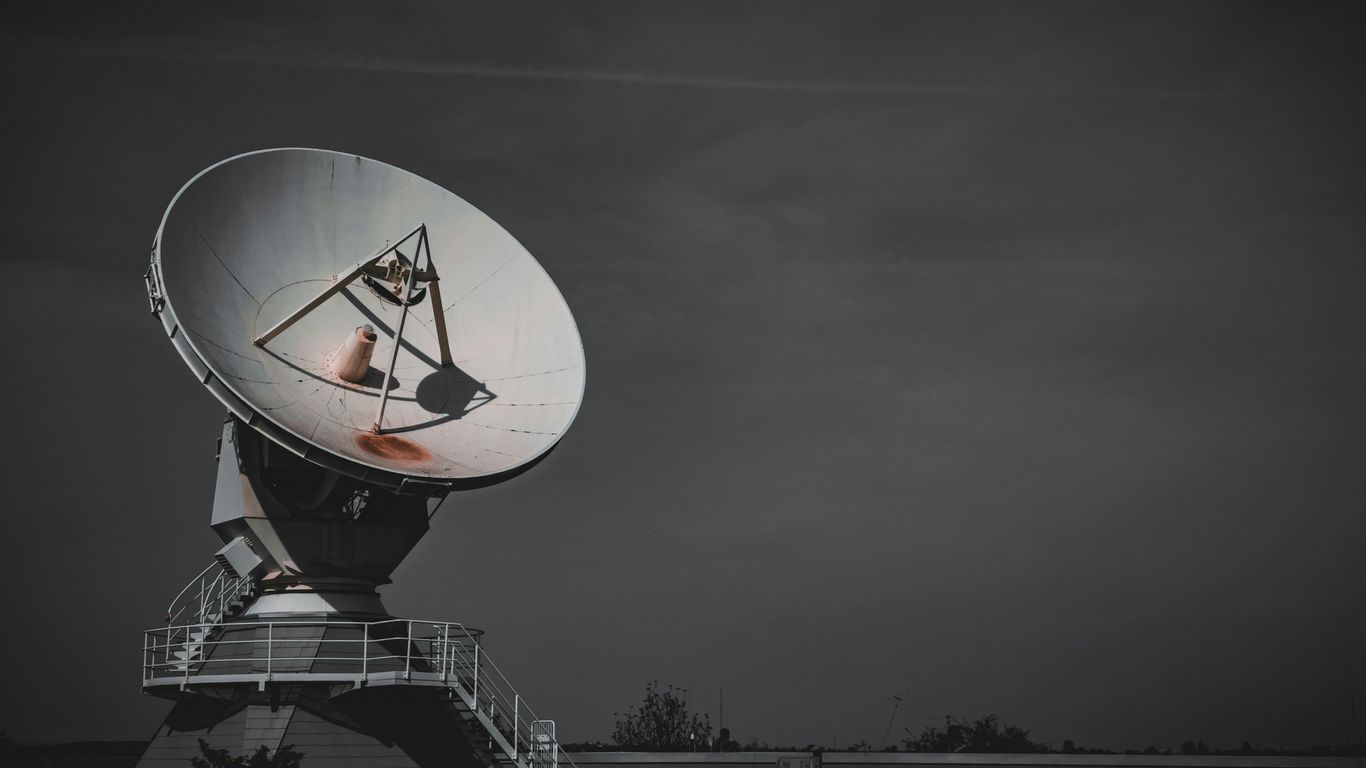
Sometimes, just knowing where a satellite is isn’t enough. You might want to see what the Earth looks like from up there, or maybe get a better sense of its path over the planet. That’s where the Live Earth Map feature comes in handy.
Think of it as a window to the world from orbit. This function usually shows you a real-time or near-real-time view of Earth, often with the satellite’s current position overlaid. It helps you visualize the satellite’s journey across continents and oceans, giving you a much bigger picture than just a dot on a sky chart.
Here’s what you can typically expect:
- Global View: See the Earth rotating below, with cloud cover and landmasses clearly visible.
- Satellite Track: The map will often display the satellite’s predicted or current path, showing you exactly where it’s heading.
- Location Context: Understand which parts of the world the satellite is currently passing over, which can be useful for planning observations or just for general interest.
This feature really helps connect the abstract idea of a satellite in space with the tangible world we live on. It’s not just about finding a signal; it’s about appreciating the technology and its reach. Some apps might even let you zoom in and pan around the map, almost like using a regular map app, but with the added context of orbital mechanics.
Satellite Channels Frequency
So, you’ve got your satellite dish pointed just right, but what about the channels themselves? This is where knowing the frequencies comes in handy. Think of frequencies like specific radio waves that each channel uses to broadcast its signal. If you don’t have the right frequency programmed into your receiver, you won’t be able to tune into that channel, even if your dish is perfectly aligned.
Most satellite finder apps, including the ones we’ve talked about, have a built-in feature to look up these frequencies. It’s usually pretty straightforward. You’ll typically select the satellite you’re aiming for, and then you can search for specific channels or just browse a list. The app will then show you all the important details you need:
- Satellite Name: The name of the satellite your dish is pointed at.
- Frequency: The specific radio wave frequency the channel uses (often in MHz).
- Symbol Rate: How fast data is transmitted.
- Polarization: Whether the signal is horizontal (H) or vertical (V).
- FEC (Forward Error Correction): A code that helps correct errors during transmission.
- Modulation: The type of signal encoding used.
Having this frequency information readily available is key for setting up your satellite receiver correctly. Some apps even let you search by channel name or country, which makes finding what you need a lot faster. It’s a good idea to have this feature handy, especially if you’re trying to find channels from a less common satellite or if you’re troubleshooting reception issues. It’s like having a cheat sheet for your TV signal!
Augmented Reality
Augmented Reality, or AR, is a pretty neat feature that some satellite finder apps include. Basically, it uses your phone’s camera to overlay digital information onto the real world. Think of it like looking through your phone and seeing not just what’s there, but also helpful graphics and data.
When you use the AR camera view, you point your phone towards the sky. The app then shows you an arrow or a marker that guides you to where you need to point your satellite dish. It’s like having a virtual assistant helping you line everything up. This feature can show you the exact azimuth, elevation, and skew angles needed for a specific satellite. It makes the whole process of aiming your dish much more visual and less guesswork.
Here’s how it generally works:
- Select your target satellite: First, pick the satellite you want to connect to from the app’s list.
- Activate AR mode: Open the camera view within the app.
- Point and align: Hold your phone up and move it around until the on-screen indicator shows you’re aligned with the satellite. The app will often give you a signal quality reading, telling you when it’s perfect.
Some apps might even let you see a 3D model of the satellite or its orbit overlaid on your camera feed. It’s a cool way to visualize what you’re trying to connect to and where it is in space relative to you.
GPS Location
To get your satellite dish pointed just right, the app needs to know exactly where you are. That’s where GPS comes in. It’s like the app’s eyes on the ground, figuring out your precise spot on Earth.
This location data is super important for calculating the correct angles for your satellite dish. Without it, the azimuth, elevation, and LNB skew would all be off, and you’d be staring at a blank screen instead of your favorite shows.
Here’s a quick rundown of how it works:
- Enabling GPS: First things first, you’ll need to turn on your phone’s GPS. Most apps will prompt you if it’s off. It’s best to be outside or near a window for the most accurate signal, as being deep inside a building can sometimes mess with the readings.
- Finding Your Spot: Once GPS is on, the app uses that information to pinpoint your latitude and longitude. Think of it as dropping a pin on a map, but way more precise.
- Calculating Angles: With your location locked in, the app can then use this data along with the satellite you’ve chosen to figure out the exact angles you need to point your dish.
It’s pretty neat how your phone, which you probably use for everything else, can also help you get your TV signal dialed in perfectly. Just make sure your location services are good to go before you start.
Satellite List
When you’re trying to find a specific satellite, having a good list within your app is super helpful. Think of it like a directory for all the man-made objects zipping around our planet.
Most satellite finder apps will give you a way to browse through a database of satellites. This isn’t just a random collection; they’re usually organized. You might see categories like:
- Communication Satellites: These are the ones most people think of for TV and internet. They tend to be in higher, geostationary orbits.
- Navigation Satellites: This includes the big systems like GPS, GLONASS, Galileo, and BeiDou. They’re constantly working to tell you where you are.
- Earth Observation & Weather Satellites: These are the eyes in the sky, gathering data about our planet.
- Scientific Satellites: These are for research, like the Hubble Space Telescope.
- Space Stations: The International Space Station (ISS) is the most famous example here.
The best apps let you search this list by name, which is a lifesaver if you’re looking for something specific. You can often see details about each satellite, like its orbit type, its current position, and sometimes even its history. Some apps even highlight satellites that are currently visible or will be passing overhead soon, which makes planning your viewing much easier.
Wrapping Up Your Satellite Search
So, there you have it. Finding the right satellite dish app for your Android device doesn’t have to be a headache. We’ve looked at a few options that can really help you get that dish pointed just right, whether you’re a seasoned pro or just trying to get better TV reception at home. Most of these apps use your phone’s built-in tools like GPS and the compass, and some even add cool augmented reality features to make things clearer. Remember to check your phone’s permissions and give the app what it needs to work best. With a little practice and the right app, you’ll be enjoying a stronger signal in no time.