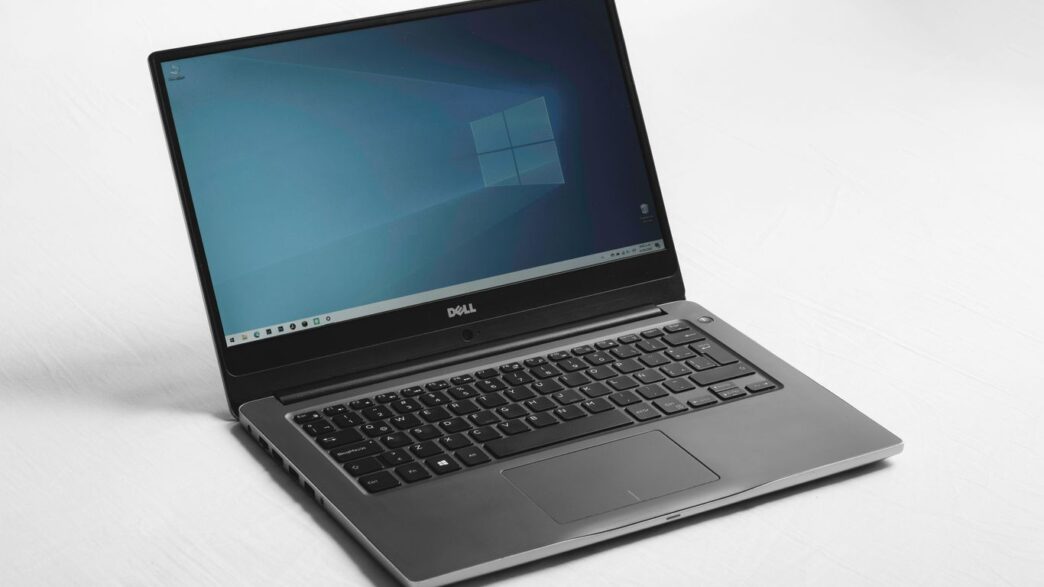
So, is the Dell XPS 13 2-in-1 7390 still a good buy? We took a look to see if this convertible laptop holds up. It’s got a nice screen and feels pretty solid, but let’s break down what you really need to know before you decide if it’s the right fit for you. We’ll cover how it looks, how it performs, and all the little things that make a difference.
Key Takeaways
- The Dell XPS 13 2-in-1 7390 boasts a premium build with aluminum and a slick, borderless 16:10 display that’s great for viewing.
- Performance is solid for everyday tasks and multitasking, thanks to 10th Gen Intel Core processors, though it’s not a gaming machine.
- The new MagLev keyboard might be hit or miss for some users, but touch and pen input work well.
- Connectivity is limited to Thunderbolt 3 ports and a microSD slot, so you might need adapters.
- Battery life is decent, lasting around 11 hours in tests, and it offers a good experience with Ubuntu out-of-the-box.
Dell XPS 13 2-in-1 7390 Design and Build Quality
Premium Materials and Finishes
Right out of the box, the XPS 13 2-in-1 7390 feels like a seriously well-made piece of tech. Dell has gone with a machined aluminum chassis, which gives it a nice heft and a premium feel. It doesn’t feel flimsy or cheap at all. The carbon fiber palm rest on some models adds a nice touch, too, making it comfortable to rest your hands on during long typing sessions. This laptop feels built to last. Some users have reported issues with the fit and finish on certain components, like ports or plugs, but generally, the build quality is a strong point for this machine.
Compact and Portable Dimensions
One of the most impressive things about this laptop is how compact it is. Dell has managed to pack a 13.4-inch display into a body that’s about as small as you’d expect for a much smaller laptop. The bezels around the screen are super thin, which really helps with that screen-to-body ratio. It’s not the absolute lightest laptop out there, weighing in at just under 3 pounds, but it feels solid and substantial, not heavy. It’s easy to toss into a bag and take with you.
Here’s a quick look at how it stacks up against its clamshell sibling:
| Feature | XPS 13 2-in-1 7390 | XPS 13 (Clamshell) |
|---|---|---|
| Weight | 2.9 pounds | 2.7 pounds |
| Dimensions (HWD) | 0.51 x 11.7 x 8.2 inches | 0.46 x 11.9 x 7.8 inches |
Effortless Hinge Operation
The 2-in-1 design means this laptop can flip around into tablet mode, tent mode, or stand mode. The hinge is a pretty big deal for a convertible, and Dell seems to have nailed it here. It’s smooth and fluid, allowing you to easily switch between modes without any struggle. You can open it up with just one hand, which is always a nice touch. It feels sturdy enough to handle being moved around frequently, which is exactly what you want in a convertible device. This makes it really versatile for different situations, whether you’re watching a movie or trying to get some work done on the go.
Display and Visual Experience
Vibrant 16:10 Touchscreen
The Dell XPS 13 2-in-1 7390 sports a screen that’s genuinely a pleasure to look at. It’s a 13.4-inch panel with a resolution of 3840 x 2400, which is more than 4K. Because of this high resolution, Windows usually suggests scaling everything up to 300% so that text and icons are a readable size, especially for touch use. It’s pretty neat that you can switch between this super-sharp mode and a more standard view depending on what you’re doing. The 16:10 aspect ratio means you get a bit more vertical space compared to older 16:9 screens. This is great for reading documents or browsing the web, as you can see more lines of text at once. However, when watching videos shot in 16:9, you’ll see black bars at the top and bottom. The screen also has an anti-reflective coating that works well to cut down glare without making the picture look dull. It’s a good balance for different lighting conditions.
Borderless Display Design
Dell really went for a clean look with the display on this XPS 13 2-in-1. The bezels, or borders around the screen, are incredibly thin. This gives you an 80 percent screen-to-body ratio, making the display feel much larger than it is. It looks modern and helps you focus on the content. The webcam is tucked away neatly in the top bezel, which is a big improvement from older models where it was awkwardly placed below the screen. This placement means you get a much better angle for video calls. The touch layer on the screen does have a slightly different texture than a standard glass display, which some users might notice. While the screen is HDR-compatible and can get quite bright, Windows’ HDR support can be a bit hit-or-miss, sometimes making non-HDR content look washed out. For most day-to-day tasks and general media consumption, though, the display is fantastic. If you’re interested in how laptop screens are rated for image quality, you can check out screen image quality.
Here’s a quick look at some display specs:
| Feature | Specification |
|---|---|
| Size | 13.4 inches |
| Resolution | 3840 x 2400 |
| Aspect Ratio | 16:10 |
| Touchscreen | Yes |
| HDR Support | Yes |
| Screen-to-body Ratio | ~80% |
Performance and Everyday Use
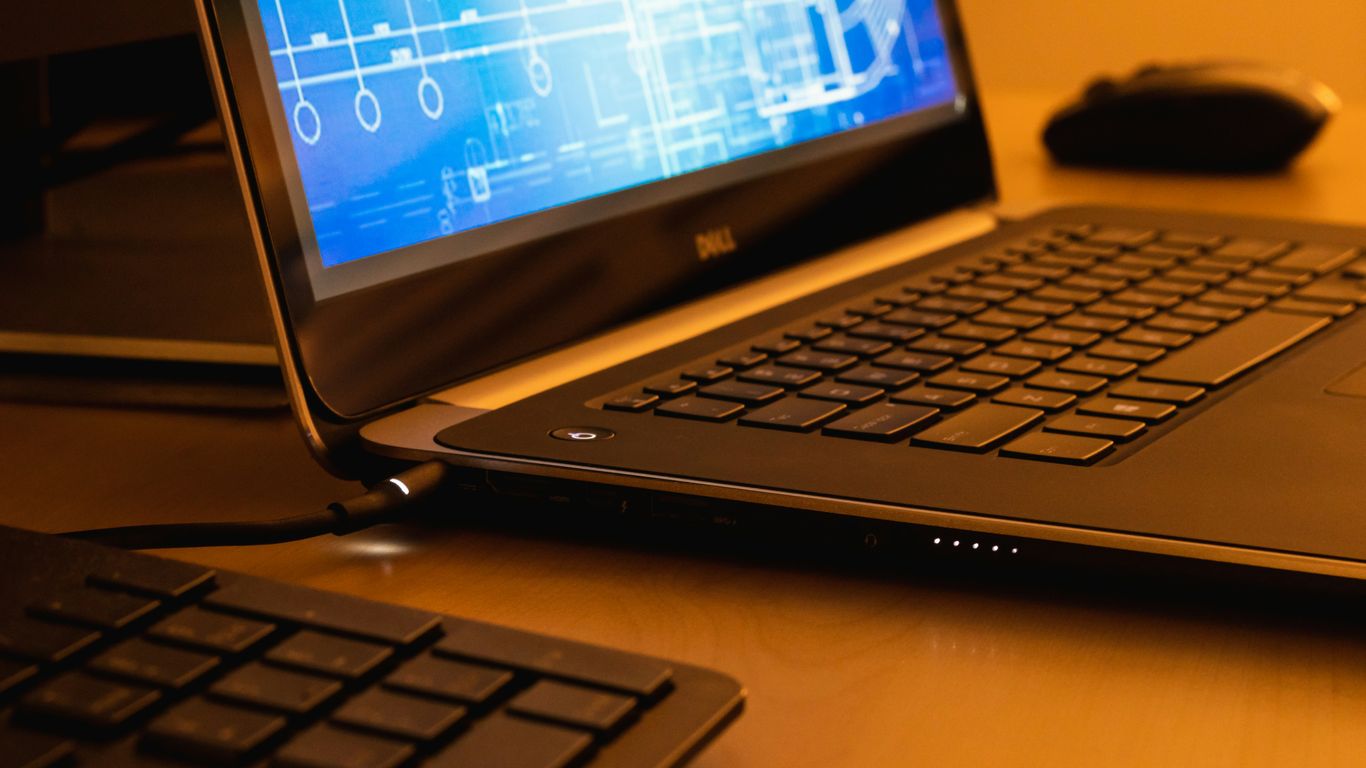
When you’re just browsing the web, typing up documents, or jumping between a few apps, the 10th Gen Intel Core processor in the XPS 13 2-in-1 7390 handles it all without breaking a sweat. It feels snappy and responsive for those day-to-day tasks that most of us do.
10th Gen Intel Core Performance
This machine packs Intel’s "Comet Lake" processors, and while they might not be the absolute latest and greatest anymore, they still offer a solid punch for everyday computing. For general productivity, like checking emails, writing reports, or even doing some light photo editing, the performance is perfectly adequate. You won’t find yourself waiting around for things to load.
Multitasking Capabilities
Juggling multiple applications is where this laptop starts to show its strengths. If you’re the type to have a dozen browser tabs open, your music playing, and a word processor running all at once, the XPS 13 2-in-1 generally keeps up. It doesn’t stutter or freeze up when you switch between tasks, which is a big win for productivity. It’s nice not to have to close things just to open something else.
Graphics Performance Insights
Now, don’t expect this to be a gaming powerhouse. The integrated graphics are fine for casual games or watching high-definition videos, but anything more demanding will likely struggle. For creative work, like video editing or 3D rendering, it’s definitely faster than many similarly priced ultraportables, especially when using applications that can really use all the processor cores. However, for heavy graphical tasks, you might want to look elsewhere. It’s worth noting that some users have reported display issues like flickering on certain models, so it’s something to keep an eye on, especially if you’re looking at a used XPS 13 7390 2-in-1 model.
Here’s a quick look at how it stacks up in some common benchmarks:
| Benchmark | Result (Approximate) |
|---|---|
| PCMark 10 | Good for productivity |
| Cinebench R15 | Strong CPU scores |
| Handbrake (4K->1080p) | Efficient transcoding |
While it excels in CPU-intensive tasks, the graphics side is more modest. It’s a good balance for a convertible, but serious graphics work isn’t its main focus.
Keyboard and Input Methods
The New MagLev Keyboard
Dell really tried something different with the keyboard on this XPS 13 2-in-1. They went with what they call a "MagLev" keyboard, which is supposed to be thinner but still give you a good typing feel. And honestly, it’s a bit of a mixed bag. When you first type on it, there’s a definite click, which is nice. But the keys don’t move down very far – maybe 0.7mm. This shallow travel took some getting used to. I found myself making more typos than I usually do, sometimes missing key presses altogether. It took me a little while to adjust to where the Home, End, and Delete keys were too, since they’re all crammed into the top row. After a few days of solid typing, though, I actually got pretty close to my normal typing speed. It’s not my favorite keyboard ever, but it’s workable once you adapt. The backlight is also a bit quirky; it’s great in the dark, but in a dim room, the light can actually make the letters harder to see. You might want to turn it off sometimes.
Touch and Pen Input Functionality
Beyond the keyboard, the touchscreen is, of course, a big part of the 2-in-1 experience. The display here is quite responsive to touch. Swiping and tapping feel natural, and Windows 10’s interface is designed to be touched, so that works out well. If you’re thinking about using a stylus for notes or drawing, this laptop handles it pretty well too. The screen tracks finger and pen movements with very little delay, making it feel quite natural for writing or sketching. It’s not quite the same as a dedicated drawing tablet, but for quick notes or light creative work, it’s definitely capable. The touchpad is also pretty good – it’s large and covered in glass, and it handles gestures and swipes without any fuss. I still prefer a mouse for super precise work, but for everyday tasks, it’s perfectly fine. If you’re looking for a replacement keyboard assembly, you can find Dell OEM backlit keyboards designed for this model.
Connectivity and Ports
When it comes to hooking up your accessories, the Dell XPS 13 2-in-1 7390 keeps things pretty streamlined. You’ve got two Thunderbolt 3 ports, which are super versatile. These handle data transfer, video output, and charging all through one USB-C connector. It’s pretty neat how much you can do with just those two ports. This means you can connect to external displays, fast storage, and power up your laptop, often all at once with the right setup.
Beyond the Thunderbolt 3 connections, you’ll find a microSD card slot, handy for quickly offloading photos from your camera, and a 3.5mm headphone/microphone combo jack. What’s missing, though? No traditional USB-A ports, no HDMI, and no Ethernet. If you’re someone who still relies on those older connections, you’ll definitely need to pick up a dock or adapter. It’s a common trade-off for such a thin and light machine, but something to be aware of.
Thunderbolt 3 Integration
The two Thunderbolt 3 ports are the stars of the show here. They’re full-featured, meaning they can push serious data speeds and even drive multiple external 4K displays if you have the right adapter. This is pretty impressive for a laptop this size, allowing for a more expansive workspace when you need it. It’s a big step up from older USB standards and makes connecting high-bandwidth devices a breeze. For lawyers seeking a Windows laptop, the Dell XPS 13 is a strong contender, offering a solid option for most daily professional tasks.
Essential Port Selection
Here’s a quick rundown of what you get:
- Two Thunderbolt 3 (USB-C) ports: For charging, data, and video output.
- microSD card reader: Great for quick photo transfers.
- 3.5mm headphone/microphone jack: For your audio needs.
While it might not have every port under the sun, the ports it does have are modern and capable. Just remember to pack an adapter if you need older connections.
Battery Life and Power
Real-World Battery Endurance
So, how long does this thing actually last on a charge? Dell throws around some pretty optimistic numbers, claiming up to 17 hours for a model like this in certain tests. Honestly, in my day-to-day use, that felt more like a dream than reality. I was typically seeing somewhere in the 6 to 8-hour range when I was just doing regular work stuff – you know, emails, web browsing, maybe a bit of document editing, with the screen brightness dialed down a bit. Streaming a long video pushed it closer to 8 hours, which isn’t bad, but it’s a far cry from Dell’s "up to" figures.
It’s worth noting that battery life can be a bit of a wild card. What you’re doing on the laptop, how bright you keep that screen, even the strength of your Wi-Fi signal – all that stuff plays a role. Some other folks who’ve tested this machine have reported longer runtimes, so your mileage might definitely vary. It’s not a dealbreaker, but don’t expect to go multiple days without reaching for the charger.
Powering Your Day
The XPS 13 2-in-1 comes with a 45W power adapter, which is pretty standard for this class of device. It’s small and easy to toss in your bag, which is a plus. When you do need to plug in, it charges up reasonably quickly, getting you back to a usable percentage without too much waiting. The fact that it uses USB-C for charging is also convenient, meaning you might be able to use the same charger for other devices you own. It’s not a powerhouse that’s going to drain batteries at an alarming rate for typical tasks, but for demanding work, you’ll want to keep that charger handy.
Linux Compatibility
Dell has a reputation for being pretty good when it comes to Linux support, and the XPS 13 2-in-1 7390 generally keeps that up. If you’re looking to ditch Windows, you’ll likely find a smooth transition, especially if you’re a fan of Ubuntu.
Ubuntu Out-of-the-Box Experience
When I gave Ubuntu 19.10 a whirl from a LiveUSB, most of the hardware just worked without any fuss. Seriously, things like Wi-Fi and audio were good to go right away. The digital pen Dell includes? It was recognized. The screen even rotated automatically when I flipped the laptop around, which was nice. All the keyboard shortcuts for brightness, volume, and the backlight also did their thing. The only minor hiccup I ran into was the on-screen keyboard defaulting to Caps Lock when I was trying to type in tablet mode. It’s a small thing, but worth noting if you plan on using it a lot in that configuration.
Hardware Support and Quirks
Beyond that little keyboard annoyance, the XPS 13 2-in-1 seems pretty solid for Linux users. For full Thunderbolt 3 support, you’ll want to make sure you’re running a Linux kernel version 5.4 or newer. Some other Linux distributions might need a few small tweaks here and there, but overall, this machine plays nicely with the open-source world, and Intel’s newer processors are generally well-supported too. It’s not a perfect, zero-configuration experience for every single distro out there, but it’s definitely one of the more friendly options if you’re looking for a convertible that plays well with Linux.
So, Is the Dell XPS 13 2-in-1 7390 Still a Good Buy?
Alright, let’s wrap this up. The Dell XPS 13 2-in-1 7390 has been around for a bit, and while newer models exist, it still holds its own. It’s a solid machine if you need something that can flip between laptop and tablet modes without a fuss. The screen is nice, it handles everyday tasks pretty well, and it’s easy to carry around. Battery life is decent, getting you through a good chunk of the day. It’s not a powerhouse for heavy gaming or super demanding creative work, but for general use, browsing, and getting work done, it’s a reliable choice. If you can find it at a good price, especially with the discounts mentioned, it’s definitely worth considering as a versatile and good-looking convertible laptop.
Frequently Asked Questions
What makes the Dell XPS 13 2-in-1 7390 special?
This laptop is a real all-rounder! It’s super light and small, making it easy to carry around. Plus, it can flip around to be used as a tablet or in a tent shape, which is handy for different tasks. It also has a really bright and clear screen.
Is this laptop good for school or work?
Absolutely! It’s great for everyday tasks like browsing the web, writing papers, and doing homework. It can handle lots of apps open at once without slowing down, and the battery lasts a good amount of time for a full day.
Can I play games on the Dell XPS 13 2-in-1 7390?
It’s not really built for heavy gaming. While it can handle some simpler or older games okay, don’t expect to play the latest, most demanding games on it. It’s better suited for work and general use.
How good is the screen?
The screen is one of its best features! It’s a touch screen that shows really bright and clear colors. It’s also a 16:10 aspect ratio, which means you get a bit more space on the screen vertically, making it nice for reading and working.
What kind of ports does it have?
It has two Thunderbolt 3 ports, which are super fast for connecting things like external drives or monitors. It also has a slot for microSD cards and a headphone jack. It even comes with an adapter to connect older USB devices.
Is it easy to use with Linux?
Yes, it generally works well with Linux, especially Ubuntu. Many parts like Wi-Fi, sound, and the touchscreen usually work right away. Dell even offers some models with Ubuntu already installed, making it a good choice if you prefer Linux.