Modern businesses and individuals depend on Microsoft Outlook for all their critical communications. It allows users to manage all their email accounts, contacts, and calendar events from one central hub. The data gets locally stored onto Personal Storage Table (PST) files for backup and archival purposes.
However, what happens if the PST files become damaged or corrupted? For example, a PST file can easily become damaged or corrupted due to a system crash, power surge, malware, virus, or an oversized file. Once that happens, you cannot open your default email folders until you can repair and recover the PST files. As a result, that is where a data recovery software tool becomes essential to have installed on your computer.
What is Stellar Repair for Outlook?
In this context, Stellar Repair for Outlook is a comprehensive Outlook PST repair tool that can fix corrupt Microsoft Outlook PST files and Offline Outlook Data OST files. After the corrupt files are repaired, it will restore all the content you had saved in your emails, contacts, attachments, journals, calendars, and tasks. It will even repair and store mailbox items that you may have accidentally lost or deleted.
Importantly, you don’t need to have any technical experience to use Stellar. Whether you’re an IT technician or an average layperson with no technical skills, you can still use Stellar to recover your damaged and corrupted Outlook data within minutes. If you use Outlook for commercial communications, it could save your business time and money.
Key Features of Stellar Repair for Outlook
In addition, the Outlook PST repair tool comes with several unique features that make repairing your PST files fast and easy. These features include the following:
Repair Damage or Corrupted Items: Repair damaged or corrupted PST and OST data files from multiple versions of Microsoft Outlook, including 2007, 2010, 2013, 2016, 2019, and 2021.
Recover Deleted Items: Recover your lost or deleted files before their data is overwritten on the hard drive.
Repair Encrypted Files: Repair your encrypted Outlook data files that have password protection on them. It does not require you to have the original passwords to scan and recover the encrypted files.
Preview Repaired Items: Before saving, preview your emails, calendars, journals, and other data items after they have been repaired and recovered.
Selective Recovery Option: Select the specific mailbox folders that you want to recover, such as the Inbox or Sent Items. Since you probably won’t want to save the Junk Email or Deleted Items folders, you can choose to ignore those folders during recovery.
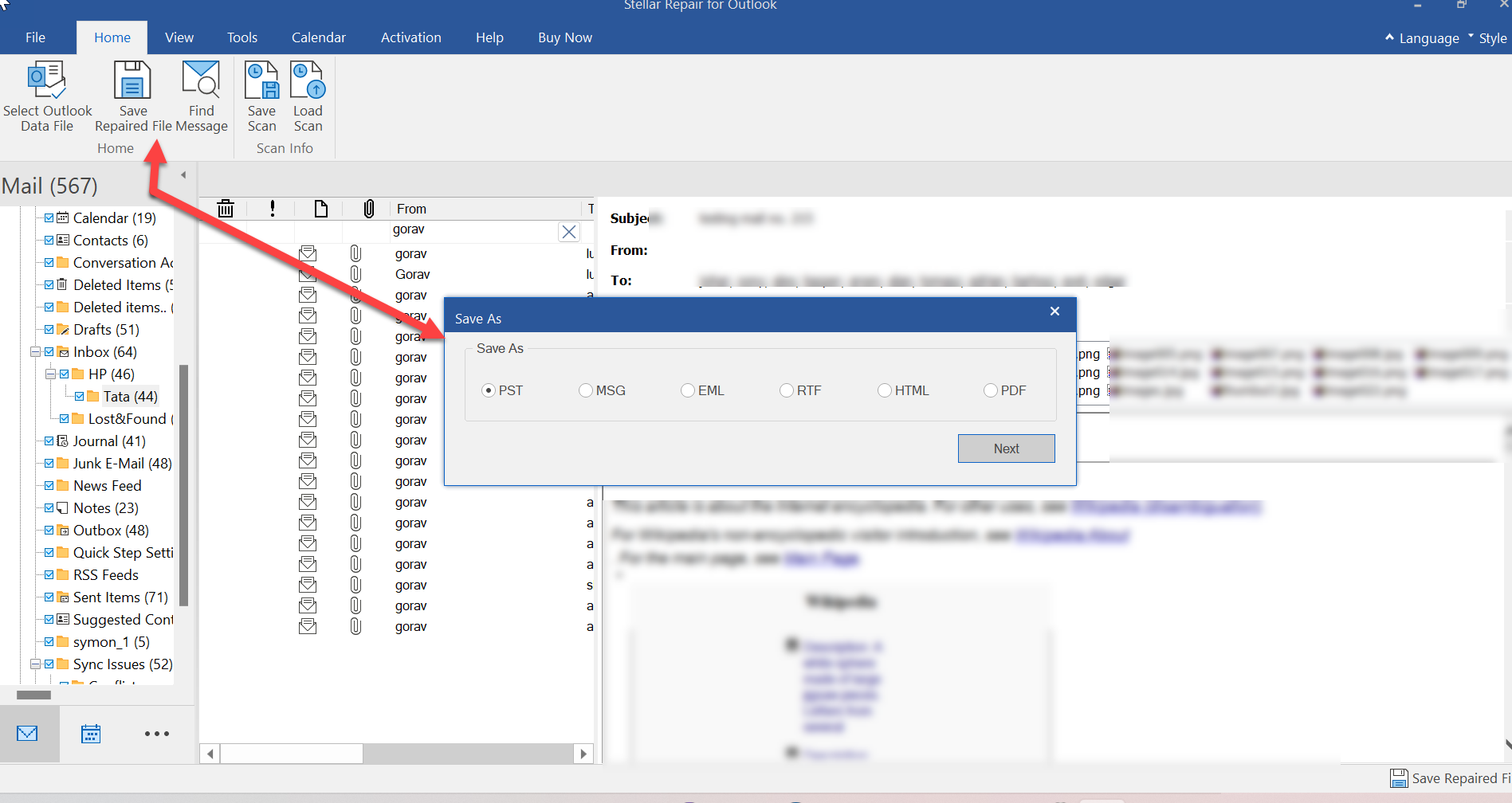
Save in Multiple File Formats: Save your newly repaired files in several file formats, including PST, EML, MSG, HTML, PDF, and RTF.
Quick Scan and Search: Locating your corrupted PST files will not be a problem. The “Find” option will automatically run a deep search of your hard drive to identify all PST files on it.
Resume Scan Option: The scanned information is saved to use at a later date. The “Resume” option lets you resume or continue a scan whenever you are ready.
Compatible with Multiple Windows Versions: In terms of system support, Stellar is compatible with several of the latest versions of Windows, including Windows 11, Windows 10, Windows 8.1, Windows 8, and Windows 7. The vast compatibility will come in handy if you need to recover PST files from older computers.
Plans & Pricing
When it comes to pricing, three plan options are available for Stellar Repair for Outlook. They include:
- Professional – $79 for a 1-Year Subscription
- Repairs corrupt PST files with 100% precision
- Recovers all mailbox items and deleted emails
- Advanced filter options for including and excluding emails
- Save recovered mailbox items in multiple file formats, including PST, PDF, HTML, RTF, MSG, and EML.
- Fast scan and save speed
- Technician – $149 for a 1-Year Subscription
- All the benefits of the Professional plan
- Split and compact restored PST files
- Save mail data in MBOX file format, including PST, PDF, HTML, RTF, MSG, and EML.
- Export recovered PST files to Microsoft Office 365 & Live Exchange
- Toolkit – $199 for a 1-Year Subscription
- All the benefits of the Professional and Technician plans
- Export recovered PST files to Live Exchange as well
- Convert OST files into PST files
- Extract data in multiple file formats
- Split, Compact, Merge, Undelete & Reset Outlook Password
For this reason, it is best to download the free trial version of Stellar Repair for Outlook. The free version lets you run scans and preview recovered email items. If the software functions meet your satisfaction, you can choose to subscribe to one of the three plans to save the recovered mail items.
System Requirements
Before installation, the Stellar Repair for Outlook software is designed to support the following minimum computer system specifications:
- Operating System: Windows 11, Windows 10, Windows 8.1 & Windows 8
- Processor: Intel compatible (x64 processor only)
- Memory: 4 GB or more (preferably 8GB)
- Hard Disk: At least 250 MB to store the installation files
If you bought your Windows PC within the last 10 years, then it should meet these requirements with no problems.
How to Repair the Corrupt PST Files
To get started, here are step-by-step instructions on the repair and recovery process when using Stellar Repair:
1) Download Stellar Repair for Outlook from the official website.
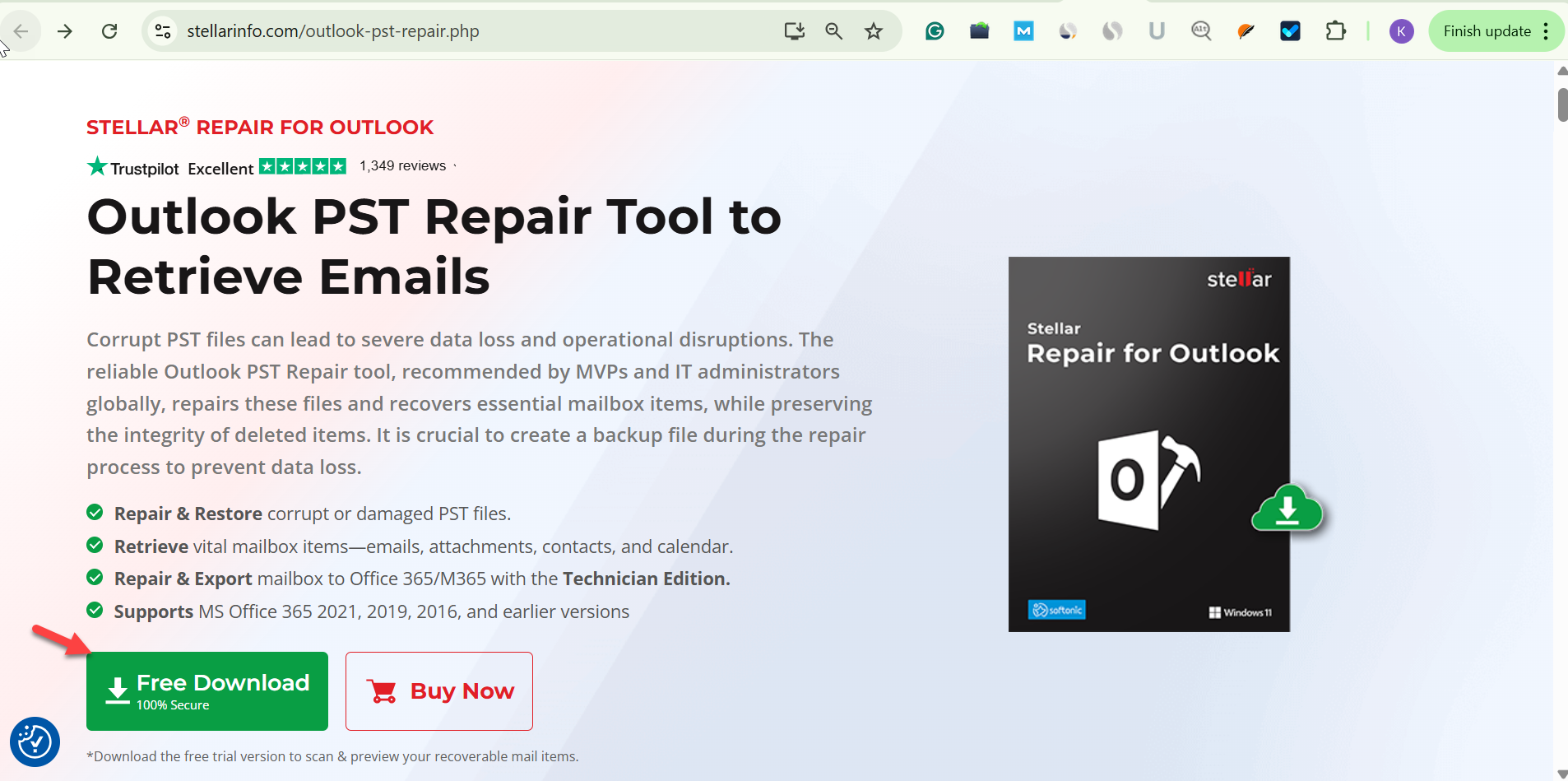
2) Run the executable setup file to begin installing the software on your Windows computer.
3) Follow the on-screen instructions by reviewing and accepting the License agreement and choosing the location for the software folder (which will store all the software files that run the software).
4) Once you complete the installation, you should see the software icon on your desktop interface. Double-click the icon to open the software.
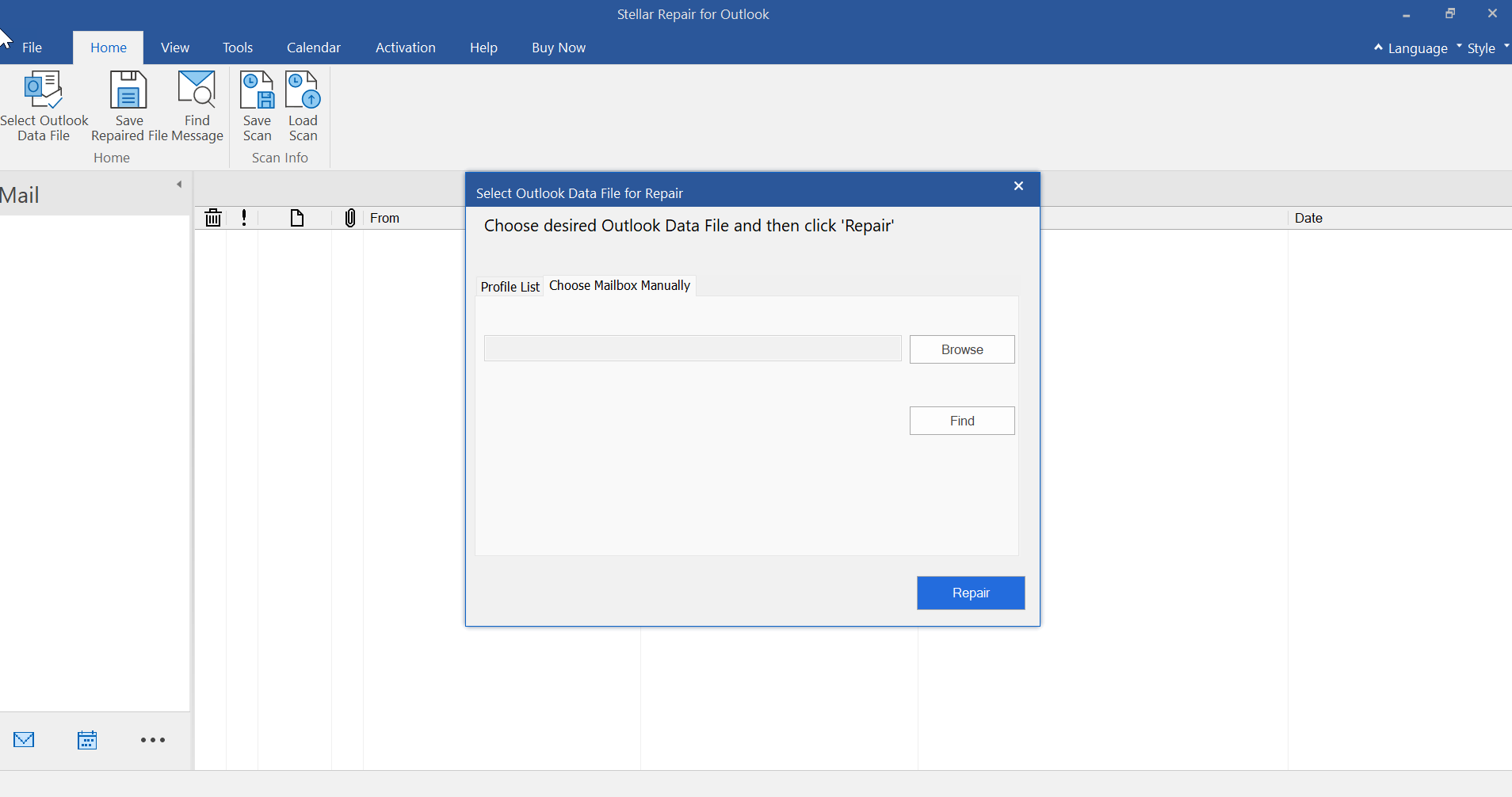
5) Click on the BROWSE option to select your corrupted PST files if you know the folder where they are located. If you don’t know the location, click the FIND option.
6) The FIND option lets you search an entire folder or hard drive for lost or missing PST files. Click “FIND” to begin searching in the location you selected.
7) You should now see a list of the corrupted PST files if you were successful in locating them. Click on the files you wish to repair. Now click on the REPAIR button to begin fixing them.
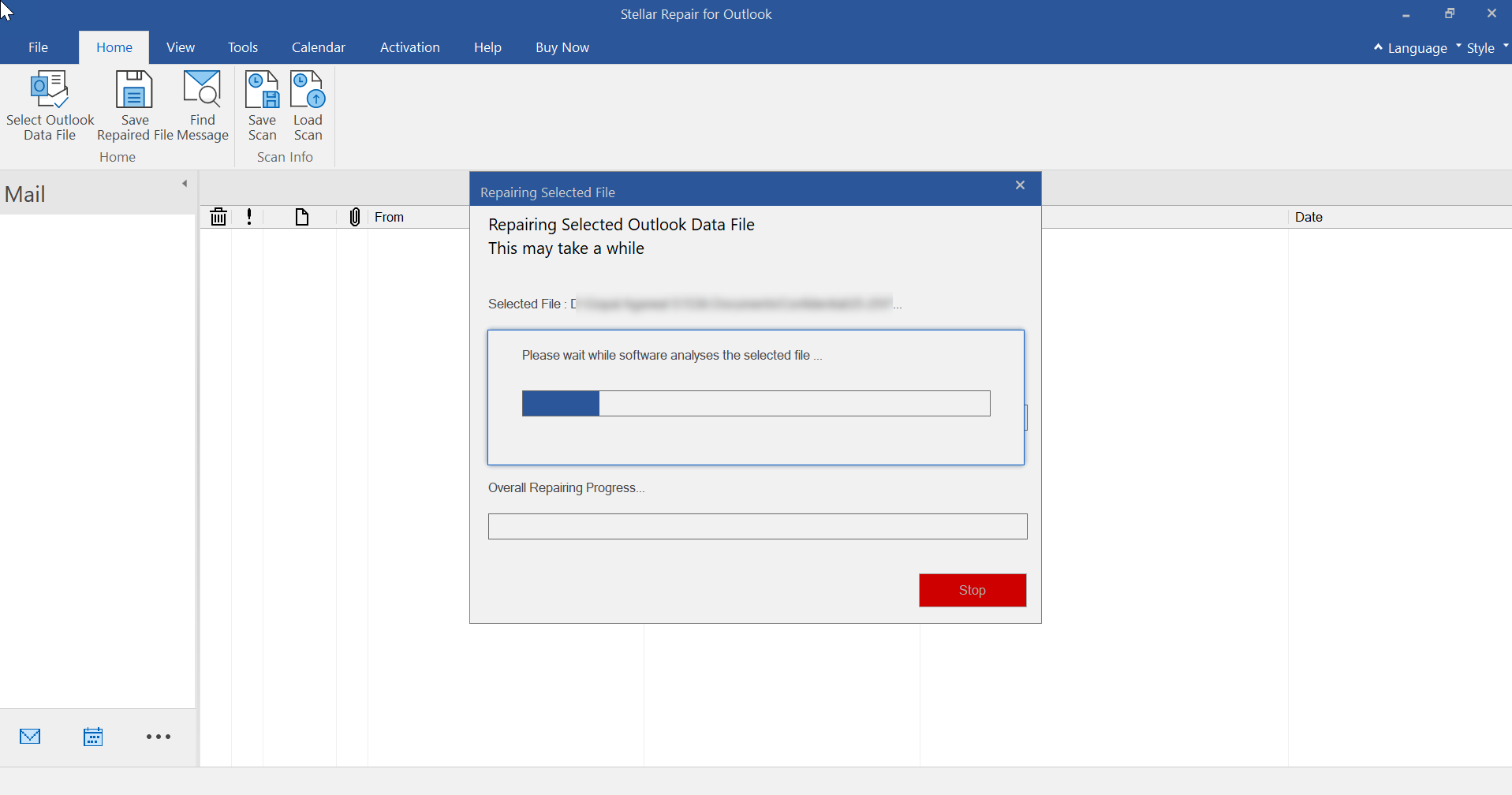
8) You will be able to preview the repaired PST files within minutes.
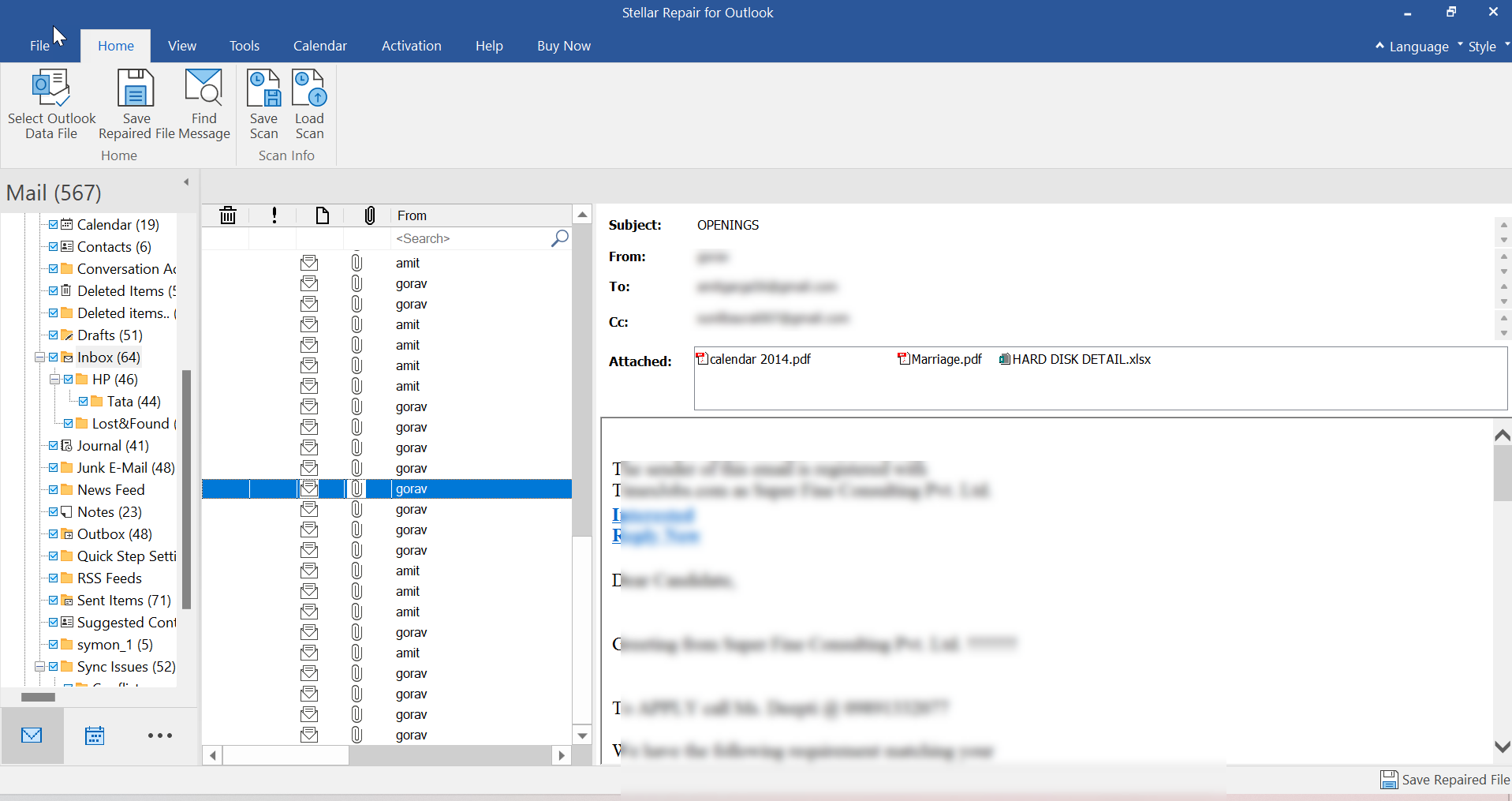
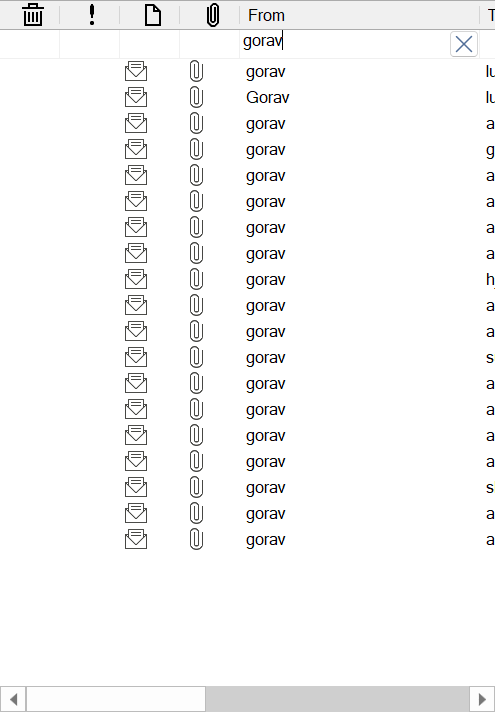
9) Click on the Search option to filter the particular emails.
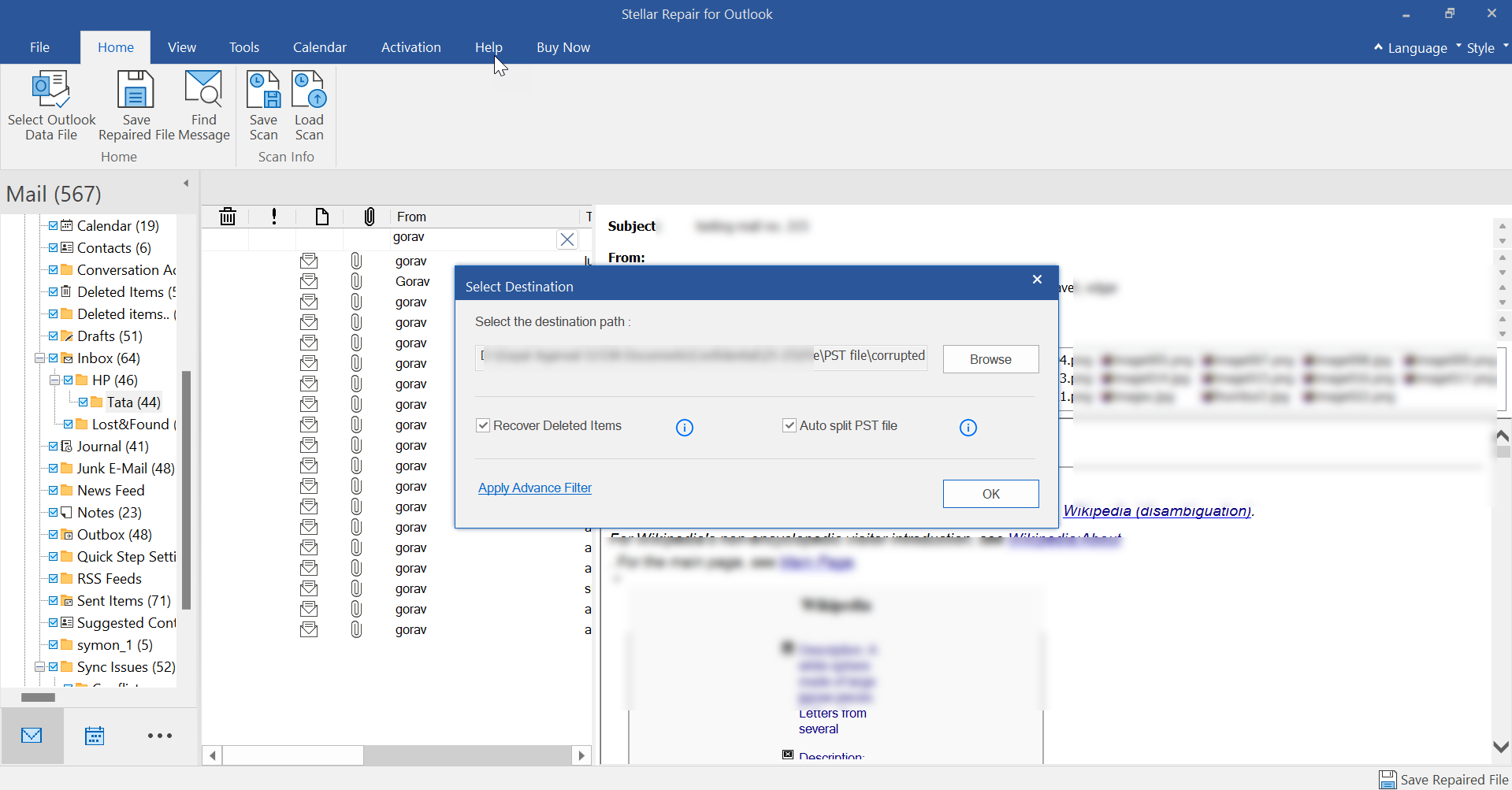
10) Click “Save Repaired File” from the Home menu. Choose your file format output preference, such as PST, MSG, EML, RTF, HTML, or PDF.
11) Choose the location where you want to save the file. Click OK.
The Verdict
In summary, Stellar Repair for Outlook is a reliable and important solution for repairing corrupted or damaged PST files. If you regularly use Microsoft Outlook for personal or commercial purposes, you will definitely find significant value in installing this software on your computer. The installation and operation of the software is fast and easy for anyone, regardless of technical experience.
The only limitation is that it is for Windows operating systems only. But since most Outlook users are probably on Windows computers, this limitation should not be a problem for most.