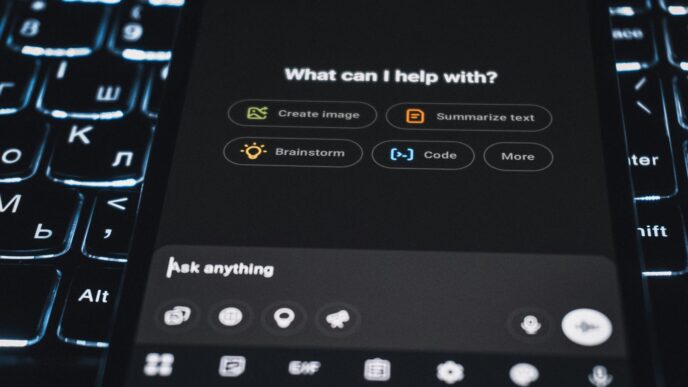

Thinking about trying out ChatGPT? It’s a pretty neat AI tool that can help with all sorts of things, from writing to coding. Getting started is usually pretty simple, but sometimes you hit a snag with the chat gpt login free download part. Don’t worry, though. This guide breaks down how to get your account set up, log in without a fuss, and make the most of what ChatGPT has to offer, even the free stuff. We’ll cover account creation, login tips, and how to fix common problems so you can start chatting with the AI in no time.
Key Takeaways
- The main way to access ChatGPT is through its official website at chat.openai.com/auth/login.
- You can create an account using your email and password, or by linking your Google, Microsoft, or Apple account for a quicker setup.
- If you run into login issues like ‘at capacity’ errors, try logging in during less busy times or consider upgrading for priority access.
- Many common login problems can be fixed by clearing your browser’s cookies and cache for the OpenAI site.
- The official ChatGPT mobile app is available for both Android and iOS devices, offering convenient access on the go.
Accessing ChatGPT: Your Free Download and Login Guide
Getting started with ChatGPT is pretty simple, really. It’s this AI tool that can chat with you, write stuff, answer questions, and a whole lot more. You don’t need to download anything special to use the basic version; it all happens right in your web browser. Think of it like using any other website, but this one talks back in a really smart way.
Understanding ChatGPT and Its Capabilities
So, what exactly can this thing do? Well, it’s pretty versatile. It can help you brainstorm ideas, draft emails, explain complex topics in simpler terms, write code, or even just keep you company with a conversation. It’s like having a super-knowledgeable assistant available 24/7. The free version gives you access to a capable model, but if you need the absolute latest and greatest, there’s a paid option called ChatGPT Plus that offers more advanced features and priority access.
Navigating the Official ChatGPT Website
The main place to go is the official OpenAI website. You’ll want to head over to chat.openai.com. This is where you’ll create your account, log in, and start chatting. It’s a pretty clean interface, so you shouldn’t get lost. Just look for the "Sign up" or "Log in" buttons, usually found at the top of the page. It’s important to make sure you’re on the correct site, chat.openai.com, to avoid any fake versions out there.
Exploring the Mobile Application
If you prefer using your phone, there’s good news! OpenAI has a dedicated mobile app for both iOS and Android. You can find it in your device’s app store. Downloading and installing the app is straightforward. Once it’s on your phone, you can log in using the same account details you’d use on the website. The app is designed to give you a smooth experience on smaller screens, making it easy to chat with ChatGPT wherever you are.
Creating Your ChatGPT Account
Getting started with ChatGPT is pretty straightforward, and the best part is, it’s free to create an account. You’ve got a few options when it comes to signing up, making it easy to pick the one that fits your routine.
Step-by-Step Account Creation Process
So, you want to jump into the world of AI chat? Awesome. The whole process usually takes just a few minutes, assuming everything goes smoothly with the verification steps. It’s designed to be quick so you can start chatting without too much delay. The main thing to remember is to use the official OpenAI website to avoid any sketchy look-alike sites.
Here’s a general rundown of what to expect:
- Head to the Sign-Up Page: You’ll start by going to the official ChatGPT login page and looking for the "Sign up" option. This is where the magic begins.
- Choose Your Method: You’ll see a few ways to create your account.
- Verification: Depending on your chosen method, you might need to verify your email and, importantly, your phone number. This phone step is mostly to make sure you’re a real person and not some automated program trying to create tons of accounts.
- Fill in Details: You’ll likely need to provide your name.
- Confirmation: Once everything is verified, you’re usually logged in automatically, ready to go.
Email and Password Registration
This is the classic way to set up an account. You’ll use your email address and create a password. It’s a familiar process for most people online.
- Go to the sign-up page on the official ChatGPT website.
- Enter your email address when prompted.
- You’ll get an email from OpenAI; click the link inside to confirm your address.
- Next, you’ll need to create a password. Make it a good one – something strong that you don’t use everywhere else.
- After that, you’ll be asked for your name.
- Finally, there’s the phone verification step. You’ll enter your phone number, and they’ll send you a code to confirm it’s really you.
Utilizing Google, Microsoft, or Apple for Sign-Up
If you’d rather not create yet another username and password combo, you can use your existing Google, Microsoft, or Apple accounts. This is often quicker and can add an extra layer of security since you’re already logged into those services.
- On the sign-up page, look for the buttons that say "Continue with Google," "Continue with Microsoft," or "Continue with Apple."
- Click the one that matches your preferred account.
- You’ll be redirected to that service’s login page to authorize the connection.
- Follow the prompts to grant permission.
- Once authorized, you’ll be taken back to ChatGPT, and your account will be created using the information from your chosen service. You might still need to do a phone verification step, even with these methods.
Logging Into Your ChatGPT Account
Alright, so you’ve got your account all set up, and now it’s time to actually get into ChatGPT. It’s pretty straightforward, but sometimes little hiccups can happen, so let’s cover how to get logged in smoothly.
Direct Login URL for Seamless Access
The fastest way to get into your ChatGPT account is by using the direct login page. Forget hunting around the main OpenAI site; just head straight to chat.openai.com/auth/login. Seriously, bookmark this link. It saves you a few clicks every time. Once you’re there, you’ll see options to log in with your email and password, or you can use your Google, Microsoft, or Apple account if you set that up during registration. It’s all about making it quick and easy to start chatting.
Troubleshooting Common Login Issues
Sometimes, you might run into a snag. It happens. If you’re staring at a login screen that just won’t budge, here are a few things to check:
- Check Your Credentials: Double-check that you’re typing your email and password correctly. Make sure Caps Lock is off and there are no stray spaces before or after your email address. It sounds simple, but it’s a common mistake.
- Browser Glitches: Your browser might be holding onto old information. Try clearing your browser’s cookies and cache. Sometimes, just opening an incognito or private browsing window can fix things instantly. If that works, you know it’s a cookie issue.
- Server Load: Occasionally, ChatGPT might be experiencing high traffic, leading to login problems. If you see an "at capacity" message, your best bet is to wait a bit and try again later. Patience is key here.
- Internet Connection: A shaky internet connection can also mess with logins. Try switching to a different network if possible, or just restart your router.
Password Reset Procedures
Forgot your password? No worries, it’s a common occurrence. Here’s how to get back into your account:
- Go to the login page (chat.openai.com/auth/login).
- Enter the email address you used to sign up and click "Continue."
- On the next screen, look for a "Forgot password?" link and click it.
- You’ll likely need to confirm your email address again.
- Click the button to send a password reset email.
- Check your inbox (and your spam folder, just in case!) for an email from OpenAI.
- Click the link provided in the email and follow the prompts to create a new, strong password. Make sure it’s something unique you don’t use anywhere else.
Once you’ve reset it, you should be able to log in with your new password. If you don’t get the email, double-check you entered the correct email address, or try requesting the reset again after a few minutes.
Maximizing Your ChatGPT Experience
So, you’ve got your ChatGPT account set up and you’re ready to start chatting. That’s great! But how do you get the most out of it, especially if you’re sticking with the free version? It’s not just about asking questions; it’s about asking the right questions and understanding what’s possible.
Understanding Free vs. Paid Tiers
Let’s be real, the free version of ChatGPT is pretty amazing. You get access to a powerful AI that can help with tons of things. However, there are some differences if you decide to go for a paid plan, like ChatGPT Plus or Pro. The main thing to know is that paid users often get priority access, meaning you’re less likely to see that annoying "at capacity" message when everyone else is trying to use it. You also tend to get access to newer, faster models sooner. For most people just starting out, the free tier is more than enough to get a feel for what ChatGPT can do. You can always upgrade later if you find yourself needing more.
Leveraging Advanced Features
Even with the free version, there are ways to get better results. The key is in how you phrase your requests. Instead of just asking a simple question, try giving ChatGPT more context. For example, instead of asking "Write a story," try "Write a short, funny story for kids about a talking squirrel who loses his acorns." The more specific you are, the better the output will be. You can also ask it to adopt a certain tone or style. If you’re working on something creative, you might say, "Explain quantum physics like I’m five years old," or "Write a formal email requesting a refund." It’s like giving directions – the clearer they are, the better the destination.
Here are a few ways to get more out of your prompts:
- Provide Background: If you’re asking for help with a specific task, briefly explain what you’re trying to achieve.
- Specify Format: Do you need a list, a paragraph, a table, or code? Tell ChatGPT what you want.
- Set Constraints: Mention word count, tone, or any specific points you want included or excluded.
- Iterate: Don’t be afraid to ask ChatGPT to revise its answer. You can say things like, "Make that shorter," or "Explain that part in more detail."
Optimizing Your Free ChatGPT Usage
When you’re using the free version, timing can sometimes be your friend. If you’re hitting those capacity limits, try using ChatGPT during off-peak hours. Early mornings or late nights might be less busy than midday. Also, keep your conversations focused. While ChatGPT remembers previous messages in a chat, long, rambling conversations can sometimes lead to less precise answers. Starting a new chat for a new topic can help keep things clear. And don’t forget about the built-in search function within your chat history; it’s a handy way to find past conversations without having to scroll endlessly. If you’re looking for ways to integrate ChatGPT into your workflow, you might want to explore tools like Zapier, which can connect it to thousands of other apps [a903]. This can automate tasks and make your AI interactions even more productive.
Troubleshooting ChatGPT Login Problems

Sometimes, getting into ChatGPT can feel like trying to unlock a stubborn door. You put in your details, hit enter, and… nothing. Or worse, you get stuck in a loop. Don’t worry, most of these issues have pretty simple fixes. Let’s break down what might be going wrong and how to get you back to chatting with the AI.
Resolving ‘At Capacity’ Errors
This is probably the most common hiccup, especially for free users. You’ll see a message saying something like, "ChatGPT is currently at capacity. Please try again later." It basically means too many people are trying to use it at the same time.
- Wait it out: The easiest fix is just to try again later. Weekends and evenings tend to be busier. Mid-morning on a weekday might be your best bet.
- Consider upgrading: If you need consistent access, the paid ChatGPT Plus subscription offers priority access, meaning you’re less likely to hit this limit.
- Check status pages: Sometimes, the problem isn’t just high demand, but an actual outage. Websites like downdetector.com can show you if OpenAI’s services are having widespread issues.
Addressing Login Loops and Reloading Pages
Ever put in your password, click login, and then just get sent back to the login screen without any error message? That’s a login loop, and it’s usually down to your browser holding onto old information.
- Clear your browser’s cookies and cache: This is the number one fix. Go into your browser settings, find the privacy or history section, and clear the data. It’s best to focus on clearing data specifically for OpenAI’s site if your browser allows it.
- Try a different browser: If clearing cookies doesn’t work, try logging in with a different web browser (like Chrome, Firefox, or Safari). This helps determine if the issue is with your primary browser’s settings.
- Use an Incognito/Private Window: Open a private browsing window and try logging in there. If this works, it strongly suggests that cookies or extensions in your regular browser are the culprit.
- Disable browser extensions: Some extensions, especially ad blockers or privacy tools, can interfere with login processes. Try disabling them one by one to see if one is causing the problem.
Ensuring Secure Account Practices
Keeping your account safe is just as important as getting logged in. Here are a few pointers:
- Use strong, unique passwords: Don’t reuse passwords from other sites. A password manager can help you create and store complex passwords.
- Enable Two-Factor Authentication (2FA): If available, turn this on. It adds an extra layer of security, usually requiring a code from your phone.
- Be wary of phishing: Never click on suspicious links asking for your ChatGPT login details. Always go directly to the official OpenAI website (chat.openai.com).
- Log out on shared computers: If you use ChatGPT on a public or shared computer, make sure to log out when you’re finished. Just click your profile icon and select ‘Log out’.
ChatGPT on Mobile Devices
So, you want to get your AI fix while you’re on the go? Good news! ChatGPT isn’t just for your desktop anymore. You can totally use it right from your phone or tablet. It’s pretty handy when you’re out and about and need a quick answer or want to brainstorm some ideas.
Downloading and Installing the Mobile App
OpenAI has made it super simple to get the official app. You can find it on both the Google Play Store for Android users and the App Store for iPhones. Just search for "ChatGPT" and look for the one developed by OpenAI. It’s free to download, and once it’s on your device, you’ll have access to all the latest features, including things like image generation. Plus, it syncs up with your account, so your chat history is available no matter which device you’re using.
Logging In via Mobile Browser
Don’t want to download another app? No problem. You can still access ChatGPT through your phone’s web browser. Just head over to the official ChatGPT website. The site is mobile-friendly, so you can log in with your existing account details – whether that’s your email and password or by using your Google, Microsoft, or Apple account. It works just like it does on a computer, letting you chat and get information wherever you have an internet connection.
Mobile App Features and Benefits
Using the dedicated mobile app comes with some nice perks. For starters, it’s designed specifically for your phone, making the interface easy to use. You get the same powerful AI capabilities as the web version, but in a more compact package. Think of it as having a super-smart assistant right in your pocket. You can start a conversation on your laptop and pick it right up on your phone later, thanks to the syncing feature. It’s a really convenient way to stay connected with the AI’s capabilities throughout your day.
Wrapping Up Your ChatGPT Journey
So there you have it. Getting into ChatGPT is pretty straightforward once you know the steps. We’ve gone over how to sign up, log in using different accounts, and even what to do if you hit a snag. Remember, the basic version is free and really capable, but there are paid options if you need more. Now that you’re all set, go ahead and explore what this AI can do for you. It’s a pretty neat tool for all sorts of tasks, from writing help to just figuring things out. Happy chatting!