To develop and manage web applications on the local system, most developers use XAMPP. It is an open-source local web server environment that not only helps to run the PHP applications but also allows to add and manage MySQL database. However, while accessing MySQL Server using XAMPP, you may come across various errors and issues. One of the errors recently reported by users is “MySQL shutdown unexpectedly.”
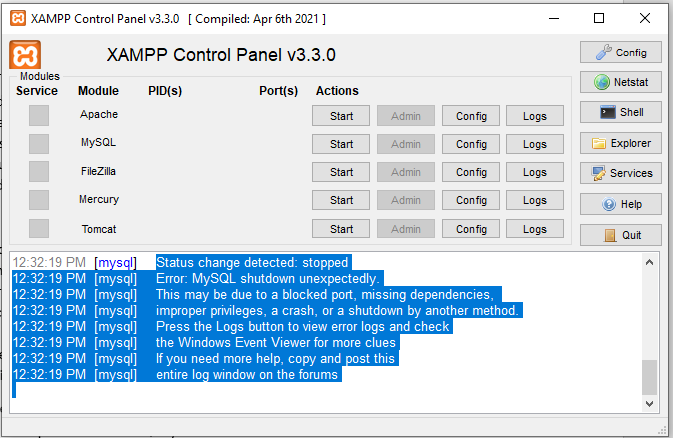
This error prevents MySQL Server from starting, which can disrupt your workflow. Many reasons can cause this error, as suggested in the error message, such as:
- A blocked port
- Missing dependencies
- Improper privileges
- Improper shutdown of XAMPP
However, the error can also occur due to corruption in the InnoDB storage engine database-related files, incorrect configuration settings, incomplete XAMPP/MySQL Server updates, etc. Here, in this post, we will explore the effective tips to fix the MySQL shutdown unexpectedly error in XAMPP. If the error has occurred due to InnoDB database files or if the MySQL database becomes corrupted as a result of this error, we will introduce a reliable MySQL repair tool.
Tips to Troubleshoot and Resolve ‘MySQL Shutdown Unexpectedly’ Error in XAMPP
If you fail to access MySQL Server, then first follow the below basic workarounds.
- Make sure you’re opening XAMPP with admin permissions before you start the MySQL service.
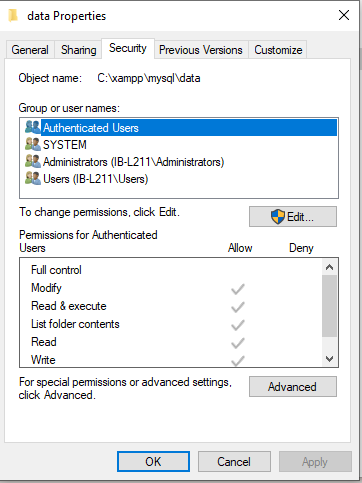
- Check the properties of MySQL data folder in XAMPP folder. For this, right-click on the data folder and select Properties.
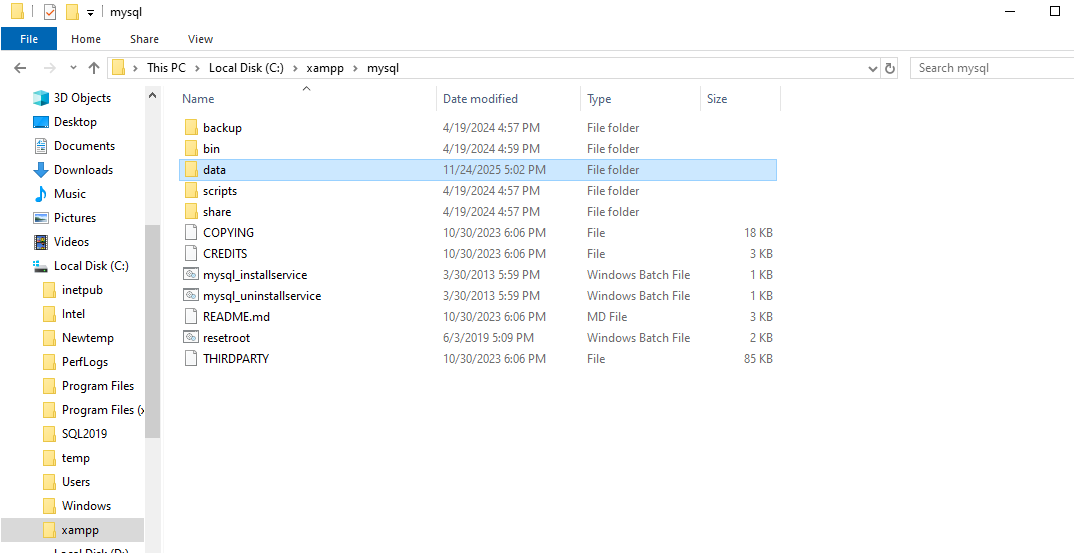
In the Properties window, click Security and make sure users have the following permissions:
- Full Control
- Modify
- Read
- Write
- List folder contents
- Read & Execute
- The MySQL shutdown unexpectedly error can occur if the service is in conflict with another program. You can reset the service. For this, first stop the service (type services.msc in the Run window and press Enter). Then, restart it via the XAMPP service.
If, after following these workarounds, the error still persists, then follow the below troubleshooting tips.
Tip 1 – Change MySQL Port
Most of the time, the MySQL shutdown unexpectedly error occurs if another application is using the MySQL Server port, i.e., 3306. It usually appears when multiple instances of MySQL are running on your system. To resolve this, check and fix MySQL port conflict.
To check the port number, use the Netstat option in the XAMPP control panel. If you found that the port number is already in use by another program, change it by using the Config option or using notepad (manually). Here’s how:
- In the XAMPP Control Panel, click Config.
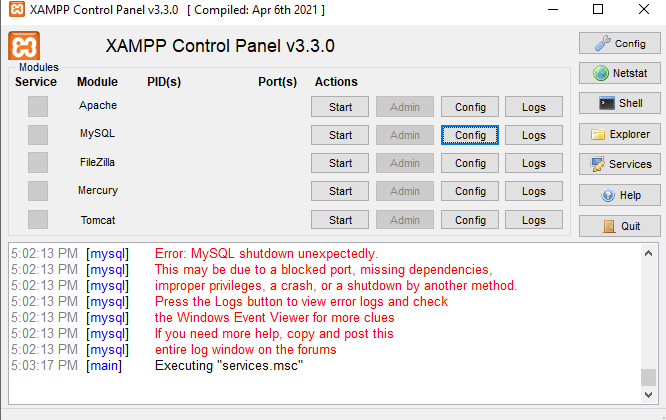
- In the Configuration (my.ini) file, find port number 3306 and then replace it with port number 3307.
- Save the applied changes and close the configuration file.
Alternatively, you can open the notepad (manually) from the XAMPP folder in Windows explorer, to edit the MySQL configuration file. Here’s how to do so:
- In Windows explorer, go to XAMPP > mysql > bin > my.ini.
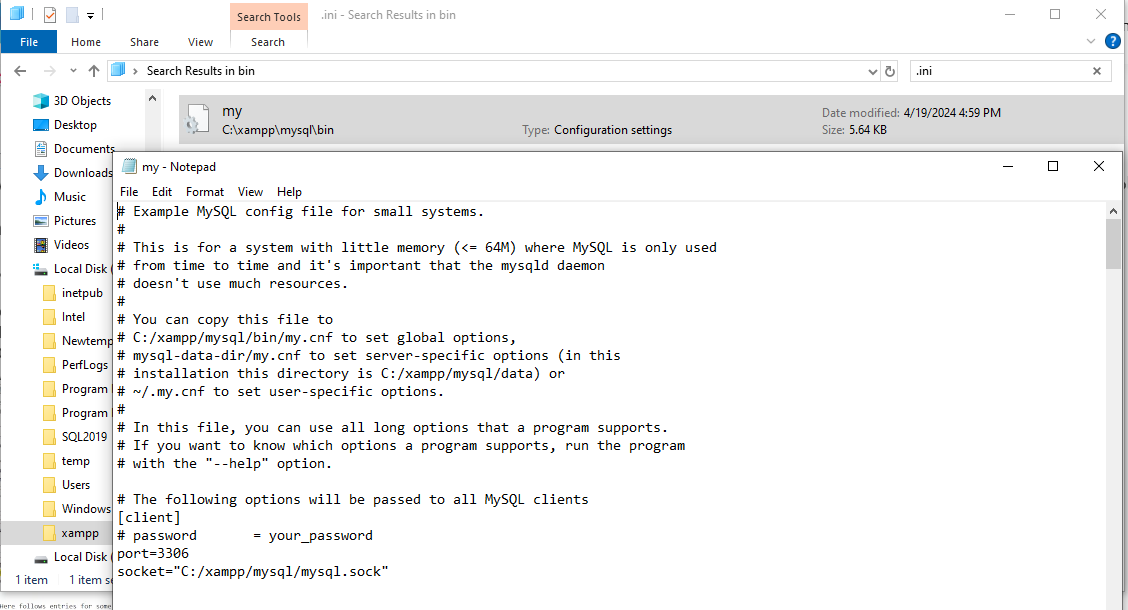
- In the configuration file in Notepad, change the server port number and save the applied changes.
- Next, try to start MySQL in XAMPP.
Tip 2 – Reset the InnoDB Log Files
If the XAMPP Server fails to read the transaction logs and tablespace data, it may throw the MySQL shutdown unexpectedly error. This information is stored in ibdata1 and ib_logfile0 files. If the corruption in InnoDB files has caused the error, then you can reset them. To reset the log files from the configuration file is quite easy. Just delete or rename those files, the server will recreate the fresh ones.
Tip 3 – Run MySQL Server using Shell Command in XAMPP
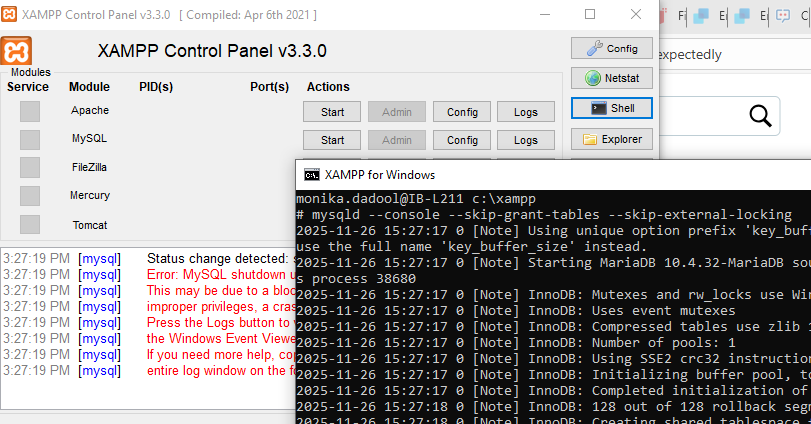
Running the following shell command can help run the MySQL Server in XAMPP.
mysqld –console –skip-grant-tables –skip-external-locking
The steps to use this command are:
- In XAMPP Control Panel, click Shell option.
- Under XAMPP for Windows PowerShell, run the command as shown below:
What to do if the MySQL Database gets Corrupted?
The MySQL database and its related files can get corrupted or damaged in case of unexpected shutdown of the server. If you have a backup, then you can restore the database backup file. To perform this, go to C:\xampp\mysql, rename the existing data folder to data_old, create a new data folder, and copy the contents from the backup folder into it. Restart XAMPP as administrator and try starting MySQL again.
If you fail to restore the backup, then you can even use the innodb_force_recovery option to force the MySQL Server to start. Next, use the dump and reload method to repair the InnoDB tables. This method can help you repair MySQL tables, but it only resolves minor corruption issues. Also, it may cause data loss, especially if you set the value of the InnoDB force recovery greater than 4 to start the server.
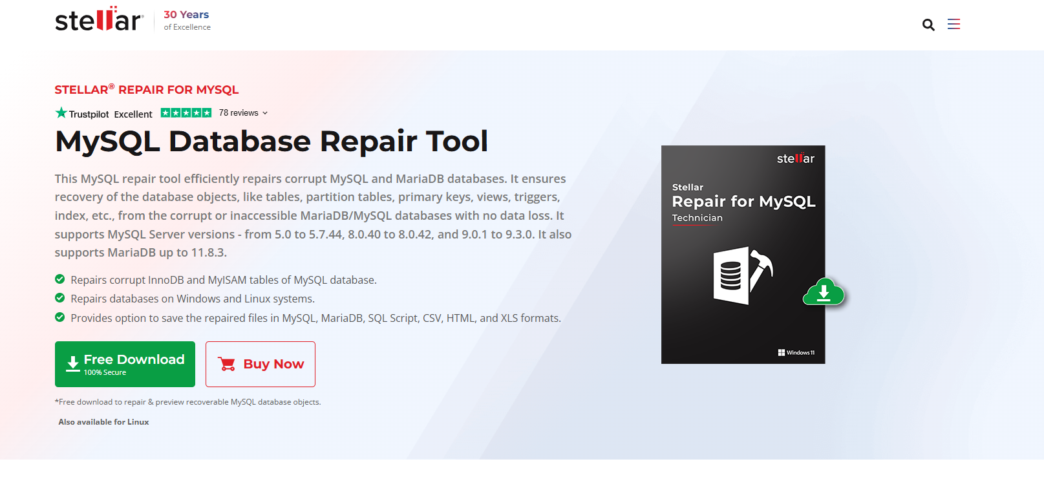
To repair highly corrupted MySQL database of any size with complete integrity, the best option is to opt for a professional MySQL repair tool. One such tool is Stellar Repair for MySQL. It excels in repairing MySQL tables created in InnoDB and MyISAM storage engines. Also, you don’t need to be a database expert to use it effectively as it has a user-friendly interface. It supports repairing the database on both Linux and Windows systems.
Conclusion
In this article, we have seen how to resolve the MySQL shutdown unexpectedly error in XAMPP. If the error has occurred due to corrupt or inaccessible InnoDB data files, then rebuild them by restoring the backup or dump and reload them using force recovery. To repair the MySQL tables quickly and smoothly without data loss, you can use a professional MySQL repair tool, like Stellar Repair for MySQL. It can repair MySQL database with complete integrity and help you resolve issues related to corruption, without delays and with no complexity.