We all want our phones to last as long as possible on a single charge, right? It’s frustrating when your phone dies halfway through the day. Luckily, there are some simple things you can do to get more out of your phone’s battery. It’s not about fancy tricks, just smart habits. Let’s look at how to get better battery life in phones, especially for 2025.
Key Takeaways
- Try to avoid charging your phone from empty to full all the time. Instead, give it smaller top-ups throughout the day.
- Keeping your phone charged between 30% and 80% seems to be better for the battery’s long-term health.
- Dimming your screen, using dark mode, and setting a shorter screen timeout can make a big difference.
- Turning off things like Wi-Fi, Bluetooth, and location services when you don’t need them saves power.
- Heat is bad for your battery. Try not to charge your phone in hot places or while doing demanding tasks like gaming.
Optimizing Charging Habits for Extended Battery Life
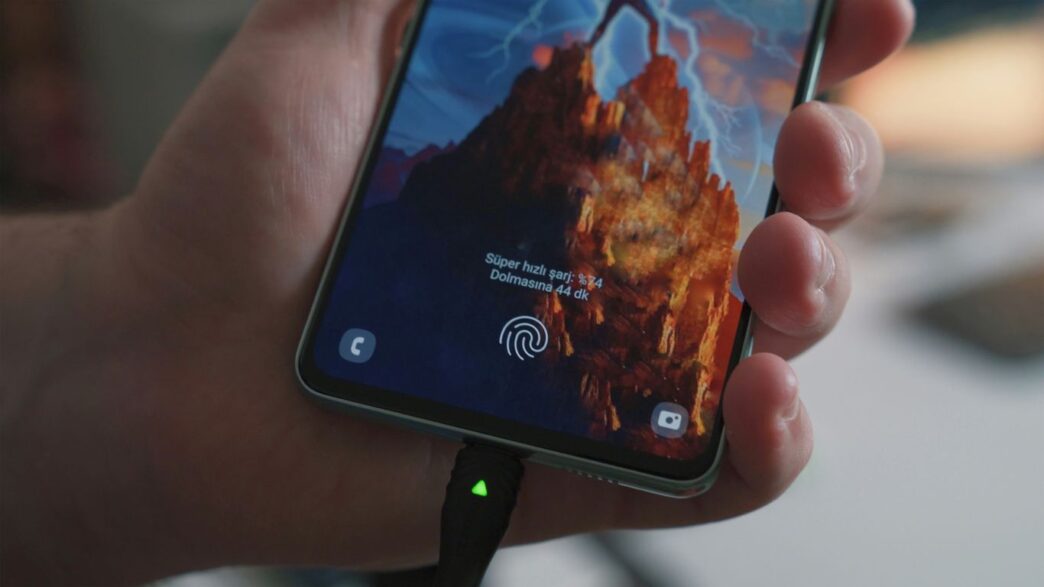
Alright, let’s talk about how you charge your phone. It might seem like a small thing, but the way you juice up your device can actually make a pretty big difference in how long that battery lasts over the years. We’re not talking about magic here, just some simple adjustments that can help your phone’s battery stay healthier for longer.
Embrace Partial Charges Over Full Cycles
So, the old advice used to be "charge it to 100% every time." Turns out, that’s not really the best approach for modern phone batteries, the kind that are built right in. Think of it like this: constantly pushing your battery to its absolute limit, from zero to full and back again, puts a bit more stress on it. Instead, it’s generally better to do smaller, more frequent top-ups. If you can, try to avoid letting your phone drop all the way to empty. Just plugging it in for a bit when it gets down to, say, 30% or 40% is often kinder to the battery than waiting until it’s completely dead.
Understand the 80% Charging Threshold
This is a bit of a sweet spot for lithium-ion batteries. Keeping your phone charged between roughly 20% and 80% can really help reduce wear and tear. Many newer phones actually have a setting that lets you cap the charge at 80% or 90%. It might seem weird not to charge to 100%, but that last 20% can be the most taxing part for the battery. If your phone has this feature, consider giving it a try. It’s a simple way to take some of the pressure off the battery cells.
Minimize Overnight and Continuous Charging
We’ve all done it – plug the phone in before bed and wake up to a full 100%. While modern phones are smart enough not to "overcharge" in the old sense, leaving your phone plugged in all night, or for extended periods when it’s already full, isn’t ideal. When a battery is at 100%, it’s under a higher voltage stress. Plus, keeping it constantly topped up can generate a little extra heat, and heat is definitely not a battery’s best friend. If you can, try to unplug your phone once it’s reached a comfortable charge level, rather than letting it sit plugged in for hours after it’s full.
Managing Screen Settings to Conserve Power
Your phone’s screen is probably the biggest battery hog, so tweaking its settings can make a real difference. It’s easy to forget just how much power that bright display is sucking up, especially when you’re just casually scrolling.
Dimming Your Display for Battery Savings
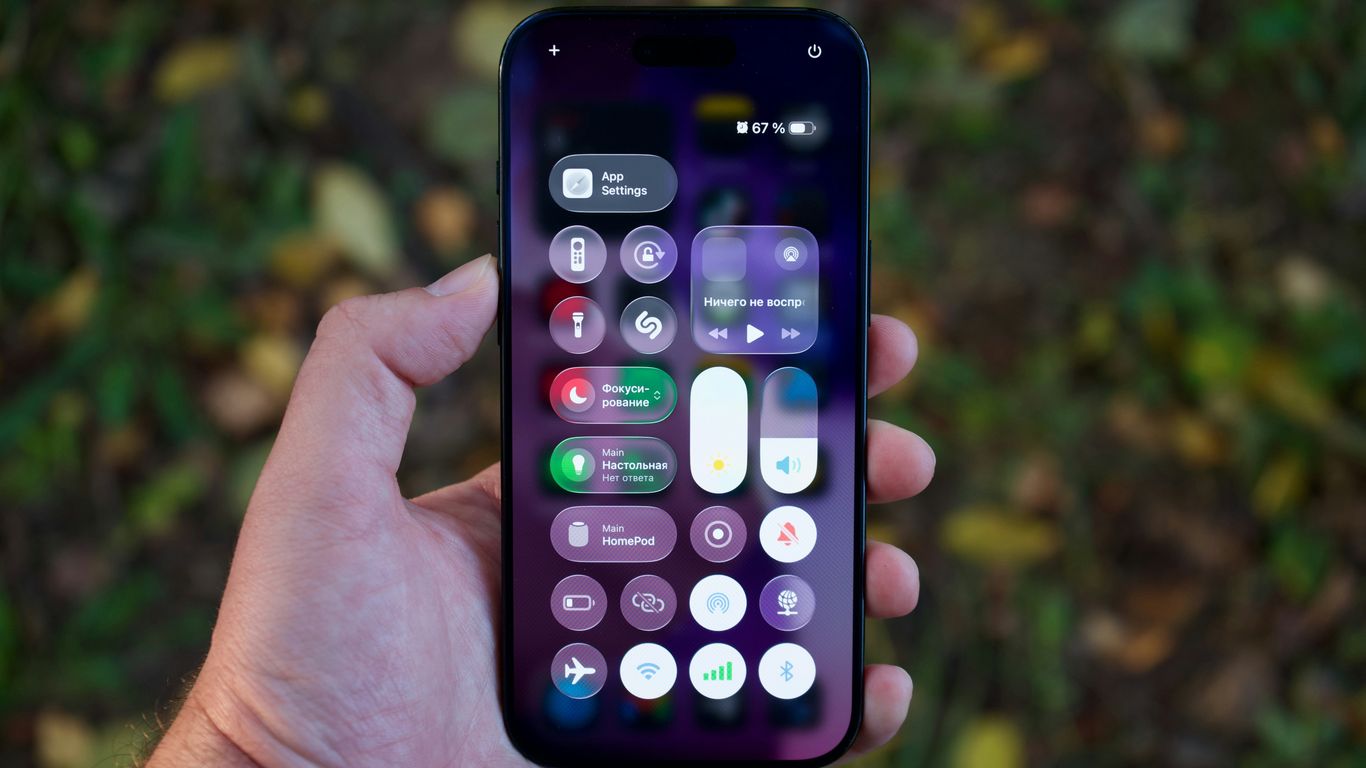
This one’s pretty straightforward. The less bright your screen is, the less power it uses. Most phones let you adjust brightness in a couple of ways. You can usually find a slider in your quick settings menu – just swipe down from the top of the screen. You can also go into the main Settings app, usually under ‘Display’ or ‘Screen,’ to find brightness controls. Many phones also have an ‘Auto-brightness’ or ‘Adaptive brightness’ feature. While it sounds helpful, it can sometimes crank the brightness higher than you actually need, especially in well-lit rooms. Turning this off and manually setting a comfortable, lower brightness level can save you a good chunk of battery.
Leveraging Dark Mode Effectively
If your phone has an OLED or AMOLED screen (most modern phones do), dark mode is your friend. These screens turn off individual pixels when displaying black. So, when you use dark mode, a lot of those pixels are simply off, using way less power than they would if they were lit up for a light theme. It’s not just about aesthetics; it’s a genuine battery saver. You can usually find the dark mode setting in the Display or Appearance section of your Settings app. Many phones even let you schedule dark mode to turn on automatically at certain times, like in the evening, which is super convenient.
Adjusting Screen Timeout Settings
Think about how often you pick up your phone, unlock it, and then get distracted, leaving the screen on for a minute or two longer than necessary. That time adds up! Shorter screen timeout settings mean your phone’s display will turn off automatically after a shorter period of inactivity. You can typically find this setting under ‘Display’ or ‘Screen Timeout’ in your Settings. Setting it to 30 seconds or even 15 seconds can prevent a lot of wasted battery life. It might take a tiny bit of getting used to, but your battery will thank you for it.
Controlling Connectivity for Enhanced Battery Longevity
You know, it’s easy to forget that all those little signals your phone is constantly sending and receiving actually use up power. We’re talking about Wi-Fi, cellular data, Bluetooth, GPS – they’re all working behind the scenes, and sometimes, they’re working harder than they need to. Being smart about how you manage these connections can make a real difference in how long your battery lasts.
Strategic Use of Airplane Mode
Airplane mode gets a bad rap sometimes, usually because people think it’s only for when you’re actually on a plane. But honestly, it’s a super handy tool for saving battery in a lot of situations. Think about it: when you’re in an area with really spotty cell service, your phone is basically working overtime trying to find a signal. It’s constantly searching, which drains the battery pretty fast. Turning on airplane mode in these dead zones stops that frantic searching. It’s also great if you’re in a meeting or trying to sleep and don’t want to be bothered by calls or texts. You can usually turn on Wi-Fi and Bluetooth while airplane mode is active, so you can still connect to Wi-Fi if it’s available, which is often more power-efficient than cellular data anyway.
Managing Cellular Network Preferences
This one’s a bit more technical, but it’s worth understanding. Your phone can connect to different types of cellular networks – like 5G, 4G LTE, and older 3G or 2G. While 5G is faster, it can also be a bigger battery hog, especially if the signal isn’t strong. If you’re not actively downloading huge files or streaming high-definition video, you might not even notice the difference between 5G and 4G. So, if you’re looking to save some juice, consider changing your phone’s network settings to prefer 4G LTE over 5G. You can usually find this in your phone’s ‘Network & Internet’ or ‘Mobile Network’ settings. It’s a simple tweak that can help your battery breathe a little easier, particularly in areas where 5G coverage is inconsistent.
Limiting Location Services Access
Location services, or GPS, is another big one for battery drain. Apps use it for all sorts of things – maps, finding nearby restaurants, checking in on social media. But how often do you really need an app to know exactly where you are, all the time? Probably not as often as you think. You can go into your phone’s privacy settings and see which apps have access to your location. For most apps, ‘While Using the App’ is perfectly fine. For others, you might even be able to set it to ‘Never’. It’s a good idea to review this list periodically. You might be surprised by how many apps have permission to track you, and turning off that constant tracking can really help extend your battery life.
Reducing Battery Drain from Background Activity
You know how your phone sometimes feels warm even when you’re not actively using it? That’s often because apps are doing stuff in the background. They might be checking for updates, syncing data, or just generally running without you even knowing. This constant activity can really eat into your battery.
Disabling Always-On Display Features
That little clock or notification icon that stays lit up on your screen even when it’s "off"? That’s Always-On Display (AOD). It’s handy, sure, but it’s also a constant drain. If you’re trying to squeeze every last bit of juice out of your battery, turning this off is a good move. You can usually find this setting under your display or lock screen options. It might seem like a small thing, but over a whole day, it adds up.
Managing Push Notifications
Every time your phone buzzes or lights up with a notification, it uses a bit of power. Now, imagine getting dozens or even hundreds of these a day. It’s a lot! Think about which apps really need to tell you something the second it happens. For most apps, you can probably get away with checking them manually when you have time. Go into your notification settings and turn off alerts for apps that aren’t time-sensitive. You’ll get fewer interruptions and save some battery.
Utilizing Power Saving Modes
Most phones have built-in power-saving modes, and they’re pretty effective. When you turn one on, your phone usually does a few things automatically: it might dim the screen, slow down the processor a bit, and, importantly, limit what apps can do in the background. Some phones even have an "Extreme" power-saving mode that really locks things down, only allowing essential functions. It’s not always the most convenient way to use your phone, but if you’re running low and need it to last, these modes are a lifesaver. You can often set them to turn on automatically when your battery hits a certain percentage, like 20%.
Understanding Environmental Factors Affecting Battery Health
So, we’ve talked about charging habits and screen settings, but what about the world around your phone? Turns out, where you keep your phone and what you do with it can really mess with its battery.
The Impact of Heat on Battery Degradation
Heat is probably the biggest enemy of your phone’s battery. Think of it like this: when a battery gets too hot, it gets stressed out, and that makes it lose its ability to hold a charge way faster than it should. Keeping your phone cool is arguably the most important thing you can do for its long-term health. According to some research, a battery kept between 25 and 40 degrees Celsius (that’s about 77 to 86 Fahrenheit) can keep around 85% to 96% of its power after a year. But if it regularly gets above 40°C (104°F), especially when it’s fully charged, you might only have 65% left after that same year. And if it hits 60°C (140°F)? You’re looking at losing that much capacity in just three months. Yikes.
Here’s a quick rundown of what temperatures do:
- Ideal Range: Below 40°C (104°F) is best for battery cycle life.
- Problematic Range: Consistently above 40°C (104°F) speeds up degradation.
- Extreme Danger: Temperatures around 60°C (140°F) cause rapid capacity loss.
Leaving your phone under a pillow while it charges, or on a car dashboard on a sunny day, are prime examples of creating a hot environment. Even wireless charging can contribute to heat buildup if you’re not careful.
Avoiding Intensive Tasks While Charging
This one ties right into the heat issue. When your phone is already plugged in and charging, it’s generating some heat on its own. If you then decide to play a super demanding game, stream a long video, or do anything else that really pushes your phone’s processor, you’re adding a lot more heat to the mix. This double whammy of charging heat and usage heat is really tough on the battery. It’s like asking someone to run a marathon right after they’ve been sitting in a sauna. It’s just too much stress. So, if you can, try to avoid these heavy tasks while your phone is plugged in. Maybe save that gaming session for when your phone is off the charger, or at least when it’s not at 100% battery capacity. It’s a small change, but it can make a difference over time.
Advanced Strategies for Maximizing Phone Battery Life
So, you’ve tweaked your charging habits, fiddled with screen settings, and managed your connectivity. What else can you do to keep your phone alive longer? Well, there are a couple of more advanced things to consider.
The Role of Adaptive Battery Features
Most modern phones come with something called ‘Adaptive Battery’ or a similar feature. Basically, it learns how you use your phone and figures out which apps you don’t use much. Then, it puts those less-used apps into a sort of sleep mode to save power. It’s like having a smart assistant for your battery, quietly working in the background. You can usually find this in your phone’s battery settings. For Android users, enabling Adaptive Battery is a good start. It’s designed to optimize how apps consume power based on your typical usage patterns, so it gets smarter over time. Some phones even have an ‘Extreme Battery Saver’ mode that really locks things down, pausing almost everything except essential functions. It’s a bit drastic, but it can be a lifesaver when you’re really low on juice.
Considering Battery Health Monitoring Tools
Batteries don’t last forever, and their capacity naturally goes down over time. It’s just a fact of lithium-ion technology. While you can’t stop this aging process completely, you can slow it down. Some phones have built-in tools that let you check your battery’s health. This might show you the maximum capacity it has left compared to when it was new. Knowing this can help you decide if it’s time to consider a battery replacement or a new phone.
Here’s a quick rundown of what to look for:
- Maximum Capacity: This is the percentage of the original battery capacity your phone currently has.
- Peak Performance Capability: Some phones will tell you if the battery is starting to degrade to the point where it can’t support normal peak performance.
- Battery Age: While not always shown, knowing roughly how old your battery is can give you an idea of its expected lifespan.
Keeping an eye on these metrics, if your phone provides them, can help you manage expectations and take better care of your device. It’s all about understanding the limits and working with them.
Wrapping Up: Keep Your Phone Going Strong
So, there you have it. Keeping your phone’s battery alive and kicking for longer isn’t some big mystery. It’s mostly about making small, smart choices day-to-day. Think about not always charging to 100%, keeping it cool, and maybe turning down that screen brightness a bit. These little things add up. Your phone is a big part of our lives, and taking care of its battery means it’ll be there for you longer, saving you money and hassle down the road. It’s not about being perfect, just being a bit more mindful.
Frequently Asked Questions
What’s the best way to charge my phone to make the battery last longer?
Instead of charging your phone all the way from empty to full, try giving it smaller charges more often. It’s also a good idea to avoid leaving it plugged in all night. Keeping your phone charged between 20% and 80% is generally better for its long-term health than always going from 0% to 100%.
Does charging my phone to 100% hurt the battery?
While charging to 100% won’t immediately damage your phone, it can put a bit more stress on the battery over time. If you can, try to stop charging around 80% or 90%. This can help the battery last longer in the long run.
How can I make my phone screen use less battery?
You can save battery by making your screen dimmer. Also, turning on ‘Dark Mode’ can help, especially if your phone has an OLED screen, because it makes dark colors use less power. Setting your screen to turn off faster when you’re not using it also helps a lot.
What’s the deal with ‘Always-On Display’ and battery life?
‘Always-On Display’ lets you see the time and notifications without fully waking your phone. While it’s convenient, it does use up some battery power constantly. Turning it off can help your phone last longer on a single charge.
How do I stop apps from using too much battery in the background?
Many apps run in the background even when you’re not using them, which drains your battery. You can manage this by going into your phone’s settings and limiting which apps can run in the background or by using your phone’s ‘Power Saving’ or ‘Battery Saver’ mode. These modes help reduce what apps can do when you’re not actively using them.
Does heat really affect my phone’s battery?
Yes, heat is not good for your phone’s battery. Leaving your phone in a hot car or using it for intense gaming while it’s charging can make the battery age faster and reduce how long it lasts. It’s best to keep your phone cool, especially when you’re charging it.