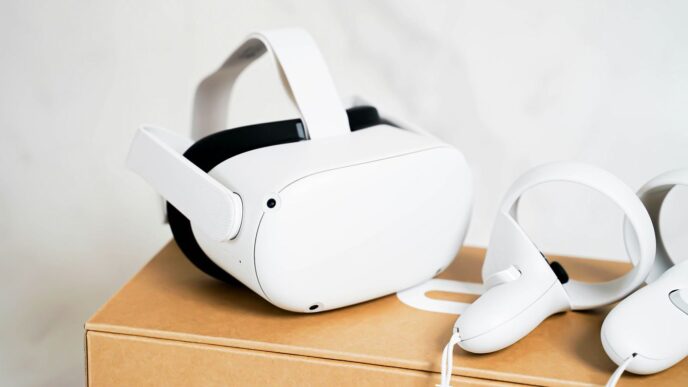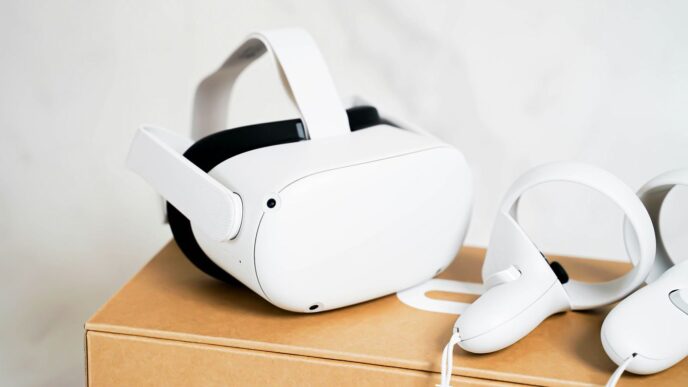

Thinking about jumping into virtual reality with an Oculus Rift? That’s awesome! But before you get too excited, you’ll want to make sure your computer can actually handle it. Running VR is way more demanding than just playing regular games on your PC. It’s like trying to power a whole new reality, and your computer needs to be up to the task. So, what exactly does your machine need? Let’s break down the oculus rift hardware requirements so you know what to look for.
Key Takeaways
- Your PC’s graphics card (GPU) is super important for VR because it has to render two images at once, one for each eye, at a high resolution and frame rate. A weak GPU can lead to a choppy experience.
- For a smooth VR experience, aim for a processor that’s at least a quad-core. While older CPUs might work, a newer, more powerful one will handle the demands better.
- You’ll generally need at least 8GB of RAM to run VR applications. More RAM can help if you plan on running other programs in the background or want to future-proof your system.
- Make sure your PC has the right ports. Most VR headsets need USB 3.0 ports and a DisplayPort or HDMI connection for video output.
- The best way to check if your current PC can handle VR is by using performance testing software like the SteamVR Performance Test. This tool will give you a clear idea of your system’s capabilities and if any upgrades are needed.
Understanding Oculus Rift Hardware Requirements
So, you’re thinking about diving into virtual reality with an Oculus Rift, huh? That’s awesome! But before you get too excited, let’s talk about what your computer actually needs to handle it. VR isn’t like playing your usual games on a monitor; it’s way more demanding. Think of it like this: your PC has to create two separate images, one for each eye, and do it super fast so things don’t look all jerky and make you feel a bit queasy. Getting the right hardware is key to actually enjoying VR, not just tolerating it.
The Importance of a Powerful Graphics Card
Your graphics card, or GPU, is probably the most important piece of the puzzle. It’s doing all the heavy lifting when it comes to drawing those virtual worlds. If your GPU isn’t up to snuff, you’re going to see frame rates drop, and that’s where the VR experience goes from amazing to awful real quick. We’re talking about needing something that can push out at least 90 frames per second, consistently. A weaker card might technically run VR, but it’ll feel like you’re watching a slideshow, and nobody wants that. For the Oculus Rift, you’ll want to aim for cards like the NVIDIA GTX 1060 or the AMD Radeon RX 480 as a good starting point. Anything less, and you might be in for a rough time. You can check out general PC VR specs to get a broader idea.
Processor Power for Immersive Experiences
While the GPU gets a lot of the spotlight, your processor, or CPU, is also really important. It handles all the game logic, physics, and other background tasks that keep the virtual world alive. If your CPU is struggling, it can bottleneck your graphics card, meaning your fancy GPU can’t even do its best work because the CPU can’t keep up. For most VR headsets, including the Oculus Rift, a decent quad-core processor is usually the sweet spot. Something like an Intel i5-4590 or an AMD Ryzen 5 1500X is generally considered a good baseline. Don’t skimp here; a weak CPU can really ruin the immersion.
Random Access Memory: The VR Backbone
Finally, let’s talk about RAM. This is your computer’s short-term memory, and VR applications use a fair bit of it. Having enough RAM means your system can quickly access the data it needs to keep everything running smoothly. For the Oculus Rift, 8GB of RAM is usually the minimum requirement, but honestly, 16GB is a much safer bet, especially if you plan on running other applications in the background or want to future-proof your setup a bit. More RAM generally means less stuttering and a smoother overall experience. It’s like giving your computer more breathing room.
Graphics Card Specifications for VR
Alright, let’s talk graphics cards, or GPUs, because this is where a lot of the VR magic (or lack thereof) happens. Think of your GPU as the engine that drives everything you see in virtual reality. It’s not just about making pretty pictures; it’s about making them move smoothly, and doing it twice – once for each eye. That’s a big ask!
Minimum Recommended GPUs for Oculus Rift
When the Oculus Rift first came out, the bar was set pretty high. You generally needed something like an NVIDIA GeForce GTX 970 or an AMD Radeon R9 390X. These cards were decent for their time, but VR has gotten way more demanding since then. For a smoother experience with newer headsets and games, you’re probably looking at needing at least a GTX 1060 (with 6GB of VRAM) or an AMD RX 480. Seriously, don’t skimp here; a weak GPU is the fastest way to get motion sickness in VR.
High-End GPU Alternatives for Smoother Performance
If you want that really crisp, fluid VR experience without any stuttering, especially in those super detailed games, you’ll want to aim higher. Cards like the NVIDIA GeForce RTX 2060 or the AMD Radeon RX 5700 are good starting points for a more premium feel. For the absolute best, think NVIDIA’s RTX 30-series or AMD’s RX 6000-series and newer. These cards have more power to handle higher resolutions and refresh rates, making everything look and feel more real.
Understanding GPU Demands in VR
So, why are GPUs such a big deal for VR? Well, it’s a few things:
- Dual Displays: Your headset has two screens, one for each eye. The GPU has to render a slightly different image for each, which is like running two monitors at once, but much more intense.
- High Resolution: VR headsets pack a lot of pixels. Even though the screens are close to your face, they need to look sharp, so the GPU has to push a lot of pixels.
- High Refresh Rates: To avoid that choppy, nauseating feeling, VR needs to run at a high frame rate, usually 90Hz or more. That means the GPU has to draw 90 (or more) complete frames every single second, for both eyes.
- Extra Rendering: Sometimes, VR systems render a bit of the scene around what you’re looking at, just in case you move your head quickly. This extra work adds to the GPU’s load.
Here’s a quick look at some common GPU tiers:
| Tier | Example GPUs (NVIDIA) | Example GPUs (AMD) |
|---|---|---|
| Minimum | GTX 1060 (6GB) / RTX 2060 | RX 480 / RX 5700 |
| Recommended | RTX 3060 / RTX 4060 | RX 6600 XT / RX 7600 |
| High-End | RTX 3080 / RTX 4080 | RX 6800 XT / RX 7800 XT |
Processor Requirements for Virtual Reality
So, you’ve got your eye on a VR headset, which is pretty cool. But before you jump into virtual worlds, let’s talk about what’s under the hood of your computer, specifically the processor, or CPU. Think of the CPU as the brain of your PC. It handles all the calculations that keep the virtual world running, from what the characters are doing to how your head and hand movements translate into the game. It’s not just about raw power; it’s about how quickly it can process all that information.
Minimum CPU Standards for VR Headsets
When you’re just starting out or looking at the most basic VR setups, there are some minimum processor standards you’ll want to meet. These are the baseline requirements to get things running without too much stuttering. For a lot of VR headsets, including some older Oculus Rift models, you’re generally looking at something like an Intel i5-4590 or an AMD FX 8350. These processors have been around for a while but can still handle the less demanding VR experiences. It’s like having a car that can get you from point A to point B, but maybe not at top speed on the highway.
Recommended Processors for Optimal VR
To really get the most out of your VR experience, you’ll want to aim a bit higher than the minimums. A good processor makes a big difference in how smooth and responsive everything feels. For a more enjoyable time, especially with newer games and applications, you’ll want to look at processors that offer a bit more oomph. Processors like the AMD Ryzen 5 1500X or Intel Core i5-7500 are often recommended. These offer a better balance of speed and capability, meaning fewer dropped frames and a more immersive feeling. You’re starting to get into the territory where the virtual world feels more alive and less like a slideshow.
Quad-Core Processors: A Sweet Spot for VR
When it comes to VR, having a processor with at least four cores is often considered a sweet spot. While more cores can be beneficial for multitasking, for VR specifically, the speed at which each core can work (clock speed) is often more important than having a huge number of cores. A good quad-core processor, especially one with a high clock speed, can handle the demands of VR quite well. For example, processors like the Intel i5-9400 or AMD Ryzen 5 2400GE are solid choices. They provide enough processing power to keep up with the action without breaking the bank. It’s about finding that balance that gives you a great VR experience without needing the absolute top-of-the-line, most expensive chip out there. You can find some great deals on processors if you look around, maybe even check out CPU benchmarks for specific models.
Memory and Storage Considerations
Alright, let’s talk about what’s going on inside your computer when you’re diving into virtual reality – specifically, the memory and storage bits. These might not be as flashy as the graphics card, but they’re still pretty important for making sure your VR adventures don’t turn into a slideshow.
Essential RAM for VR Headsets
Random Access Memory, or RAM, is basically your computer’s short-term memory. It’s where it keeps all the stuff it’s actively working on. For VR, this means keeping track of the game world, your movements, and all the calculations happening in real-time. You’ll see a lot of talk about 8GB being the minimum, and yeah, some older or less demanding VR experiences might chug along with that. But honestly, if you want things to feel smooth, especially with newer titles, you’re going to want more.
- 8GB RAM: This is the absolute floor. Expect some stuttering and limitations with more complex VR applications.
- 16GB RAM: This is a much better starting point for most users. It allows for smoother performance in a wider range of VR experiences and lets you run a few other apps in the background without too much trouble.
- 32GB RAM: If you’re serious about VR, or if you plan on doing any VR development, this is where you want to be. It gives you plenty of breathing room for demanding games and applications, and it’s a good way to future-proof your setup a bit.
Future-Proofing Your System with More RAM
Look, VR tech is moving fast. What feels cutting-edge today might be just okay in a couple of years. So, thinking ahead with your RAM is a smart move. Getting more RAM now means your system will likely handle upcoming VR titles and updates better without needing an immediate upgrade. It’s like buying a slightly bigger toolbox than you need right now – you’ll be glad you have it later when you pick up that new, complex project. For VR developers, aiming for 64GB or even more is often recommended, depending on the specific software suites they’re using. It’s all about having that headroom.
Storage Needs for VR Applications
Now, let’s chat about storage. This is where all your VR games, applications, and the operating system itself live. The biggest thing to consider here is speed. Traditional hard drives (HDDs) are slow. They can make your VR games take ages to load, and nobody wants to stare at a loading screen when they could be exploring a virtual world. Solid-state drives (SSDs), especially NVMe types, are the way to go for your main drive. They load things up so much faster, making a noticeable difference in how quickly your VR experiences start.
When it comes to size, VR games can be pretty hefty. Some might be a few gigabytes, while others can easily hit 100GB or more. To avoid constantly juggling what to keep and what to delete, a minimum of 1TB for your primary drive is a good idea. If you can swing it, 2TB or even more gives you a lot more freedom to install multiple VR titles and applications without worrying about space. You can always add more storage later for less critical stuff, but for your OS and VR library, speed and capacity matter. You can check out some of the latest VR headsets to see what they recommend for storage, like the Oculus Rift CV1 which had more modest requirements back in its day.
Connectivity and Operating System
Alright, so you’ve got your powerful PC ready to go, but wait! We’re not quite done yet. Before you can jump into virtual worlds, we need to talk about how your computer actually connects to the headset and what software it needs to be running. It’s not just about the fancy graphics card and processor; the little things matter too.
Essential USB Port Requirements
Most VR headsets need a specific type of USB port to work correctly. Think of it like needing the right plug for an appliance. You’ll generally need at least one USB 3.0 port, sometimes called USB 3.1 Gen 1 or USB 3.2 Gen 1. These ports are faster and can handle the amount of data VR requires. Some older headsets, or specific configurations, might even ask for more than one USB 3.0 port. It’s always a good idea to check the manual for your specific headset, but generally, having a few USB 3.0 ports available is a safe bet. You don’t want to be stuck with only USB 2.0 ports; they just aren’t fast enough for the job.
Video Output Compatibility
This one’s pretty straightforward. Your PC needs to have the right kind of video output to connect to your VR headset. Most modern VR headsets use a DisplayPort connection. This is different from the HDMI ports you might be used to for monitors. So, take a peek at the back of your computer. Do you see a DisplayPort? If not, you might need to look into getting a graphics card that has one, or perhaps an adapter, though a direct connection is always best. Making sure your graphics card has a compatible DisplayPort is key for getting that visual feed to your headset.
Operating System Compatibility for VR
When it comes to the software running your computer, the operating system, things are pretty standard these days. For the most part, you’ll need Windows 10 or a newer version. While some VR systems might have experimental support for other operating systems like Linux, Windows is the go-to for the vast majority of VR applications and headsets. If you’re still running an older version of Windows, like Windows 7 or 8, you’re going to want to upgrade. VR development is really pushing forward, and sticking with an older OS can lead to all sorts of compatibility headaches. It’s worth checking the specific requirements for the VR software you plan to use, but generally, Windows 10 is the baseline. Some apps might even require you to meet certain Virtual Reality Check (VRC) guidelines for distribution.
Assessing Your PC’s VR Readiness
So, you’ve got your eye on a VR headset, but is your current computer up to the task? It’s a fair question, and honestly, jumping into virtual reality is a bit more demanding than just playing your average PC game. Think of it like this: your computer has to work twice as hard because it’s essentially running two screens at once – one for each eye – and at a really high frame rate to keep things smooth. If your PC can’t keep up, you’re looking at a choppy, maybe even nauseating, experience. Not exactly what you signed up for, right?
Utilizing Performance Testing Software
Instead of just guessing or trying to decipher a bunch of specs, there are tools designed to give you a clear picture of your PC’s capabilities. The most common one, and a good starting point, is the SteamVR Performance Test. It’s a free download from the Steam store. This little program runs a short demo, puts your system through its paces, and then gives you a score. It’s pretty straightforward and tells you if your hardware is ready for VR or if you might need some upgrades. It’s like a quick check-up for your computer’s VR health.
Interpreting Test Results for Upgrades
Once you’ve run a test, you’ll get a score or a rating. Generally, you’re looking for a "VR Ready" status. If the test indicates your PC is "Not Ready" or "Marginal," it’s time to figure out what’s holding you back. The test usually gives you a hint, often pointing towards the graphics card (GPU) or the processor (CPU) as the main culprits. Sometimes, it might even suggest you need more RAM. Based on the results, you can then look into specific component upgrades. For example, if your GPU is the bottleneck, you’d be looking at newer, more powerful graphics cards. If it’s the CPU, you’d consider a processor with more cores or a higher clock speed. It’s all about identifying the weakest link in your system.
Ensuring Headset and PC Compatibility
Beyond just raw performance, you also need to make sure your headset physically connects to your PC and that your operating system is compatible. Most modern VR headsets use standard connections like USB 3.0 ports and DisplayPort or HDMI for video output. However, it’s always a good idea to double-check the specific requirements for the headset you’re interested in. Some older or specialized headsets might have unique port needs. Also, make sure your operating system is up-to-date; Windows 10 or newer is generally the standard for most VR setups. A quick look at the headset manufacturer’s website will usually clear up any compatibility questions you might have before you make a purchase.
Wrapping Up Your VR Journey
So, getting your PC ready for virtual reality might seem a bit daunting at first, with all the talk about graphics cards and processors. But really, it boils down to making sure your machine can handle the extra work VR throws at it. Most modern gaming PCs can manage, especially if you’re aiming for the minimum specs. If your current setup is a bit older, a simple check using something like the SteamVR Performance Test can tell you exactly what you need to upgrade, whether it’s just a bit more RAM or a beefier graphics card. Don’t let the tech specs scare you off; a little research goes a long way to making sure your first steps into VR are smooth and enjoyable, not a choppy mess.
Frequently Asked Questions
What’s the most important part of my computer for VR?
The graphics card, or GPU, is super important for VR. It’s like the engine that makes the virtual world look good. Since VR shows you two separate pictures (one for each eye) at a really high quality, your GPU has to work extra hard. A weak graphics card can make your VR experience choppy and even make you feel sick.
Do I need a super-fast processor (CPU) for VR?
Yes, you do need a decent processor. Think of it as the brain of your computer. It needs to be strong enough to handle all the calculations for the virtual world. Most VR headsets work well with a quad-core processor, which means it has four main processing units. Something like an Intel i5 or AMD Ryzen 5 is usually a good starting point.
How much memory (RAM) do I need for VR?
RAM is like your computer’s short-term memory, and VR needs a good amount of it. Most VR headsets suggest at least 8GB of RAM. However, if you want things to run super smoothly and maybe have other programs open, aiming for 16GB or even more is a smart move. It helps keep everything running without hiccups.
Can I use my current computer for VR, or do I need a new one?
It’s possible your current computer might work, but it really depends on its parts. The best way to check is to use a tool like the SteamVR Performance Test. This program will run a quick demo and tell you if your computer is ready for VR or if you need to upgrade certain parts, like your graphics card or processor.
What kind of connections do I need for a VR headset?
Most VR headsets use standard connections like USB 3.0 ports and a DisplayPort or HDMI video output. It’s always a good idea to check the specific requirements for the headset you’re interested in, as some might need a particular version of these ports or even multiple USB ports.
Will a computer that runs VR games also work for other things?
Absolutely! If your computer is powerful enough to handle the demands of virtual reality, it will definitely be great for regular PC games and most other applications. VR is one of the most demanding things you can do with a computer, so being VR-ready means you’re set for a lot of other tasks too.