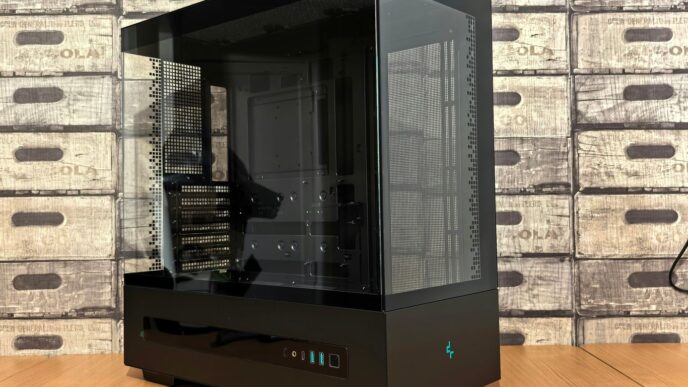
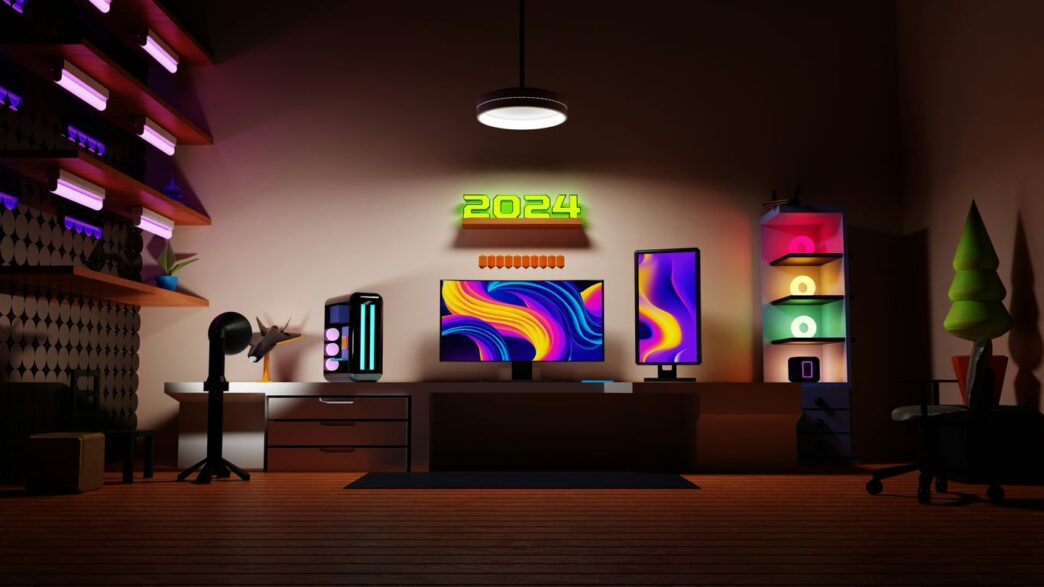
So, you’re looking to build the ultimate gaming PC setup. Maybe you’re tired of laggy games, or perhaps you just want a machine that looks as good as it performs. It can seem like a lot, picking out all the parts and putting them together. But honestly, it’s not as scary as it sounds. This guide is here to break it all down, from choosing the right bits and pieces to making sure it all runs smoothly and looks awesome. We’ll cover everything you need to know to get your dream gaming PC setup going.
Key Takeaways
- Choosing the right CPU and GPU is key for smooth gaming performance in your gaming PC setup.
- Don’t forget RAM and storage; 16GB RAM and an SSD are a good starting point for most gaming PC setups.
- Assembling your gaming PC involves careful component installation and connection, so take your time.
- Keep your gaming PC setup running its best with regular driver updates and system checks.
- Peripherals like monitors, keyboards, and mice can really complete your gaming PC setup experience.
Choosing The Right Components For Your Gaming PC
Alright, so you’re looking to build a gaming PC. That’s awesome! It can feel a bit overwhelming at first, with all the different parts and what they do. But honestly, it’s like picking out the ingredients for a really good meal – get the right ones, and you’re set for some amazing experiences. Let’s break down the main players you’ll need to consider.
Understanding The Central Processing Unit (CPU)
The CPU is basically the brain of your computer. It handles all the instructions and calculations that make your games run. Think of it like the chef in the kitchen; it’s doing a lot of the heavy lifting. For gaming, you want something that can keep up without making things stutter. Most gamers do pretty well with a CPU that has at least six cores. Brands like Intel and AMD both make great options, and you can usually find a good balance between performance and price.
Selecting The Ideal Graphics Processing Unit (GPU)
This is probably the most talked-about component for gaming, and for good reason. The GPU is what creates all the visuals you see on your screen. A stronger GPU means better graphics, higher frame rates, and a smoother overall look. If you’re aiming for high-resolution gaming or want to crank up all the graphical settings, you’ll want to put a good chunk of your budget here. Nvidia and AMD are the main companies making these, and they have cards for pretty much every budget.
Determining Optimal RAM and Storage Solutions
RAM, or Random Access Memory, is like your computer’s short-term memory. It holds the data that your CPU is actively using. For gaming, 16GB of RAM is a solid starting point for most people. If you play a lot of demanding games or like to have a bunch of stuff open at once, you might consider 32GB. Then there’s storage. You’ve got two main types: SSDs (Solid State Drives) and HDDs (Hard Disk Drives). SSDs are way faster, meaning your games load up in a flash. HDDs offer more space for less money, so a lot of people use a smaller SSD for their operating system and favorite games, and a larger HDD for everything else.
Motherboard and Power Supply Considerations
The motherboard is the backbone that connects everything. You need to make sure it’s compatible with your CPU and RAM, and that it has enough slots for any future upgrades you might want. Don’t skimp here, but you also don’t need the most expensive one unless you’re doing some serious custom work. Lastly, the power supply unit (PSU). This thing provides electricity to all your components. You need to make sure it has enough wattage to handle everything, especially your power-hungry GPU, and that it’s from a reliable brand. It’s better to have a little extra power than not enough.
Assembling Your Gaming PC Step-By-Step
Alright, you’ve got all your shiny new parts. Now comes the fun part – putting it all together! Honestly, it’s not as scary as it might seem. Think of it like building with LEGOs, but, you know, for grown-ups and with more expensive plastic. If you can follow a few simple steps and handle a screwdriver, you’re pretty much golden.
Preparing Your Workspace and Tools
First things first, find a good spot. You need a clean, flat surface with enough room to spread out your components. A kitchen table or a sturdy desk works great. Make sure the lighting is decent; you’ll be dealing with some small screws and connectors. It’s also a good idea to have some small containers to keep your screws organized – trust me, you don’t want them rolling away. A magnetic Phillips head screwdriver is a lifesaver here. And, if you can, wear an anti-static wrist strap or just touch a metal part of your PC case every so often. This helps discharge any static electricity that could harm your delicate parts. It’s also smart to give the manuals that came with your parts a quick read, especially the motherboard one. It’s got diagrams that are super helpful.
Installing The CPU and RAM
Grab your motherboard and carefully place it on its box or anti-static bag on your workspace. Find the CPU socket – it’s usually a square metal plate with a lever. Lift that lever. Now, look at your CPU and the socket; there’s usually a little arrow or triangle on one corner of each. Line those up perfectly. Gently place the CPU into the socket. It should just drop in without any force. If it doesn’t, don’t push it – recheck the alignment. Once it’s seated, push the lever back down to secure it. Next up is RAM. You’ll see slots next to the CPU. Open the clips on the ends of the RAM slots. Line up the notch on your RAM stick with the notch in the slot. Push down firmly on both ends of the RAM stick until the clips snap into place. You should hear a little click.
Connecting Storage and Graphics Cards
If you have an M.2 SSD, it usually slots directly into a dedicated port on the motherboard. Just slide it in at an angle and then secure it with a small screw. For regular SATA SSDs or HDDs, you’ll connect a SATA data cable from the drive to a SATA port on the motherboard, and then a power cable from your power supply to the drive. Now for the star of the show: the graphics card. Find the long PCIe slot on your motherboard, usually the top one. Open the little clip at the end of the slot. Carefully align the graphics card with the slot and push it down firmly until it clicks into place. You might need to remove some expansion slot covers from the back of your PC case to accommodate the card’s ports.
Finalizing Connections and Case Assembly
This is where things can get a bit fiddly. You need to connect all the little wires from your case – like the power button, USB ports, and audio jacks – to the correct pins on the motherboard. Your motherboard manual is your best friend here; it shows exactly where each tiny connector goes. Then, connect the main power cables from your power supply to the motherboard (a big 24-pin connector and a smaller 4 or 8-pin CPU power connector). Don’t forget to connect power to your graphics card if it requires it. Once everything is plugged in, carefully place the motherboard into the PC case, aligning it with the standoffs, and screw it down. Then, route your cables as neatly as possible. Good cable management isn’t just for looks; it helps with airflow too. Finally, put the side panels back on your case. The moment of truth is when you hit the power button. If all goes well, you’ll see lights, hear fans, and get a display on your monitor. If not, don’t panic; just retrace your steps and double-check all your connections.
Optimizing Performance For Your Gaming PC Setup
So, you’ve put together your dream machine, and it looks awesome. But is it running as smoothly as it could be? Getting the most out of your gaming PC isn’t just about the parts you put inside; it’s also about making sure all those parts are working together perfectly. Think of it like tuning up a race car – you want everything running at its peak.
Essential Driver and Software Updates
This is probably the most straightforward thing you can do, and honestly, it makes a big difference. Your graphics card, especially, gets regular updates that can boost performance in new games or fix annoying bugs. It’s like giving your GPU a little tune-up.
- Graphics Card Drivers: These are the most important. NVIDIA and AMD both release new drivers pretty often. You can usually download the latest ones directly from their websites or through their dedicated software (like GeForce Experience or AMD Software: Adrenalin Edition).
- Chipset Drivers: These are for your motherboard and help your CPU communicate better with other components. You can find these on your motherboard manufacturer’s website.
- Other Peripherals: Don’t forget drivers for things like your mouse, keyboard, or headset if they have special features. Sometimes these can fix connectivity issues or add new functionality.
Leveraging Windows Gaming Optimizations
Windows itself has some built-in features that can help your games run better. You just need to know where to find them and how to turn them on.
- Game Mode: This feature is designed to prioritize your game’s performance by limiting background tasks. You can usually find it in Windows Settings under ‘Gaming’. Make sure it’s turned on.
- Disable Background Apps: Some apps like to run in the background and hog resources. Go through your startup programs and disable anything you don’t need running all the time. You can manage this in Task Manager.
- Power Plan: Setting your power plan to ‘High Performance’ can make sure your CPU and other components aren’t being throttled to save energy when you’re gaming. You’ll find this in the Control Panel under ‘Power Options’.
Understanding Overclocking For Extra Power
This is where things get a bit more technical, and you need to be careful. Overclocking means pushing your CPU or GPU to run faster than their default speeds. It can give you a nice performance boost, but it also generates more heat and can potentially cause instability if not done right.
- What it is: You’re essentially increasing the clock speed of your components.
- Benefits: More frames per second in games, faster loading times.
- Risks: Increased heat, potential for system crashes, and in rare cases, damage to components if you push too hard or don’t have good cooling.
- How to do it: This is usually done through your motherboard’s BIOS/UEFI settings or with specific software. It’s highly recommended to research your specific components thoroughly before attempting any overclocking.
Monitoring System Health and Performance
How do you know if your optimizations are working, or if something’s wrong? You need to keep an eye on your system’s vitals. This helps you catch problems before they become big issues and lets you see the direct impact of your tweaks.
- Temperatures: Overheating is a major performance killer. Tools like HWMonitor or MSI Afterburner can show you your CPU and GPU temperatures. If they’re getting too high (e.g., consistently over 80-85°C for a GPU under load), you might need better cooling or to dial back an overclock.
- Clock Speeds: See if your CPU and GPU are actually running at their expected speeds, especially if you’ve overclocked.
- Usage: Check how much of your CPU, GPU, and RAM are being used. If your CPU is maxed out but your GPU isn’t, you might have a CPU bottleneck.
Here’s a quick look at some popular monitoring tools:
| Tool Name | Primary Use |
|---|---|
| HWMonitor | Temperature, voltage, fan speed monitoring |
| MSI Afterburner | GPU overclocking, performance monitoring |
| CPU-Z | Detailed CPU information |
| GPU-Z | Detailed GPU information |
| Task Manager | Basic CPU, RAM, Disk, Network usage (Windows) |
Keeping these things in check will make sure your gaming PC is always ready for action.
Enhancing Your Gaming PC Setup With Peripherals
So, you’ve got your beast of a gaming PC humming along, but what about the stuff you actually touch? Your peripherals are like the cockpit controls for your digital adventures. They’re not just accessories; they’re how you interact with the game, and getting them right can seriously change how you play.
Selecting The Perfect Gaming Monitor
This is probably the most important peripheral after your PC itself. A good monitor makes everything look sharp and smooth. You’ll want to think about a few things. First, refresh rate. This is how many times the screen updates per second, measured in Hertz (Hz). For gaming, anything above 60Hz is a big step up. Most gamers aim for 144Hz or even 240Hz for super-smooth motion, especially in fast-paced games. Then there’s response time, which is how quickly a pixel can change color. Lower is better, usually 1ms is the sweet spot to avoid ghosting or motion blur.
Here’s a quick rundown:
- Refresh Rate: 144Hz or higher is great for fluid action.
- Response Time: 1ms is ideal to cut down on blur.
- Resolution: 1080p is standard, 1440p offers more detail, and 4K is super sharp but needs a powerful GPU.
- Panel Type: IPS panels offer good colors and viewing angles, while TN panels are often faster but have less vibrant colors. VA panels sit somewhere in between.
Choosing Responsive Keyboards and Mice
Your keyboard and mouse are your direct line to the game. For keyboards, mechanical ones are the popular choice. They use individual switches under each key, giving you a satisfying click and a quicker response than the mushy feel of membrane keyboards. There are different types of switches (like Cherry MX Red, Blue, or Brown) that feel and sound different, so trying them out if you can is a good idea.
When it comes to mice, comfort and precision are key. Look for a mouse that fits your hand size and grip style (palm, claw, or fingertip). Adjustable DPI (dots per inch) settings let you change the mouse’s sensitivity on the fly, which is handy for switching between precise aiming and quick movements. Many gaming mice also have extra programmable buttons you can map to in-game actions.
Immersive Audio With Gaming Headsets
Sound is a huge part of gaming, and a good headset pulls you right into the action. You want something that sounds clear, whether it’s the roar of an engine or the subtle footsteps of an enemy. Many gaming headsets offer surround sound, like 7.1 virtual surround, which can help you pinpoint where sounds are coming from. This is a big deal in games where hearing is as important as seeing.
Don’t forget comfort, especially if you game for long stretches. Look for headsets with soft earcups and adjustable headbands. A decent microphone is also important if you play with friends, so they can hear you clearly without a lot of background noise.
Ergonomic Comfort For Extended Play
Let’s be real, marathon gaming sessions can take a toll. That’s where ergonomics comes in. Beyond just a comfy headset, think about your posture. A good gaming chair can make a world of difference, providing support for your back and neck. It’s not just about looking cool; it’s about preventing aches and pains so you can focus on the game.
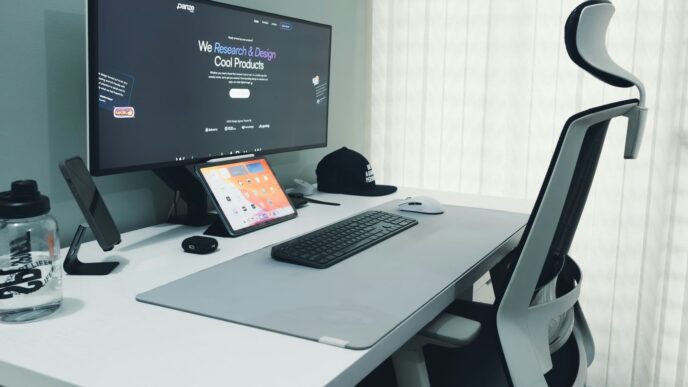
Even your desk setup matters. Making sure your monitor is at the right height and your keyboard and mouse are positioned comfortably can prevent strain. Investing in ergonomic peripherals and furniture means you can play longer and feel better doing it.
Aesthetic Enhancements For Your Gaming Station
Alright, so you’ve got the beastly PC humming, the performance dialed in, and now it’s time to make your gaming space look as good as it plays. This is where you really make it yours. It’s not just about the hardware; it’s about the whole vibe.
Implementing Dynamic RGB Lighting
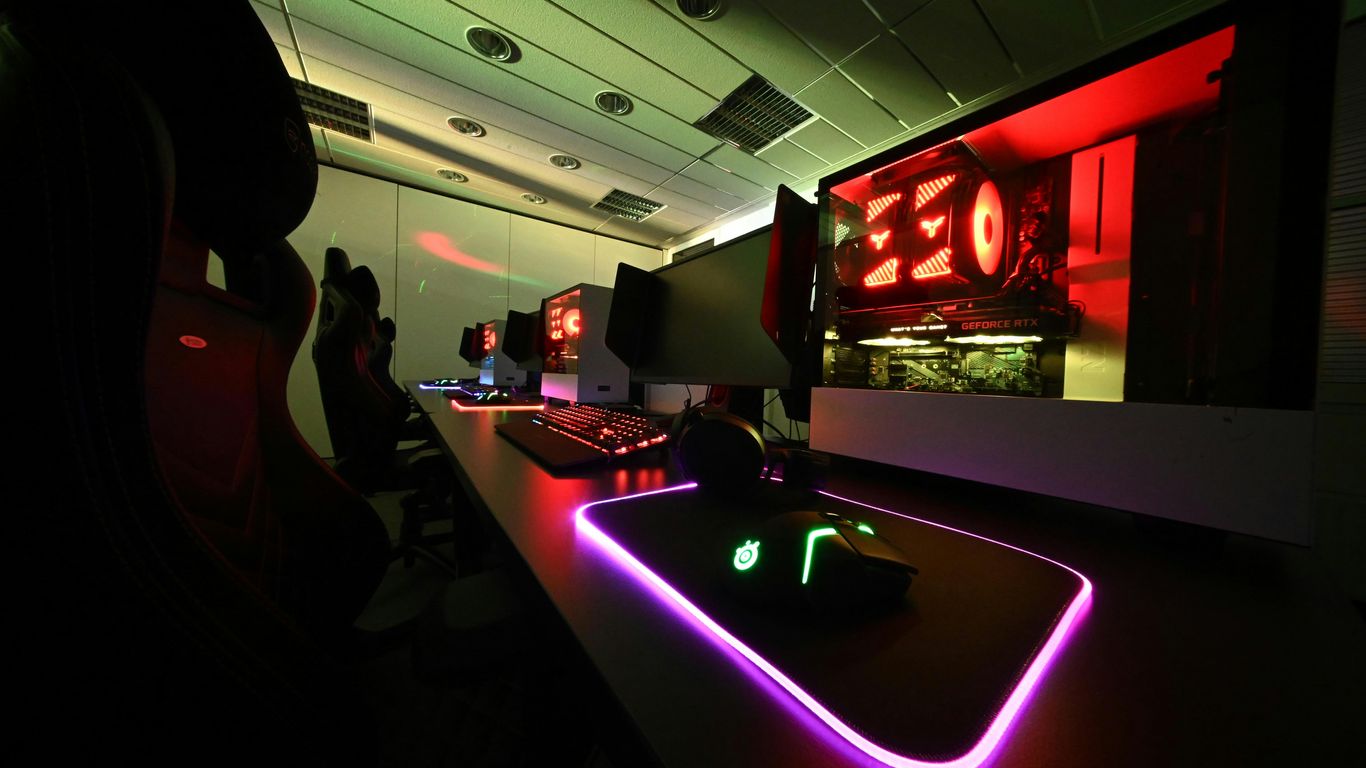
Let’s talk lights. RGB is pretty much everywhere now, and for good reason. It lets you paint your setup with whatever colors you’re feeling. You can get RGB strips to put behind your monitor, under your desk, or even inside your PC case if it has a clear side panel. Some keyboards and mice have their own RGB, and you can often sync them up. The goal is to create an atmosphere that matches your mood or the game you’re playing. Think about getting a lighting system that lets you control everything from one app, like Razer Chroma or Corsair iCUE. You can set up different profiles – maybe a cool blue for a chill session, or a fiery red when you’re deep into an intense shooter. It really makes a difference.
Cable Management For A Clean Look
Nobody likes a spaghetti monster of wires. It looks messy, it’s a pain to clean around, and honestly, it just detracts from the whole setup. Getting your cables sorted is a game-changer. You don’t need anything super fancy to start. Velcro straps are cheap and work wonders for bundling cables together. You can also get cable sleeves that give everything a more unified look. If your desk has built-in cable management features, use them! Running cables along the back or underside of your desk makes a huge difference. It makes your setup look way more professional and less like a tech support disaster zone.
Creating Theme-Based Gaming Setups
This is where you can really let your personality shine. Think about a theme. Are you into that sleek, minimalist look? Or maybe you’re going for a retro vibe with some old-school posters? A popular one is the cyberpunk aesthetic, with neon colors and a futuristic feel. You could even base it around your favorite game franchise. It’s not just about the PC itself, but the desk, the chair, any decorations you have. Even small things like custom keycaps on your keyboard or a themed mousepad can tie it all together. It makes your gaming space feel like a dedicated sanctuary, not just a corner of your room.
Maintaining Your Gaming PC For Longevity
Keeping your gaming PC running smoothly for years to come isn’t some big mystery. It mostly comes down to a few regular habits. Think of it like taking care of a car – a little bit of attention now saves you a lot of headaches later. If you just let dust build up and ignore weird noises, things are bound to go wrong.
Regular Cleaning To Prevent Overheating
Dust is the enemy of PC components. It gets into fans, heatsinks, and all the nooks and crannies, blocking airflow. When air can’t move freely, parts get hot. Really hot. And when things get too hot for too long, they can start to fail or just perform worse. You don’t need to be a tech wizard to clean your PC. Grab a can of compressed air and give the fans and heatsinks a good blast every month or two. Don’t forget to clean out the dust filters on your case, too – they’re usually easy to pop out and rinse off. Keeping your system cool is probably the single most important thing you can do for its lifespan.
Troubleshooting Common Hardware Issues
Sometimes, things just don’t work right. Your PC might not boot up, a game could crash unexpectedly, or you might notice your frame rates have dropped for no good reason. Don’t panic! Often, these issues have simple fixes. If your PC won’t turn on, double-check that all the power cables are plugged in securely, both at the wall and inside the case, and that the power supply switch is flipped on. If overheating is the culprit, you might need to reapply thermal paste to your CPU or GPU, or maybe just add another case fan for better airflow. For low frame rates, a quick driver update or tweaking in-game settings can often do the trick. It’s worth looking up specific error messages or symptoms online; chances are, someone else has had the same problem and figured it out.
Keeping BIOS and Drivers Up-To-Date
Your motherboard’s BIOS and all your hardware drivers are like the operating system for your components. They tell them how to talk to each other and how to work efficiently. Manufacturers release updates to fix bugs, improve performance, and add support for new hardware. While you don’t need to update them every single day, checking for updates every few months is a good idea. You can usually find the latest drivers on the websites of your graphics card manufacturer (NVIDIA or AMD) and your motherboard maker. Keeping these updated can prevent compatibility issues and sometimes even give you a small performance boost.
Future-Proofing Your Gaming PC Investment
So, you’ve built your dream machine, or maybe you’ve snagged a sweet pre-built rig. Awesome! But let’s talk about keeping it relevant for more than just a year or two. Nobody wants their shiny new PC to feel like a dinosaur when the next big game drops, right? The good news is, you don’t always need to buy a whole new system to stay on top of things.
Strategic Component Upgrades
Think of your PC like a modular system. Some parts are easier to swap out than others. The graphics card (GPU) is usually the biggest performance driver for gaming, and it’s also one of the most common upgrades. If your current GPU is starting to struggle with newer titles, swapping it for a more powerful one can make a huge difference. Similarly, RAM is relatively inexpensive and simple to add or replace. Doubling your RAM from 16GB to 32GB can help with multitasking and ensure smoother performance in games that are becoming more demanding. Storage is another easy win; if you’re running out of space for your ever-growing game library, adding another SSD or even a large HDD is straightforward.
Investing In Modular and Adaptable Parts
When you’re building or upgrading, keep an eye out for parts that offer flexibility. A motherboard with plenty of expansion slots, for example, gives you options down the line. Similarly, choosing a power supply unit (PSU) with a higher wattage than you currently need means you’ll have headroom if you decide to install a more power-hungry GPU later. This is where good case airflow also comes into play; a case with ample space and good cooling potential can accommodate larger, more powerful components without issue.
Staying Informed On Emerging Technologies
Technology moves fast, and keeping up can feel like a full-time job. But a little awareness goes a long way. Keep an eye on what’s coming next in terms of CPU architectures, GPU advancements, and new memory standards like DDR6 or faster PCIe versions. You don’t need to jump on every new thing, but knowing what’s on the horizon helps you make smarter upgrade decisions when the time comes. For instance, understanding the benefits of NVMe SSDs over older SATA drives can save you frustration with slow load times. It’s about making informed choices that extend the useful life of your gaming setup.
Ready to Build Your Dream Rig?
So, you’ve made it through the guide. Building a gaming PC might seem like a lot at first, but it’s really about picking the right parts for what you want to do and putting them together. It’s your machine, so you get to decide how it looks and how it performs. Whether you’re aiming for super-smooth gameplay or just want a cool-looking setup, you’ve got the info you need now. Don’t be afraid to get started, and remember, it’s all about making your gaming time awesome.
Frequently Asked Questions
How much money do I need to spend on a gaming PC setup?
The cost can change a lot depending on what you want! If you want a super powerful PC that can play all the newest games with amazing graphics, you might need to spend between $1,500 and $3,000 or even more. But, if you’re okay with playing games at a good quality but not the absolute highest settings, you can get a decent gaming PC for around $1,000. There are also ways to save money, like buying older parts that are still good or waiting for sales.
What are the most important parts for a gaming PC?
The most important parts are the CPU (the computer’s brain) and the GPU (the graphics card). The GPU is super important because it makes the games look good and run smoothly. You’ll also want enough RAM (memory) so your computer can handle multiple things at once, and a fast storage drive (like an SSD) so your games load quickly.
Do I really need a special gaming monitor?
A gaming monitor makes a big difference! They usually have a faster refresh rate, which means the screen updates more often, making games look smoother, especially when things move fast. They also often have a quicker response time, so what you do with your mouse and keyboard shows up on screen faster. It makes playing games feel much better.
Is it hard to build a gaming PC myself?
It might seem scary at first, but building a PC is actually pretty straightforward if you take it step by step. Think of it like putting together LEGOs. You just need to make sure you have the right tools, like a screwdriver, and follow instructions carefully. There are tons of guides and videos online that can show you exactly what to do.
How often should I clean my gaming PC?
You should clean your gaming PC every few months. Dust can build up inside, especially on the fans and vents. This dust can make your computer overheat, which slows it down and can even damage parts. Cleaning it out keeps everything running cool and working its best.
What’s the point of RGB lighting on a gaming PC?
RGB lighting is all about making your gaming setup look cool and personal! You can change the colors of lights on your PC parts, keyboard, mouse, and even your desk. It helps create a certain mood or theme for your gaming space. While it doesn’t make your games run faster, it definitely makes your setup look awesome.