Having trouble with your HackerEarth login? It happens. Sometimes the simplest things, like a forgotten password or a glitchy browser, can stop you in your tracks. This guide is here to help you sort out those common HackerEarth login issues so you can get back to coding and competing without the frustration. We’ll cover everything from password resets to browser quirks.
Key Takeaways
- If you’re locked out, double-check your Caps Lock and try a different browser for your HackerEarth login.
- For password issues, resetting it is usually the quickest fix if other methods fail.
- If verification emails or OTPs aren’t arriving, check your spam folder and try resending the request.
- Single Sign-On (SSO) and Google login offer convenient ways to access your HackerEarth account, but ensure prerequisites are met.
- Browser-specific problems, especially with the Smart Browser, often involve clearing cache, checking permissions, or ensuring it’s updated.
Troubleshooting HackerEarth Login Issues
It can be pretty frustrating when you can’t get into your HackerEarth account. We’ve all been there, staring at a login screen, wondering what went wrong. This section is here to help you sort out those common login hiccups so you can get back to coding, competing, or whatever you use HackerEarth for.
Common HackerEarth Login Problems
Sometimes, the issue is simple, like a typo or a forgotten password. Other times, it might be something a bit more technical, like browser settings or even a temporary glitch on HackerEarth’s end. Knowing the common culprits can save you a lot of time and head-scratching.
Here are some of the usual suspects:
- Incorrect Credentials: This is the most frequent reason. Double-checking your email and password is the first step.
- Caps Lock or Keyboard Layout: A simple mistake, but it happens. Make sure Caps Lock isn’t on and your keyboard is set to the correct language.
- Browser Issues: Stale cookies, cache problems, or incompatible browser extensions can interfere with login.
- Account Verification: If you’ve just signed up or changed your email, you might need to verify your account or email address.
- OTP or Verification Codes: Delays or issues receiving one-time passwords (OTPs) or verification emails can block access.
- Single Sign-On (SSO) Problems: If you’re using SSO, there might be issues with your organization’s setup or your linked account.
Steps to Resolve Login Errors
When you hit a login snag, don’t panic. Follow these steps systematically to try and fix it:
- Verify Your Input: Carefully re-type your email address and password. Pay attention to spelling and case sensitivity.
- Check Your Environment: Ensure Caps Lock is off and your keyboard layout is correct. Try logging in from a different web browser or even an incognito window to rule out browser-specific issues.
- Look for Verification Emails: Check your inbox (and spam/junk folders) for any emails from HackerEarth regarding account verification or password resets.
- Use the ‘Forgot Password’ Feature: If you’re sure your credentials are correct but still can’t log in, it’s time to reset your password.
- Clear Browser Cache and Cookies: Sometimes, old data stored by your browser can cause login problems. Clearing it can help.
- Contact Support: If none of the above works, reaching out to HackerEarth support is your next best step.
Understanding HackerEarth Login Methods
HackerEarth offers a few ways to get into your account, and understanding them can help troubleshoot issues:
- Email and Password: The traditional method. You use the email address you registered with and your chosen password.
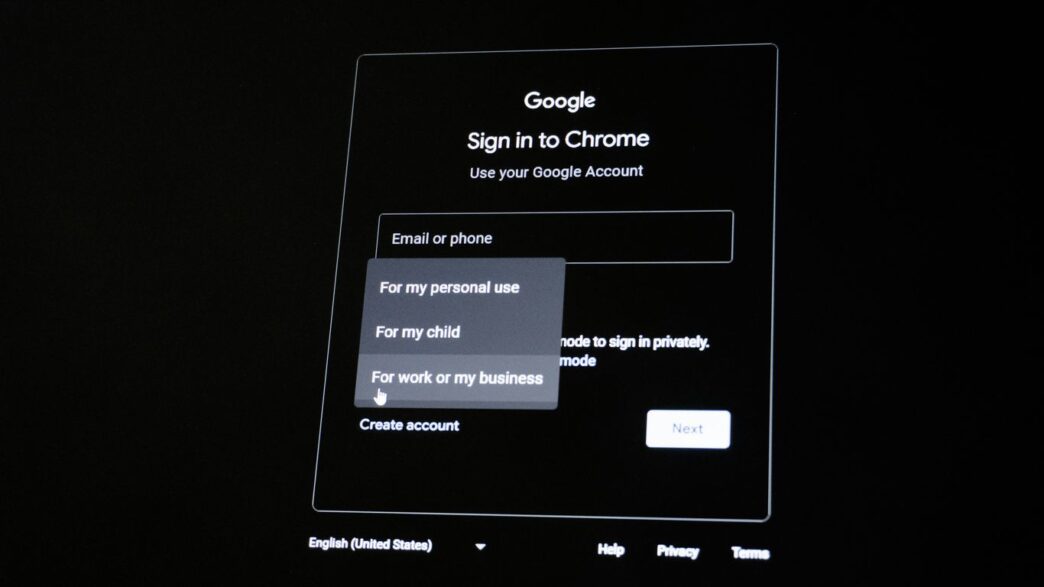
- Sign in with Google: A convenient option if you use a Google account. It uses your Google credentials to log you in.
- Single Sign-On (SSO): For users within organizations that have integrated HackerEarth with their SSO provider (like G Suite). This lets you log in using your company’s credentials.
Each method has its own set of potential issues, but knowing which one you’re using is the first step to fixing any login problems.
Resolving Incorrect Password Errors

It happens to the best of us. You’re trying to log into HackerEarth, you type in your password, and BAM! ‘Incorrect password.’ It’s frustrating, especially when you’re sure you’re typing it correctly. But don’t worry, there are a few common culprits and simple fixes.
Checking Caps Lock and Keyboard Layout
This might sound basic, but it’s the most frequent reason for password errors. Your Caps Lock key might be accidentally switched on, turning your ‘Password123’ into ‘PASSWORD123’. Also, double-check your keyboard layout. Sometimes, if your system’s keyboard setting is different from your physical keyboard (like switching between US and UK layouts), certain characters might not be where you expect them. Always verify your Caps Lock status before attempting to log in.
Attempting Login from a Different Browser
Sometimes, the issue isn’t with your password at all, but with the browser itself. Browser cache, cookies, or even extensions can sometimes interfere with the login process. Trying to log in from a different web browser (like Chrome if you were using Firefox, or vice versa) can help determine if the problem is browser-specific. If you can log in successfully on another browser, clearing the cache and cookies on your primary browser might solve the issue permanently.
When to Reset Your HackerEarth Password
If you’ve checked your Caps Lock, tried a different browser, and you’re still locked out, it’s probably time to reset your password. This is a straightforward process. You’ll typically need to go to the ‘Forgot Password’ link on the login page. After that, you’ll receive an email with instructions on how to set a new password. Make sure to choose a strong, unique password that you haven’t used elsewhere. If you’re having trouble with the password reset process itself, you might want to check out resources on basic programming input/output exercises to ensure your general account access is functioning correctly.
Addressing Verification and OTP Issues
Sometimes, getting into your HackerEarth account isn’t as simple as just typing in your password. You might run into a few hiccups with verification emails or one-time passwords (OTPs). Don’t worry, these are usually pretty straightforward to sort out.
Troubleshooting Missing Verification Emails
It’s frustrating when you’re expecting an email to confirm your account or reset your password, and it just never shows up. Here’s what you can do:
- Check Your Spam/Junk Folder: This is the most common culprit. Email providers sometimes flag legitimate emails as spam. Give your spam and junk folders a good look.
- Verify Your Email Address: Double-check that you entered your email address correctly when signing up or requesting the verification. A small typo can send the email to the wrong place.
- Wait a Bit: Sometimes, email delivery can be delayed. Give it a few minutes, or even up to an hour, before assuming it’s lost.
- Request Again: If you’ve checked everywhere and waited, try requesting the verification email again from HackerEarth. Make sure you’re not clicking the ‘resend’ button too many times in quick succession, as some systems might temporarily block further requests.
What to Do If You Haven’t Received Your OTP
One-time passwords are key for secure logins and actions. If yours isn’t arriving, try these steps:
- Check Your Phone’s Signal: A weak or no signal can prevent SMS messages from coming through. Move to an area with better reception if possible.
- Ensure Your Number is Correct: Just like with email, a wrong phone number means the OTP will go to someone else (or nowhere).
- Restart Your Phone: Sometimes a simple restart can clear up temporary network glitches that might be blocking messages.
- Check Blocked Numbers: Make sure you haven’t accidentally blocked messages from unknown or shortcode numbers, as OTPs often come from these.
- Try Resending: If the OTP doesn’t arrive after a few minutes, use the option to resend it. Be patient and wait for the new code.
Resending Password Reset Links
If you’ve requested a password reset and the link hasn’t arrived, or if it has expired, you’ll need to request a new one. The best practice is to wait at least 15-30 minutes after your initial request before sending another. Sending too many requests too quickly can sometimes cause issues with the email system. If you’ve waited and still don’t see the email (after checking spam, of course), go back to the HackerEarth login page and initiate the password reset process again. Make sure to use the most recent password reset link you receive, as older ones will no longer be valid.
Account Management and Access
Sometimes you need to manage your HackerEarth account details, like logging out or changing your email. It’s pretty straightforward once you know where to look.
How to Log Out of Your HackerEarth Account
Logging out is a good practice, especially if you’re using a shared computer. It helps keep your account secure. Here’s how you do it:
- Look for your profile icon or name, usually in the top-right corner of the HackerEarth dashboard.
- Click on it to open a dropdown menu.
- Select the ‘Logout’ or ‘Sign Out’ option from the menu.
This action will end your current session on the platform.
Changing Your Primary Email Address
Your primary email is important because it’s used for notifications and password resets. If you need to change it, follow these steps:
- Go to your account settings or profile page.
- Find the section for your contact information or email address.
- You’ll likely need to enter your current password for security.
- Input your new email address and confirm it.
- You might receive a verification email at your new address to confirm the change.
Deactivating and Reactivating Your Account
If you need a break from HackerEarth or want to temporarily remove your profile, you can deactivate your account. This usually hides your profile from public view and stops notifications. To reactivate, you typically just need to log back in with your existing credentials.
- Deactivation: This is often found in the account settings or privacy section. Look for an option like ‘Deactivate Account’ or ‘Close Account’.
- Reactivation: Simply log in again using your registered email and password. Your account should be restored to its previous state.
- Data Retention: Be aware that even after deactivation, some data might be retained according to HackerEarth’s privacy policy. It’s a good idea to check their terms if you have specific concerns about data.
Single Sign-On (SSO) and Google Login
Sometimes, logging into different platforms can feel like a chore, right? You’ve got one password for work, another for that coding challenge site, and maybe a third for your email. Single Sign-On, or SSO, is here to make that a bit simpler. It lets you use one set of login details to access multiple applications, including HackerEarth. Think of it like having a master key that opens several doors without you needing to remember a different key for each one.
Using SSO for HackerEarth Login
If your organization uses SSO with HackerEarth, you might be able to log in using your company’s credentials. This usually means you’ll click a specific ‘Login with SSO’ button. After that, you’ll likely enter your work email address, and then you’ll be redirected to your company’s login page to authenticate. Once you’re logged into your company’s system, you’ll automatically be logged into HackerEarth too. It’s pretty handy because you don’t have to manage a separate HackerEarth password. Just a heads-up, this feature is often available for G Suite domains and might be part of a premium plan, so you might need to reach out to HackerEarth support or your point of contact to get it set up.
Prerequisites for Signing in with Google
Logging in with Google is another convenient option. It’s super straightforward, but there’s one main thing you need to have in order. You must already be logged into your Google account in the same browser you’re using to access HackerEarth. If you’re not logged into Google, or if you’re logged into a different Google account than the one you want to use for HackerEarth, it won’t work. Once that’s sorted, you just click the ‘Sign in with Google’ button, and HackerEarth should recognize your logged-in Google session. You’ll then be taken straight to your HackerEarth dashboard.
Troubleshooting SSO Login Failures
So, what happens if SSO or Google login isn’t working as expected? For SSO, double-check that you’re using the correct email address associated with your organization’s HackerEarth account. If you’re unsure, ask your IT department or your HackerEarth administrator. Sometimes, browser extensions can interfere with SSO processes, so trying an incognito or private browsing window can help rule that out. If you’re trying to log in with Google and it’s failing, the most common reason is simply not being logged into the correct Google account in that browser. Log out of all Google accounts in your browser, then log back into the specific Google account you want to use for HackerEarth, and try again. If problems persist, it might be worth clearing your browser’s cache and cookies, or trying a different web browser altogether.
Browser and Smart Browser Specific Issues

Sometimes, the issue isn’t with your password or account, but with the browser you’re using, especially when it comes to HackerEarth’s Smart Browser. These tools are designed to keep assessments secure, but they can occasionally cause a headache.
Resolving Smart Browser Launch Problems
It’s pretty frustrating when you click ‘Start Test’ and nothing happens. This can occur if the Smart Browser application isn’t communicating correctly with your web browser. A common fix involves a bit of a restart sequence:
- First, close all your regular web browser windows. Seriously, all of them.
- Then, find the Smart Browser application on your computer and open it manually.
- Once it’s open, close the Smart Browser itself.
- Now, open your web browser again and go back to your HackerEarth invite link.
- Click the ‘Start Test’ button one more time.
This sequence often helps reset the connection between the applications.
Addressing Webcam and Microphone Permissions
For many assessments, the Smart Browser needs access to your webcam and microphone. If it can’t get this access, the test might not start, or worse, it might close unexpectedly. This is particularly common on Mac systems where the browser might mistake the permission prompt for an attempt to leave the test.
- Grant Permissions Proactively: The best way to avoid this is to grant permissions before you even launch the Smart Browser. For Mac users, this usually involves going to
System Settings > Privacy & Security. From there, you’ll find options forCameraandMicrophone. Make sureSmartBrowseris enabled in both lists. - Relaunch After Granting: If you’ve already encountered the issue, you can often fix it by relaunching the Smart Browser from the ‘Start Test’ link on the download page. Since you’ve now granted the permissions, it should work.
- Third-Party Software Interference: Be aware that other software, like Grammarly’s desktop app, can sometimes interfere with the Smart Browser. If you can’t type answers, make sure any such writing aid software is completely shut down before starting the Smart Browser.
Fixing Smart Browser Display Issues
Occasionally, the Smart Browser might display a completely white screen. This is often a sign of a weak internet connection. Make sure your internet speed meets the minimum requirements for the assessment. If the taskbar on Windows is covering important buttons like ‘Submit’ or ‘Run’, simply clicking on any element within the test or refreshing the application usually resolves this.
If you’re still having trouble, double-check that your browser is up-to-date and that no other background applications are hogging your system’s resources. Sometimes, a simple computer restart can clear up unexpected glitches.
Wrapping Up
So, that’s a look at some of the common login hiccups people run into on HackerEarth. Most of the time, it’s something simple like a forgotten password or a browser glitch. We’ve gone over how to reset passwords, check your caps lock, and even some specific issues with their Smart Browser. If you’ve tried these steps and are still stuck, don’t sweat it too much. HackerEarth’s support team is usually pretty good about helping out, so reaching out to them is probably your next best bet. Hopefully, this guide helps you get back to coding and competing without too much fuss.
Frequently Asked Questions
What should I do if I forget my password?
If you can’t remember your password, don’t worry! Just click on the ‘Forgot Password’ link on the login page. You’ll get an email with instructions on how to set a new password. Make sure to check your spam folder if you don’t see it right away.
Why can’t I log in even when I’m sure I typed the right password?
Sometimes, simple things can cause login trouble. Double-check that your Caps Lock key isn’t on, as passwords are case-sensitive. Also, try using a different web browser, as sometimes browser settings can interfere. If these steps don’t work, you might need to reset your password.
I’m not getting the verification email or OTP. What’s wrong?
It can be frustrating when verification emails or one-time passwords (OTPs) don’t arrive. First, check your spam or junk mail folder. If it’s not there, you can try requesting the email or OTP again. Sometimes, there’s a slight delay, so waiting a few minutes before trying again can help.
How can I sign out of my HackerEarth account?
Logging out is simple! Once you’re logged in, look for your profile picture or name, usually in the top corner of the page. Click on it, and you should see a ‘Log Out’ or ‘Sign Out’ option in the dropdown menu. This helps keep your account secure.
Can I use Google or another service to log in?
Yes, HackerEarth often allows you to log in using services like Google, which is called Single Sign-On (SSO). If you see a ‘Sign in with Google’ or ‘Login with SSO’ button, you can use that. Just make sure you’re logged into that service with the correct account first.
What if the Smart Browser has issues during a test?
The Smart Browser is used to keep tests secure. If you encounter problems like it not launching, or issues with your webcam or microphone permissions, try closing all other browser windows and relaunching the Smart Browser. Sometimes, granting permissions before starting the test can prevent these problems.