

Having trouble getting into your ChatGPT 4 Pro account? It happens to the best of us. Sometimes the login page just won’t cooperate, or you get hit with that annoying “at capacity” message. Don’t worry, though. This guide is here to help you sort out those pesky ChatGPT 4 Pro login hiccups so you can get back to using the AI. We’ll go through the common problems and give you simple steps to fix them.
Key Takeaways
- The direct link to log into ChatGPT is chat.openai.com/auth/login. Keep it handy!
- You’ll need to verify both your email and phone number when creating a new account.
- If you see “ChatGPT is at capacity,” try logging in later or consider upgrading to Plus for priority access.
- Often, clearing your browser’s cookies and cache for OpenAI sites can fix login issues.
- Using your Google, Microsoft, or Apple account to sign in can make the whole process quicker and more secure.
Troubleshooting Your ChatGPT 4 Pro Login Issues
So, you’re trying to get into ChatGPT 4 Pro and hitting a wall? It happens. Sometimes the digital door just doesn’t want to open, and it can be pretty annoying when you just want to get to work. Let’s break down some of the common hiccups and how to fix them.
Understanding Common ChatGPT Login Errors
When you can’t log in, it’s usually one of a few things. You might see a message saying the service is at capacity, or maybe your login just keeps spinning without actually letting you in. Sometimes, it’s as simple as a typo in your password, or maybe your browser is holding onto old information that’s causing trouble. It’s important to remember that these issues are often temporary and solvable.
Here are some typical error types:
- "At Capacity" Errors: This usually pops up when a lot of people are trying to use ChatGPT at the same time, especially the free version. It means the servers are just overloaded.
- Login Loops: You enter your details, hit enter, and then you’re right back at the login screen. Frustrating, right?
- Authentication Failures: This can happen if your password isn’t quite right, or if there’s a hiccup with how your account is verified.
- Page Not Loading: Sometimes the login page itself just won’t load properly, which points to a connection issue or a problem on OpenAI’s end.
Accessing the Direct ChatGPT Login Page
While you can often get to the login screen from the main OpenAI page, there’s a direct route that can sometimes bypass intermediate loading issues. Bookmark this link for quick access: chat.openai.com/auth/login. Using this direct URL can be a lifesaver when the main site is being a bit slow or acting up. It cuts out extra steps and gets you straight to where you need to be.
Creating Your ChatGPT Account Successfully
If you’re new to ChatGPT, setting up an account needs a couple of verification steps. You’ll need to confirm your email address by clicking a link sent to your inbox. After that, you’ll likely need to verify your phone number. This two-step verification is standard practice to help keep the platform secure and prevent misuse. Make sure you check your email, including your spam folder, for the verification message. You can find more details on verifying your email if you run into trouble there.
Resolving ChatGPT Login Authentication Problems
So, you’re trying to get into ChatGPT and it’s just not letting you in. It happens. Sometimes the login process gets a little sticky, and you need to do a bit of digging to figure out why. Don’t worry, most of these issues are pretty common and have straightforward fixes.
Clearing Browser Cookies and Cache for OpenAI
Your web browser keeps a lot of information about the sites you visit, and sometimes this stored data can get a bit jumbled up, causing login hiccups. Think of it like old notes getting mixed up – it confuses the system. Clearing out the cookies and cache specifically for OpenAI’s site can often sort this right out. It’s like giving the browser a fresh start when it talks to ChatGPT. You’ll want to head into your browser’s settings, look for the privacy or history section, and find the option to clear browsing data. Make sure you’re targeting cookies and cached files, and if possible, narrow it down to just the OpenAI domains to avoid messing with other sites you use.
Verifying Your Email and Phone Credentials
When you first set up your ChatGPT account, you probably went through a verification process. Sometimes, things don’t quite click during that initial setup, or maybe a verification email or text message got lost in the shuffle. Double-checking that your email address and phone number are correctly registered and verified with OpenAI is a good idea. If you suspect an issue, you might need to go through the verification steps again. This is especially important because OpenAI uses these details to confirm it’s really you trying to log in and to help with account recovery if needed.
Addressing "ChatGPT Is At Capacity" Errors
This one’s a bit of a bummer, but it’s also a sign that ChatGPT is super popular! The "ChatGPT is at capacity right now" message usually pops up when too many people are trying to use the service at the same time, especially during peak hours. Free users tend to see this more often. The simplest solution? Just wait it out. Try logging in again later, perhaps during off-peak times like early morning or late at night. If you find yourself hitting this wall frequently and need more consistent access, looking into a ChatGPT Plus subscription might be worth considering, as it often comes with priority access.
Alternative Methods for ChatGPT 4 Pro Login
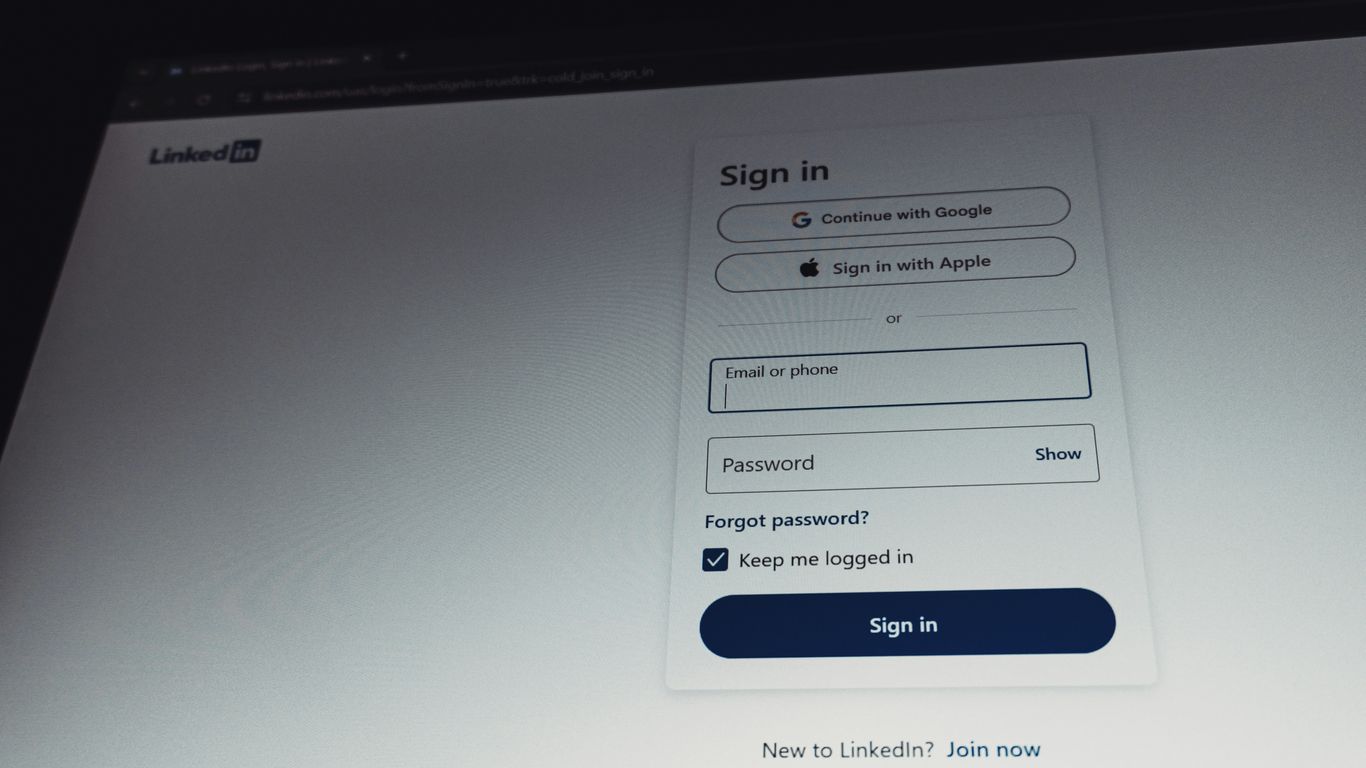
Sometimes, the usual way of logging in just isn’t cutting it, or maybe you’re looking for a quicker, more integrated way to access ChatGPT. Luckily, OpenAI gives you a few different routes to get into your account, which can be super helpful if you’re having trouble with the standard email and password method or just want to streamline things.
Logging In Using Google, Microsoft, or Apple Accounts
This is a pretty neat feature. Instead of creating and remembering yet another password, you can link your ChatGPT account to services you probably already use daily. It’s like using your Google account to log into a new app – much simpler.
Here’s the general idea:
- Google Account: On the login page, you’ll see an option like "Continue with Google." Click that, pick the Google account you want to use, and you’re in. It’s fast and uses Google’s security.
- Microsoft Account: Similar to Google, there’s usually a "Continue with Microsoft" button. You’ll be prompted to enter your Microsoft login details.
- Apple ID: If you’re in the Apple ecosystem, you can "Continue with Apple." You might get a choice to share or hide your email address, which is a nice privacy touch.
Using these single sign-on options means you don’t have to worry about forgetting a separate ChatGPT password. Plus, you’re relying on the robust security of these big tech companies.
Accessing ChatGPT on Mobile Devices
Want to use ChatGPT on the go? You absolutely can. Whether you prefer using your phone’s browser or a dedicated app, getting logged in is pretty straightforward.
- Mobile Browser: Just open your phone’s web browser (like Chrome, Safari, or Firefox) and go to the usual ChatGPT web address:
chat.openai.com. You’ll see the same login options as on a desktop. - Dedicated Apps: OpenAI has official apps for both Android and iOS. You can download these from the Google Play Store or the Apple App Store. Once installed, open the app and look for the login button. You can then choose to log in with your email, or use the Google, Microsoft, or Apple options if you’ve linked them.
Honestly, the mobile app often feels a bit smoother for quick questions or typing on the go. Your conversations sync across devices, so you can pick up where you left off, no matter how you logged in.
Using the Official ChatGPT Mobile Application
As mentioned above, the mobile app is a great way to stay connected. It’s designed specifically for smaller screens and touch interactions, making it more user-friendly than trying to navigate the full website on your phone.
When you first open the app, you’ll be presented with the login screen. You can either:
- Enter your registered email and password.
- Tap "Continue with Google."
- Tap "Continue with Microsoft."
- Tap "Continue with Apple."
After selecting your preferred method and completing the authentication steps (which might involve a quick verification from Google, Microsoft, or Apple), you’ll be logged into your ChatGPT account. The app will then likely ask for certain permissions, like notifications, to improve your experience. It’s a really convenient way to have AI assistance right in your pocket.
Advanced Solutions for Persistent Login Failures
So, you’ve tried the usual fixes, and you’re still staring at a login screen that just won’t budge. Don’t worry, it happens. Sometimes, the issue is a bit more hidden, and we need to dig a little deeper. Let’s look at some of the more advanced steps you can take when you’re facing persistent login failures with ChatGPT 4 Pro.
Checking the OpenAI Status Page for Outages
Before you go too far down the troubleshooting rabbit hole, it’s always a good idea to see if the problem is on OpenAI’s end. They have a dedicated status page where they report any ongoing incidents or outages affecting their services. If the status page shows that ChatGPT is experiencing issues, then the best course of action is simply to wait it out. Trying to log in repeatedly during a widespread outage is usually futile and can even put unnecessary strain on their systems. You can check the OpenAI status page for real-time updates.
Disabling VPNs and Browser Extensions
Sometimes, external software can interfere with the login process without you even realizing it. Virtual Private Networks (VPNs) can sometimes cause authentication issues because they mask your IP address, which might trigger security protocols. Try temporarily disabling your VPN and see if that allows you to log in. If you’re still stuck, the next culprits could be your browser extensions. Extensions, especially those related to privacy, ad-blocking, or security, can sometimes conflict with website scripts. Try disabling them one by one, or use your browser’s incognito/private mode, which usually runs without extensions, to see if that resolves the login problem.
Trying Alternative Browsers for Login
If you’ve exhausted the other options, it might be time to switch your browser. While ChatGPT generally works well across major browsers like Chrome, Firefox, Safari, and Edge, there can be rare instances where a specific browser version or configuration causes unexpected login behavior. Trying to log in using a different browser can help determine if the issue is specific to your primary browser’s settings or profile. If you can log in successfully on an alternative browser, you might need to investigate your original browser’s settings further, perhaps by resetting it to its default configuration.
Securing Your ChatGPT 4 Pro Account
Keeping your ChatGPT account safe is pretty important, especially since this AI can do so much. It’s not just about logging in; it’s about making sure only you can access your account and your conversations. Let’s go over a few ways to lock things down.
Implementing Two-Factor Authentication
This is like having a second lock on your digital door. Even if someone gets your password, they still can’t get in without a second code. It’s a really good idea to turn this on.
Here’s how you usually set it up:
- Log into your ChatGPT account.
- Find your profile picture or icon, usually in the bottom corner, and click it.
- Go to the ‘Settings’ menu.
- Look for a ‘Security’ section.
- You should see an option to enable two-factor authentication (2FA). Follow the steps it gives you to finish setting it up. This might involve using an app on your phone to get codes.
Best Practices for Password Security
Your password is the first line of defense. Making it strong and keeping it secret is key.
- Use a password that’s unique to ChatGPT. Don’t reuse passwords from other sites. If one site gets hacked, yours won’t be compromised too.
- Change your password every so often. It’s a good habit to get into.
- Consider using a password manager. These tools can create and store really strong, unique passwords for all your accounts, so you only have to remember one master password.
- Never, ever share your password with anyone. Not your best friend, not your mom, nobody.
- If you’re using a computer that others use, make sure to log out of ChatGPT when you’re done. Just clicking your profile and selecting ‘Log out’ does the trick.
Recognizing and Avoiding Phishing Attempts
Phishing is when someone tries to trick you into giving up your login details. They might send fake emails or messages that look like they’re from OpenAI.
- OpenAI will never email you asking for your password. Seriously, never.
- Always go directly to the ChatGPT website (chat.openai.com) to log in. Don’t click links in emails that claim to be from OpenAI, especially if they ask you to log in.
- Be suspicious of emails that have bad grammar, seem too urgent, or ask for personal information. These are big red flags.
Password Reset and Account Recovery
Okay, so you’ve forgotten your password. It happens to the best of us, right? Don’t sweat it. Recovering your ChatGPT account is usually pretty straightforward. The most common way to get back in is by using the ‘Forgot Password?’ link.
Here’s the typical process:
- Head over to the ChatGPT login page. You know, the one where you usually type in your email and password.
- Instead of typing anything, look for a link that says something like "Forgot password?" or "Reset password." Click that.
- You’ll probably be asked to enter the email address you used when you first signed up for ChatGPT. Make sure you type it in correctly – no typos allowed!
- After you submit your email, OpenAI will send you a special link. Keep an eye on your inbox for an email from them. It might take a few minutes to arrive, so be patient.
- If you don’t see the email after about five minutes, definitely check your spam or junk folder. Sometimes those emails get rerouted.
- Once you find the email, click on the reset link. This will take you to a page where you can create a brand new password.
- Pick a strong password! We’ll talk more about that in a sec, but think about mixing letters, numbers, and symbols. Then, use that new password to log back into your account.
Troubleshooting Password Reset Email Issues
Sometimes, that password reset email just doesn’t show up. If you’ve checked your spam folder and you’re sure you entered the right email address, here are a few other things to try:
- Wait a bit longer: Sometimes email delivery can be delayed, especially during busy times. Give it another 10-15 minutes.
- Try requesting it again: Go back to the login page and click "Forgot password?" one more time. Maybe the first request got lost in the digital ether.
- Check other email accounts: Are you absolutely positive you used the email address you think you did? It’s easy to forget which one you used for which service.
- Contact Support (as a last resort): If none of these steps work, and you’re still locked out, you might need to reach out to OpenAI’s support team. They can help guide you through more specific account recovery steps.
Creating Strong and Secure New Passwords
Now that you’re setting up a new password, let’s make it a good one. A strong password is your first line of defense against unauthorized access. Here’s what makes a password tough to crack:
- Length is key: Aim for at least 12 characters, but longer is always better. Think of it like a secret code – the more parts it has, the harder it is to guess.
- Mix it up: Use a combination of uppercase letters (A-Z), lowercase letters (a-z), numbers (0-9), and symbols (!@#$%^&*). Don’t just stick to one type.
- Avoid the obvious: Don’t use personal information like your birthday, your pet’s name, or common words like "password123." Hackers often try these first.
- Uniqueness matters: Make sure this password is only for ChatGPT. Using the same password across multiple sites is a big security risk. If one site gets compromised, they all could be.
- Consider a password manager: These tools can generate and store super strong, unique passwords for all your accounts, so you only have to remember one master password. It’s a game-changer for online security.
Wrapping Up Your ChatGPT Login Journey
So, there you have it. Getting into ChatGPT shouldn’t feel like cracking a secret code, and hopefully, this guide has smoothed out any bumps in your login road. We’ve gone over the common hiccups, from capacity errors to forgotten passwords, and hopefully, you’ve found a fix that works for you. Remember, bookmarking that direct login page and keeping your browser tidy can save you a lot of hassle down the line. Now, go ahead and dive into all the cool stuff ChatGPT can do – you’ve earned it!