
Understanding The Beidou App Ecosystem
So, you’ve got this Beidou GPS Navigator, and you’re probably wondering what makes it tick, right? Well, it’s all about the Beidou Navigation Satellite System, or BDS for short. Think of it as China’s own global positioning system, built to be super accurate and reliable. It’s not just for fancy military stuff; it’s out there providing location, navigation, and timing services to pretty much everyone, everywhere, all the time.
The BeiDou Navigation Satellite System Overview
This whole Beidou system is pretty impressive. It’s got satellites way up in space – some in geostationary orbits, others in different kinds of orbits. Then there’s the ground control part, with all sorts of stations keeping things running smoothly. And finally, there’s the user part, which is your device, your phone, or anything else that needs to know where it is. The BDS is designed to work with other navigation systems too, making it more flexible. It’s been used in all sorts of fields, from farming and fishing to disaster relief and even keeping power grids stable. It’s really become a big part of how we do things, from everyday apps to big infrastructure projects.
Integrating Beidou with Autonavi Maps
Now, what makes this navigator really useful is how it plays nice with Autonavi Maps, also known as Gaode Maps. This isn’t just about getting from point A to point B. When Beidou’s precise positioning is combined with Autonavi’s detailed maps, you get real-time traffic info and routes that are spot on. It means fewer surprises on the road, like unexpected jams or tricky turns. Plus, with Wi-Fi built-in, keeping those maps updated is a breeze, even if your phone signal is playing hide-and-seek.
Key Features of the Beidou GPS Navigator
This device packs a punch with its features. You’ve got:
- Precise Positioning: Thanks to the Beidou system, you can expect accuracy within a few meters, which is great for following routes exactly.
- Voice Control: This is a game-changer for drivers. You can change music, answer calls, or get directions just by speaking, keeping your hands on the wheel and your eyes on the road.
- Bluetooth Connectivity: Connect your phone to stream music or take calls without fumbling with wires.
- Touchscreen Interface: A clear, responsive screen makes it easy to interact with all the functions.
- Wi-Fi Updates: Stay current with the latest maps and software without needing a cellular connection.
It’s basically designed to make your driving experience smoother and more connected.
Getting Started With Your Beidou Device

So, you’ve got your hands on a Beidou device and you’re ready to hit the road, or maybe just figure out how this thing works. It’s not as complicated as it might seem at first glance. Let’s break down how to get it up and running.
First things first, you’ll want to power on your device. Usually, there’s a button for that, and once it’s on, it’ll likely start looking for a signal. If you’re connecting it to your car’s system or another device, you might need to pair it up. For most units, this involves turning on Bluetooth on both devices and selecting your Beidou navigator from the list of available connections. The initial setup is pretty straightforward, often guided by on-screen prompts.
Once it’s on and connected, you’ll be looking at the main screen. Most Beidou devices these days come with a touchscreen, which makes things a lot easier. You’ll see icons for different functions like maps, settings, and maybe even media. Tapping on these icons will take you to different menus or start specific functions. Swiping your finger across the screen lets you scroll through lists or maps. It’s a lot like using your smartphone, so you should feel pretty comfortable with it after a few minutes.
Here’s a quick rundown of common interface elements:
- Map View: This is where you’ll see your current location and the routes. You can usually zoom in and out by pinching your fingers.
- Search Bar: Type in your destination here to start planning a route.
- Settings Menu: Access options to customize your device, like voice preferences, display brightness, and connectivity.
- Quick Access Icons: Often found at the bottom or side, these give you fast access to frequently used features like home, work, or favorite places.
To make your Beidou device truly yours, you’ll want to tweak some settings. Head into the ‘Settings’ menu. Here you can:
- Set Your Home and Work Locations: This saves you time when planning daily commutes.
- Choose Voice Preferences: Select the voice you want for navigation instructions, and adjust the volume. You can also decide if you want spoken street names or just general directions.
- Configure Route Options: Decide if you want to avoid tolls, highways, or ferries. You can also set preferences for the fastest route versus the shortest one.
- Adjust Display Settings: Change the screen brightness, color themes, and whether the map stays oriented to North or follows your direction of travel.
Taking a few minutes to personalize these settings will make your experience much smoother and more enjoyable.
Advanced Features and Connectivity
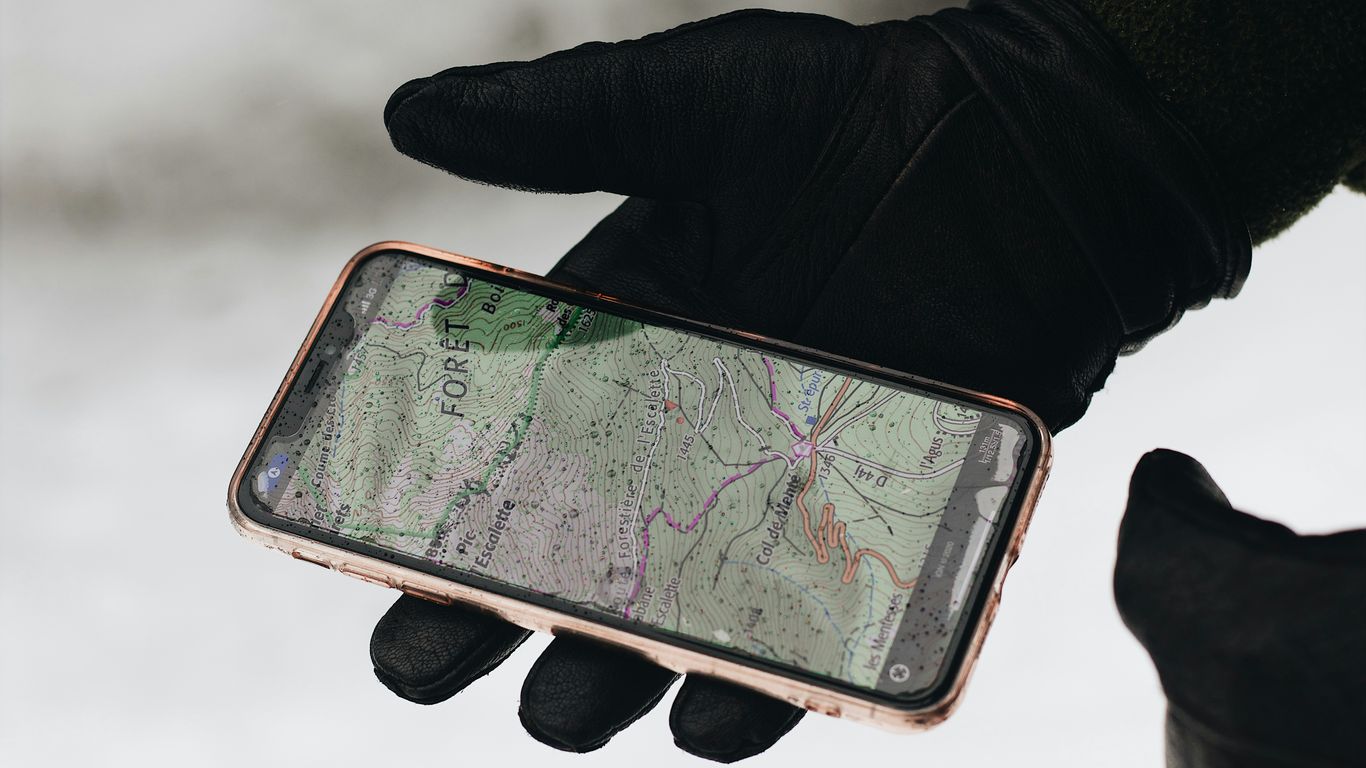
Beyond basic navigation, your Beidou device opens up a world of connected possibilities. Think of it as more than just a map; it’s a hub for communication and smarter operation.
Leveraging Voice Control for Hands-Free Operation
Trying to tap on a screen while driving is a recipe for distraction, right? That’s where voice control comes in. You can issue commands to your Beidou device without taking your hands off the wheel or your eyes off the road. This means you can ask for directions, make calls, or even control music playback just by speaking. It’s designed to keep you focused on the task of driving while still letting you manage your device’s functions.
Bluetooth Calling and Music Playback
Your Beidou device can act as a central point for your phone’s audio. By pairing your smartphone via Bluetooth, you can handle phone calls directly through the device. The caller’s voice comes through the device’s speaker, and you can speak back through its microphone. It’s also great for streaming music or podcasts from your phone. Imagine planning your route and having your favorite playlist ready to go, all controlled from one place.
Utilizing Wi-Fi for Map Updates
Keeping your maps current is super important, especially if you travel to new areas often. Instead of relying solely on cellular data, which can be spotty or expensive, your Beidou device can connect to Wi-Fi networks. This is perfect for when you’re at home, at a hotel, or anywhere with a stable internet connection. You can download large map updates, software patches, and other data without using your mobile plan. It’s a good idea to connect to Wi-Fi periodically, maybe once a week or before a long trip, to make sure you have the latest information.
Real-World Applications and Scenarios
So, you’ve got your Beidou device all set up, and you’re probably wondering, ‘What can I actually do with this thing?’ Well, buckle up, because this system isn’t just for finding your way home. It’s about making your everyday journeys, and even those big adventures, a whole lot smoother and more informed.
Navigating Challenging Terrains with Beidou
Ever been off the beaten path, maybe hiking a new trail or exploring a remote area, and felt a bit… lost? That’s where Beidou really shines. Unlike systems that might struggle with dense forests or deep canyons, Beidou’s network is designed to be robust. It means you’re more likely to get a solid signal even when you’re not exactly on a paved road. Think about it: you’re out in the wilderness, maybe looking for a specific landmark or just trying to stick to your planned route. Having reliable positioning means you can focus on the experience, not on worrying if your GPS is going to cut out.
- Hiking and Trekking: Keep track of your exact location on trails, mark points of interest, and easily retrace your steps if needed.
- Off-Roading: For those who love exploring dirt roads or rough terrain, Beidou provides consistent location data, helping you stay on course.
- Remote Exploration: Whether you’re a geologist, a wildlife photographer, or just an adventurer, having dependable navigation in areas with limited infrastructure is a game-changer.
Enhancing Road Trips and Commutes
Let’s be honest, traffic jams are the worst. And getting lost in an unfamiliar city? No fun. Beidou can seriously help with both. It’s not just about getting from Point A to Point B; it’s about getting there efficiently and with less stress. The system can provide real-time traffic updates, suggesting quicker routes when there’s a snarl-up ahead. This means less time idling and more time enjoying your drive, or just getting home sooner after a long day.
The ability to reroute based on live traffic conditions can save you significant time and frustration.
Here’s a quick look at how it helps:
| Feature | Benefit |
|---|---|
| Real-time Traffic | Avoid congestion, find faster routes |
| Point of Interest | Discover nearby gas stations, restaurants, etc. |
| Speed Limit Alerts | Stay informed and drive safely |
| Route Planning | Get estimated travel times and distances |
Beidou as Your Ultimate Driving Companion
Think of your Beidou device as more than just a GPS. It’s your co-pilot. It can help you find parking, alert you to speed cameras (where legal, of course!), and even help you remember where you parked your car in a massive lot. For families, it can offer peace of mind by letting you share your location with trusted contacts, so they know you’re safe on your journey. It’s about adding a layer of safety and convenience to every trip, big or small. Whether you’re a daily commuter or planning a cross-country road trip, integrating Beidou into your travel routine makes the whole experience more predictable and, dare I say, enjoyable.
Ensuring Optimal Performance and Accuracy
Getting the most out of your Beidou device means paying attention to a few key things that affect how well it works and how precise its location data is. It’s not just about turning it on and expecting perfect results every time. There are settings and environmental factors that play a big role.
Understanding Beidou Navigation Accuracy
Accuracy with Beidou, like any satellite navigation system, can vary. Several things influence this. The number of satellites your device can see is a big one. More satellites generally mean a better fix. Also, the geometry of those satellites in the sky matters – if they’re all clustered together, it’s not as good as being spread out. Atmospheric conditions can also cause slight delays in signals, which can throw off the position a bit. For the best results, try to have a clear view of the sky with minimal obstructions.
Tips for Maintaining Device Performance
Keeping your Beidou device running smoothly is pretty straightforward. Here are a few pointers:
- Keep it Updated: Software updates often include performance improvements and bug fixes. Check the Beidou app or your device’s settings regularly for any available updates.
- Battery Health: A well-charged battery is important. Low power can sometimes affect device responsiveness. If you’re using it for extended periods, consider a power bank.
- Clean the Sensor: If your device has an external antenna or sensor, make sure it’s clean and free of dirt or debris. This helps it get the clearest signal possible.
- Manage Background Apps: If you’re using the Beidou app on a smartphone, close other apps running in the background that you don’t need. This frees up processing power for the navigation app.
Troubleshooting Common Usage Issues
Sometimes, things don’t work quite right. Here are a couple of common problems and how to deal with them:
- Inaccurate Location: If you notice your position seems off, first check for obstructions like tall buildings or dense tree cover. Try moving to a more open area. Also, check your device’s settings to ensure it’s set to use Beidou and not defaulting to a less accurate mode.
- Slow Fix Time: It can sometimes take a minute or two for your device to get a satellite fix, especially when you first turn it on or after being in an area with no signal. Be patient, and ensure it has a clear view of the sky. If it’s consistently slow, check for software updates or consider a device reset.
- App Freezing or Crashing: This is often related to the phone or tablet the app is running on. Try restarting the device. If the problem persists, uninstalling and reinstalling the Beidou app might help. Make sure your device meets the app’s minimum system requirements.
Connecting and Configuring Your Beidou Receiver
Getting your Beidou receiver hooked up and set just right is pretty important for getting the most out of it. It’s not super complicated, but there are a few steps to make sure everything talks to each other properly.
Connecting Your Android Device via Bluetooth
First things first, you’ll want to pair your Android phone or tablet with the Beidou receiver using Bluetooth. This is usually how your device sends and receives location data. Just go into your Android’s Bluetooth settings, turn it on, and look for the Beidou receiver in the list of available devices. Tap on it to connect. You might need to enter a pairing code, which is often something simple like ‘0000’ or ‘1234’, but check your receiver’s manual if you’re not sure.
- Turn on Bluetooth on your Android device.
- Power on your Beidou receiver.
- Search for Bluetooth devices on your Android.
- Select the Beidou receiver from the list and pair it.
Configuring the Receiver for Your Application
Once connected, you’ll likely use an app, like Geode Connect, to fine-tune the receiver’s settings. This is where you tell the receiver what kind of data you need and how you need it. For example, if you’re using it for precise mapping, you’ll want to set it to a higher accuracy mode. If you’re just using it for general navigation, a standard setting might be fine. You can often set up different ‘profiles’ for different uses, which is handy.
Here’s a look at how you might set up different profiles:
| Use Case | Connection Type | Travel Speed | GNSS Constellations | Notes |
|---|---|---|---|---|
| Walking in dense forest | Bluetooth | Slow | All available | Optimized for more satellite visibility |
| Locating research sites | USB | Slow | NTRIP/RTK | For precise positioning of known locations |
| Riding a four-wheeler | RS-232C | Fast | Open sky | Optimized for speed and clear sky |
Understanding Receiver Reset Options
Sometimes, things just don’t work right, and you might need to reset your Beidou receiver. There are usually a couple of ways to do this. A soft reset might just restart the device, clearing out temporary glitches. A hard reset, on the other hand, will usually return the receiver to its factory default settings. This means you’ll lose any custom configurations you’ve made, so use it as a last resort. Always check your receiver’s manual to see what reset options are available and how to perform them safely.
Maximizing Your Beidou Experience
So, you’ve got your Beidou device all set up and running. That’s great! But there’s always more you can do to make it work even better for you, right? It’s not just about getting from point A to point B; it’s about making the journey smooth and enjoyable. Let’s look at how to really get the most out of your Beidou.
Managing Waypoints and Data Sharing
Waypoints are like digital breadcrumbs you leave on your journey. You can mark important spots – maybe a great viewpoint, a tricky intersection, or your favorite coffee shop. Saving these makes it super easy to go back later or share them with friends. Think of it as building your own personal map of places you love or need to remember.
- Saving a Waypoint: Usually, there’s a button or a menu option to "Save Current Location" or "Add Waypoint." Just tap it when you’re at the spot you want to save.
- Naming and Editing: Once saved, you can give your waypoint a clear name (like "Best Sunset Spot" instead of just "Waypoint 1"). You can also edit its location if you weren’t quite precise the first time.
- Sharing: Many devices let you share these waypoints. This is handy if you’re planning a group trip and want everyone to find the same meeting point or a cool place you discovered.
Exploring Terminal Screen Options
Your device’s screen is your main control panel. It might seem a bit busy at first, but once you get the hang of it, you’ll see how much you can customize. Different screens might show different information – like your current speed, estimated time of arrival, or upcoming turns. Take some time to just tap around and see what’s available.
- Map View: This is the standard view showing your route and surroundings.
- Trip Information: Often, there’s a screen dedicated to your trip’s stats: distance covered, time elapsed, average speed, and remaining distance.
- Traffic Data: If your device has live traffic updates, there’s usually a way to see a summary of traffic conditions along your route.
Customizing Preferences in Geode Connect
If your Beidou device uses an app like Geode Connect, this is where you can really fine-tune things. It’s like the device’s settings menu, but often with more detailed options. You can adjust how the navigation sounds, what kind of alerts you get, and even how the map looks. Making these adjustments can significantly improve your daily use and reduce distractions while driving.
- Voice Prompts: Adjust the volume, choose different voices, or even turn off certain types of spoken directions if you find them annoying.
- Map Display: Change the color scheme, the zoom level that triggers automatic adjustments, or whether 3D buildings are shown.
- Units: Set your preferred units for distance (miles or kilometers) and speed (mph or km/h).
Wrapping Up Your Journey
So, there you have it. We’ve gone over how to get your Beidou app set up and running, from the initial connection to tweaking those settings for your perfect drive. It’s pretty neat how much this little device can do, making those long trips or daily commutes a whole lot smoother. If you’ve been on the fence about getting a better navigation system, this might just be the thing. Give it a shot, and see how it changes your time on the road. Happy travels!