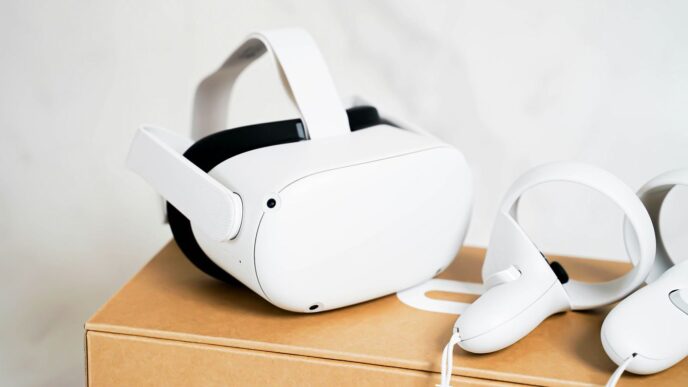
So, you’re thinking about getting into VR with something like the Oculus Rift, huh? That’s pretty cool. But before you get too excited, let’s talk about what your computer needs to actually run it. It’s not just about plugging it in and going. There are some specific pc requirements for Oculus Rift that you’ll want to know about so you don’t end up with a fancy paperweight. We’ll break down the important bits so you can figure out if your current setup is ready for virtual reality or what you might need to change.
Key Takeaways
- For a good VR experience with the Oculus Rift, your PC needs to meet certain standards, especially for the graphics card and processor.
- A strong graphics card, like an NVIDIA GTX 1060 or AMD RX 480, is really important for rendering VR worlds smoothly.
- Make sure you have enough RAM, at least 8GB, and a decent CPU, like an Intel i5 or AMD Ryzen 5, to avoid stuttering.
- You’ll need specific ports, mainly USB 3.0 and a DisplayPort, so check your computer’s connections before buying.
- Some VR games, like Half-Life: Alyx, have even higher requirements than the headset itself, so always check individual game needs.
Understanding Oculus Rift PC Requirements
So, you’re thinking about jumping into virtual reality with an Oculus Rift, huh? That’s awesome! But before you get too excited about exploring digital worlds, we need to talk about your computer. VR isn’t like playing your usual games on a PC; it needs a bit more oomph to run smoothly. Think of it like this: your PC has to work twice as hard to show you two different images at once, one for each eye, and do it really fast so you don’t feel sick.
Minimum Specifications for Rift S
If you’re looking at the Rift S, Oculus has laid out some basic guidelines to get you started. These are the absolute minimums to get the headset up and running. You might not be playing the most demanding games at the highest settings, but you should be able to get a feel for VR.
- CPU: Intel i3-6100 / AMD Ryzen 3 1200, FX4350, or something similar.
- GPU: NVIDIA GTX 1050Ti / GTX 960, or an AMD Radeon RX 470 or better.
- RAM: 8GB of system memory.
- OS: Windows 10.
- Ports: You’ll need at least one USB 3.0 port and one DisplayPort (or a Mini DisplayPort adapter).
Recommended Specifications for Rift S
Now, if you want a smoother, more enjoyable experience, especially with newer games, you’ll want to aim higher. These specs will give you more breathing room and better performance.
- CPU: Intel i5-4590 / AMD Ryzen 5 1500X or something more powerful.
- GPU: NVIDIA GTX 1060 / GTX 970, or an AMD Radeon RX 480 / R9 290 or better.
- RAM: Still 8GB is the baseline, but more is always better for VR.
- OS: Windows 10.
- Ports: Same as minimum: 1x USB 3.0 and 1x DisplayPort.
Why These Specifications Matter
It’s not just about ticking boxes; these requirements are there for a reason. VR needs to maintain a high and consistent frame rate, usually around 90 frames per second (fps), to feel real and avoid making you feel motion sick. If your PC can’t keep up, you’ll notice stuttering, lag, and a generally unpleasant experience. The graphics card is arguably the most important component for VR performance. It’s doing the heavy lifting to render those detailed virtual worlds at the speed needed. Beyond that, having enough RAM means your system can handle loading game assets without slowing down, and the right CPU keeps everything running smoothly behind the scenes. Don’t forget those specific ports, either; USB 3.0 is needed for the data transfer speed, and DisplayPort is often preferred for video output quality.
Graphics Card: The Backbone Of VR Gaming

Alright, let’s talk about the heart of your VR setup: the graphics card, or GPU. If you want to get into virtual reality with something like the Oculus Rift, this is the component you absolutely cannot skimp on. Think of it as the engine that powers everything you see and do in VR. It’s responsible for drawing all those detailed 3D worlds at a speed that keeps you from feeling like you’re going to get sick.
Entry-Level VR Graphics Cards
So, you don’t want to spend a fortune, but you still want to dip your toes into VR? That’s totally doable. For a solid entry-level VR experience, you’re generally looking at cards that can handle at least a GTX 1060 or an AMD RX 480. Cards like the NVIDIA GTX 1660 Super or the RTX 2060 are good starting points. They offer a decent punch without completely emptying your wallet. You’ll be able to play most VR games, though maybe not at the absolute highest settings or resolutions.
High-End VR Graphics Cards
Now, if you’re aiming for the best possible VR experience, or you want to play the most demanding games like Half-Life: Alyx without a hitch, you’ll want to look at the higher end. We’re talking about cards like the NVIDIA RTX 3070 or even the RTX 40 series if you’re really going all out. These cards have way more power, which means smoother frame rates, more detailed graphics, and the ability to run VR at higher resolutions. It makes a big difference in how immersive and comfortable the experience feels.
Direct Output Architecture
Here’s a bit of a technical point, but it’s super important, especially if you’re thinking about using a laptop. Some laptops have their video ports routed through the integrated graphics chip before it even gets to the dedicated graphics card. This setup often can’t handle the specific demands of VR, like the high refresh rates and resolutions needed. For VR to work properly, the Oculus Rift (and most VR headsets) needs to connect directly to the dedicated graphics card. This is often called a ‘direct output architecture’. So, when you’re looking at PCs or laptops, make sure the HDMI or DisplayPort you’ll use for the headset plugs straight into the graphics card itself, not some other chip on the motherboard. Laptops are notoriously bad for this, so be extra careful if that’s your plan.
Processor And Memory: Ensuring Smooth Performance
While the graphics card often gets all the attention when talking about VR, the processor (CPU) and your system’s memory (RAM) are just as important for a good experience. Think of it like this: the graphics card is painting the picture, but the CPU and RAM are making sure the painter has everything they need, right when they need it, without getting flustered.
Choosing The Right CPU
For VR, you don’t necessarily need the absolute top-of-the-line CPU, but you do need something solid. We’re generally looking at mid-range processors. For Intel, something like a Core i5 from the 10th generation or newer is a good starting point. On the AMD side, a Ryzen 5, like the 3600 or a newer equivalent, will do the job well. These processors have enough cores and speed to handle the complex calculations VR games throw at them, plus any background tasks your PC might be running without slowing things down. A CPU that can keep up means fewer stutters and a more believable virtual world.
Sufficient RAM For VR
RAM is your computer’s short-term memory. VR applications and games can be pretty memory-hungry because they’re loading a lot of detailed information very quickly to keep those virtual worlds running smoothly. For a while, 8GB of RAM was considered the minimum, but honestly, that’s not really enough anymore for a good VR experience. You’ll want to aim for at least 16GB of RAM. This gives you enough breathing room for the VR software itself, plus whatever else you might have open, like your web browser or communication apps. More RAM means less chance of your system slowing to a crawl when things get busy in VR.
Future-Proofing Your Memory
When you’re building or buying a PC for VR, it’s smart to think a little bit ahead. VR technology is always improving, and new games are coming out that will push your hardware harder. For RAM, getting 16GB now is a good move. If you have the option and your budget allows, consider a motherboard that supports 32GB or even more. While you might not need it today, having the ability to easily add more RAM down the line means your PC can keep up with future VR titles without needing a whole new system. It’s often cheaper to upgrade RAM later than to buy a whole new PC, so keep that in mind.
Essential Ports For VR Connectivity
So, you’ve got your VR headset picked out, and your PC seems to meet the graphics and processing power needs. That’s great! But before you get too excited, let’s talk about the physical connections. It’s not just about having the right internal parts; your PC also needs the right doors to let the VR signal in and out.
The Importance Of USB 3.0
Most VR headsets, including the Oculus Rift S, rely heavily on USB 3.0 ports. Why? Because VR needs a lot of data to be sent back and forth, and quickly. USB 2.0 just isn’t fast enough to handle the constant stream of information needed for smooth, lag-free visuals and tracking. Think of it like trying to pour a swimming pool’s worth of water through a garden hose – it’s just not going to work well.
- Speed: USB 3.0 offers significantly higher data transfer speeds compared to USB 2.0. This is vital for transmitting sensor data, controller inputs, and video signals.
- Stability: A stable connection prevents stuttering, tracking loss, and other frustrating issues that can pull you right out of the virtual world.
- Power Delivery: Some USB 3.0 ports can also provide more power, which can be helpful for certain peripherals.
How do you spot a USB 3.0 port? Often, they’re colored blue, but this isn’t a universal rule. If your motherboard isn’t color-coded, it’s best to check your PC’s manual or the manufacturer’s website to confirm which ports are USB 3.0 or higher.
DisplayPort Versus HDMI
When it comes to getting the visual information from your graphics card to your headset, you’ll typically encounter two main connection types: DisplayPort and HDMI. While both can carry video signals, DisplayPort is generally preferred for VR.
- DisplayPort: This is often the go-to for VR headsets. It’s designed for higher bandwidth and can support higher resolutions and refresh rates more effectively. Many VR headsets specifically require a DisplayPort connection.
- HDMI: While common on most monitors and TVs, HDMI can sometimes be a bottleneck for VR, especially with older versions. Some headsets might use HDMI, but if you have a choice, DisplayPort is usually the better bet for VR.
You need to make sure your graphics card has the right port available, especially if you’re running multiple monitors. If your graphics card is already maxed out with monitors, you might need to consider rearranging your setup or even upgrading your GPU to get that extra DisplayPort or HDMI slot.
Checking Motherboard Compatibility
It’s not just about having the ports; it’s also about whether your motherboard can handle the demands of VR. Some VR headsets, like the Rift S, have specific requirements for the USB 3.0 controller on the motherboard. Older motherboards might have USB 3.0 ports, but the underlying chip might not be robust enough for the constant, high-speed data flow VR requires. This can lead to connection issues even if you’re plugged into the correct-looking port. Always check your motherboard’s specifications to ensure it’s compatible with VR headsets, especially if you’re using an older system. Sometimes, a dedicated USB 3.0 expansion card can be a good workaround if your motherboard is lacking.
Game-Specific Demands On Your PC
So, you’ve checked your PC against the general requirements for your VR headset, and everything looks good. That’s great! You’re probably ready to jump into a lot of virtual worlds. But here’s the thing: not all VR games are created equal. Some are pretty chill and don’t ask much of your computer, while others are absolute beasts that push your hardware to its limits.
Beyond Minimum Headset Requirements
Think of it like this: the minimum specs for a headset are like the bare minimum to get a car running. It’ll drive, sure, but it might struggle on hills or feel sluggish. Similarly, minimum VR specs get the headset working, but you might not get the smoothest experience, especially in more demanding games. Many newer or more complex VR titles will ask for more power than the headset’s baseline requirements. This often means needing a better graphics card, more RAM, or a faster processor to avoid choppy visuals or that queasy feeling some people get when performance dips.
Example: Half-Life: Alyx
Let’s take a look at a popular example: Half-Life: Alyx. This game is a benchmark for VR experiences, and it’s known for being pretty demanding. While many VR headsets might be happy with 8GB of RAM, Half-Life: Alyx recommends a solid 12GB of DDR4 RAM. On the graphics card front, it won’t really run well on anything less than an NVIDIA GTX 1060 or an AMD RX 580. If you want the best experience, you’ll likely need something even more powerful than that. This shows how a single game can significantly raise the bar beyond the headset’s general needs.
Checking Individual Game Requirements
So, how do you know what a specific game needs? It’s pretty straightforward, actually. Most of the time, the game’s store page – whether it’s on Steam, the Oculus Store, or another platform – will list the system requirements. Always check these before you buy or download a game if you’re not sure your PC can handle it.
Here’s a quick rundown of what to look for:
- Graphics Card (GPU): This is usually the biggest factor. Look for the recommended GPU model.
- Processor (CPU): Games will specify a minimum and recommended CPU.
- Memory (RAM): Pay attention to the amount of RAM needed, and sometimes the type (like DDR4).
- Storage: Some games, especially large VR titles, might need a good chunk of hard drive space or even a faster SSD.
Don’t just assume your PC is good to go for every game. A quick check of the game’s requirements can save you a lot of frustration and ensure you have a great time in VR.
Pre-Built VR Ready Systems
So, you’ve decided VR is the way to go, but the thought of piecing together a PC yourself feels like a whole other game you’re not ready to play. That’s totally understandable. Building a PC can be a headache, especially when you’re trying to make sure all the parts play nice with your new VR headset. Luckily, there are companies out there that do the heavy lifting for you.
VR-Ready Filters On Retail Sites
Many online stores that sell computer parts and pre-built systems have started adding "VR-Ready" filters. This is a super handy way to quickly find machines that are already configured to meet or exceed the requirements for most VR headsets. You can often sort by price, brand, or even specific VR headsets. These filters are your best friend when you want to skip the research and get straight to gaming. For example, you might find systems that are specifically marketed as being good for titles like Rec Room, which can be quite demanding.
Benefits Of Pre-Built PCs
Going with a pre-built VR-ready system comes with a few perks. For starters, you get a machine that’s guaranteed to work with VR right out of the box. No guesswork involved. Plus, these systems usually come with a warranty, which is a nice safety net if anything goes wrong. It’s also a great way to get a feel for VR without committing to building your own rig.
Here’s a quick look at what you might find in a typical VR-ready system:
- Graphics Card: Usually something like an NVIDIA GeForce RTX 3060 or AMD Radeon RX 6600 XT, which is a solid step up from the minimum requirements.
- Processor: A mid-range CPU, like an Intel Core i5 or AMD Ryzen 5, that can handle the processing demands of VR.
- Memory (RAM): At least 16GB of RAM is pretty standard, which is great for keeping things running smoothly.
- Storage: Often includes a fast SSD for quick game loading times.
Considering Upgradeability
Even though you’re buying a pre-built system, it’s still smart to think about the future. Can you easily add more RAM later if a new VR game needs it? Is there space for an extra hard drive? Some pre-built systems are more modular than others. When you’re looking at options, check if the motherboard is a standard size and if there’s enough room inside the case for future upgrades. This way, your VR-ready PC can grow with you as the VR landscape evolves.
Wrapping Up Your VR Journey
So, getting your PC ready for VR, especially for something like the Oculus Rift, might seem like a puzzle at first. You’ve got to make sure your graphics card is up to snuff, your processor can keep up, and you have the right ports available. It’s not just about plugging things in; it’s about making sure your computer has the muscle to create those immersive worlds without stuttering. While some games push the limits, hitting the recommended specs for your headset is a solid starting point for a good experience. Don’t forget to check those game-specific needs too, because some adventures demand a bit more power. Ultimately, a well-prepared PC means smoother gameplay and more fun in virtual reality.
Frequently Asked Questions
Do I need a super expensive computer for VR?
Not necessarily! While some VR games need a powerful computer, you can start with a system that meets the minimum requirements for headsets like the Oculus Rift S. Think of it like this: you don’t need a race car to drive, but a sports car is more fun. You can often find VR-ready computers or upgrade your current one without spending a fortune.
What’s the most important part of my PC for VR?
The graphics card (GPU) is super important. It’s like the engine that creates all the cool visuals you see in VR. A good GPU makes games look smooth and realistic. If your graphics card isn’t strong enough, games might stutter or look blurry, which can even make you feel a bit sick.
Can my laptop run VR?
It’s tricky. Most laptops aren’t ideal for VR because their graphics cards often can’t connect directly to the VR headset. Some newer, high-end gaming laptops might work, but it’s best to check the specific ports and graphics card details. Desktop computers are generally a safer bet for a good VR experience.
What are these USB 3.0 and DisplayPort things?
These are like special highways for data between your computer and your VR headset. USB 3.0 ports are faster than regular USB ports and are needed for VR to work smoothly. DisplayPort is a type of cable connection, often better for VR than HDMI, that helps send the video signal. Make sure your computer has these available!
Do all VR games need the same PC power?
Nope! Just like regular video games, some VR games are simple and don’t need much power, while others, like Half-Life: Alyx, are very demanding. Always check the specific requirements for the games you want to play. You might be able to play most games with a decent PC, but the really fancy ones might need an upgrade.
What if I don’t want to build or upgrade a PC myself?
That’s totally fine! Many stores sell ‘VR-ready’ computers. These are pre-built systems that already have the right parts to handle VR. They often have filters on their websites so you can easily find computers that meet VR standards. It’s a convenient way to get started without worrying about compatibility.