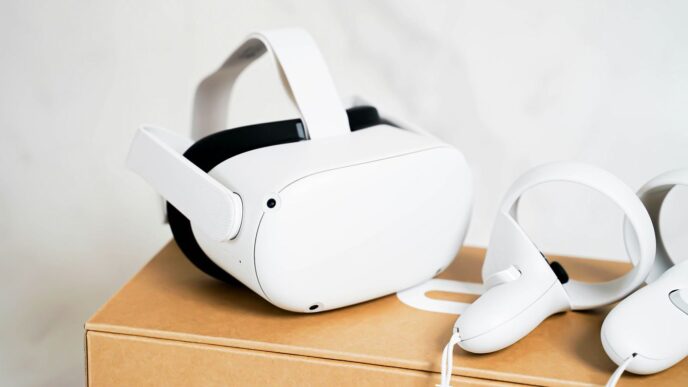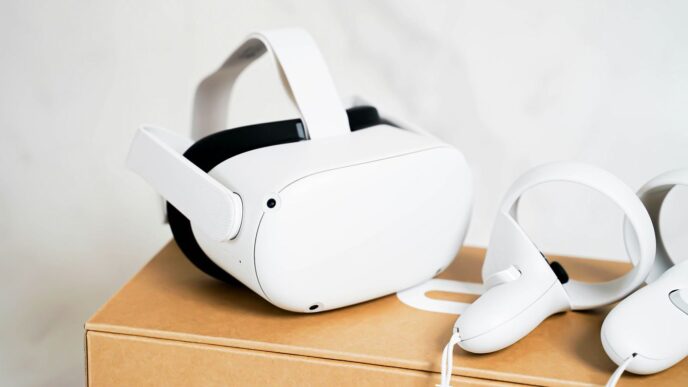
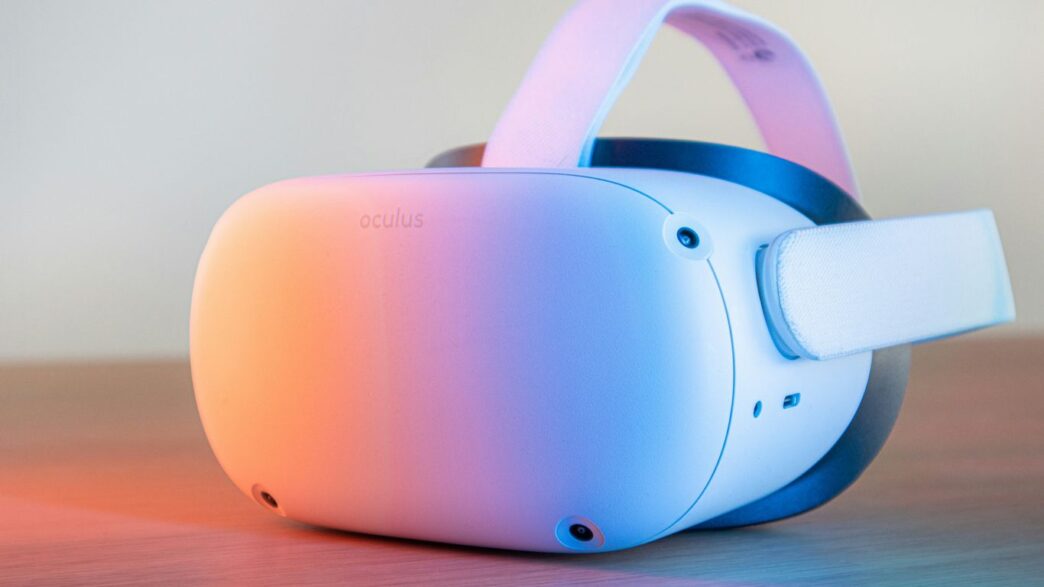
So, you’re thinking about the HP Reverb G2 specs? It’s a pretty solid VR headset, especially if you’re connecting it to a PC. It’s got some good things going for it, like a sharp screen and decent sound, but it’s not perfect. We’ll break down what you really need to know about this headset, from its display to how it feels when you wear it. Let’s get into it.
Key Takeaways
- The HP Reverb G2 has a high display resolution of 2160×2160 pixels per eye, which is sharper than many competitors, though some offer higher refresh rates.
- Audio is handled by speakers built into the headband, but there’s no headphone jack, and the sound doesn’t block outside noise.
- The headset uses cameras for tracking, which works well but can sometimes lose controllers if they go out of view, unlike systems with external sensors.
- Setup involves connecting via DisplayPort and USB, running through the Windows Mixed Reality portal, and defining your play space.
- Comfort is improved over its predecessor with better weight distribution and materials, but the overall design is still pretty standard for PC VR headsets.
Understanding the HP Reverb G2 Display Specifications
When you’re looking at virtual reality headsets, the display is pretty much the most important part, right? It’s what you’re staring into for hours. The HP Reverb G2 really stepped up the game here, especially compared to some earlier models. It uses LCD panels, and they’re packing some serious pixels.
Pixel Resolution Per Eye
Let’s talk numbers. The Reverb G2 boasts a resolution of 2160 x 2160 pixels for each eye. That’s a pretty high number, and it makes a big difference in how sharp and clear everything looks. You’ll notice finer details in games and applications, and text is much easier to read. This resolution actually beats out some other popular headsets like the Valve Index and the Oculus Quest 2, though the HTC Vive Pro 2 still has a slight edge in raw pixel count. Having that higher resolution means less of that screen-door effect, where you can see the gaps between pixels. It really makes the virtual world feel more solid.
Refresh Rate Capabilities
Beyond just the resolution, how smooth the image is matters a lot. The Reverb G2 runs at a 90 Hz refresh rate. This means the display updates 90 times every second. For most people, 90 Hz is a sweet spot – it’s smooth enough to prevent motion sickness for many users and provides a good sense of fluidity. While some high-end headsets can go up to 120 Hz or even higher, 90 Hz is a solid performance level that works well for a wide range of VR experiences. It’s a step up from older headsets that might have been stuck at 60 or 72 Hz.
Comparison to Competing Headsets
So, how does the Reverb G2 stack up? Well, as mentioned, its 2160 x 2160 resolution per eye is a strong point, surpassing many competitors at its price point. For instance, the Samsung Odyssey Plus, another PC-tethered option, offers 1440 x 1600 per eye. The Reverb G2’s LCD panels provide good color and brightness, though some might prefer the deep blacks of AMOLED displays found in other headsets. While the Vive Pro 2 has a higher resolution, it also comes with a significantly higher price tag. The Reverb G2 hits a nice balance between visual quality and cost, making it a compelling choice for those looking for a sharp visual experience without breaking the bank. It’s a great option if you’re looking for a PC VR headset that prioritizes visual clarity for business and professional spatial computing needs.
Here’s a quick look:
| Feature | HP Reverb G2 | Samsung Odyssey Plus | Valve Index |
|---|---|---|---|
| Resolution Per Eye | 2160 x 2160 | 1440 x 1600 | 1440 x 1600 |
| Refresh Rate | 90 Hz | 90 Hz | Up to 144 Hz |
| Display Type | LCD | AMOLED | LCD |
Audio and Connectivity Features of the HP Reverb G2
Let’s talk about how the HP Reverb G2 handles sound and how it hooks up to your computer. It’s pretty straightforward, but there are a few things to keep in mind.
Integrated Speaker System
The Reverb G2 doesn’t have traditional headphone jacks or earbuds built-in. Instead, it uses off-ear speakers. These are mounted on small arms attached to the headset’s strap, right near your ears. They’re designed to pivot down, sitting a little distance away from your head. This setup means you get sound without anything actually touching your ears, which can be more comfortable for some people during longer sessions. It’s a neat design choice, though it does mean you can’t easily swap them out for your own favorite headphones if you wanted to.
Cable Management and Adapters
Connecting the Reverb G2 to your PC involves a single, fairly long cable, around 20 feet. It plugs into the headset itself through a recessed port located above the left lens. The cable is angled to come out the side, and there’s a loop on the back of the headset strap to help keep it tidy and out of the way. This cable then leads to a box where it splits into two main connectors: one for DisplayPort and one for USB-C. To make things easier, HP includes a couple of adapters in the box: a DisplayPort to mini-DisplayPort adapter and a USB-C to USB-A adapter. This is handy because not all computers have the same ports readily available.
Connection Requirements
To get the Reverb G2 up and running, you’ll need a PC that meets certain specifications. The headset uses a DisplayPort connection for video and a USB-C connection for data and power. While the included adapters can help with compatibility, it’s still important to check if your computer’s graphics card and USB ports are up to the task. A quick compatibility check is usually part of the initial setup process through the Windows Mixed Reality Portal, which will let you know if your system is ready to go. Having a robust PC is key to enjoying the Reverb G2’s visual capabilities without hiccups.
Exploring the HP Reverb G2 Motion Controllers
Let’s talk about the controllers that come with the HP Reverb G2. They feel like a mix between the older Windows Mixed Reality controllers and the Oculus Touch ones. They’re made of simple black plastic and have these big rings covered in LEDs on top. These rings are what the headset’s cameras use to keep track of where the controllers are in your space. It’s a pretty standard setup for inside-out tracking.
Design and Tracking Rings
The tracking rings are quite prominent, sitting above the main grip of the controller. They house the infrared LEDs that the Reverb G2’s cameras pick up. While they do a decent job of letting the headset know where your hands are, they aren’t quite as robust as systems that use external base stations, like the Valve Index. If you move the controllers too far out of the headset’s view, you might notice some tracking hiccups. It’s not a deal-breaker, but it’s something to be aware of, especially in fast-paced games.
Button Layout and Ergonomics
HP ditched the touchpads found on earlier WMR controllers. Instead, you get two main buttons and two menu buttons on each controller. The triggers are placed in a spot that feels pretty natural, similar to how they are on the Oculus Touch controllers. This makes them comfortable to hold and use for extended periods. They don’t have the fancy finger-tracking capabilities of the Valve Index controllers, but for most games and applications, they work just fine.
Comparison to Other Controllers
Compared to the original Reverb controllers, these are a definite step up. They feel more refined and the button layout is more intuitive. When you look at the Oculus Quest 2 controllers, they share a similar ergonomic design and button placement, making the transition between headsets fairly easy. However, they still lag behind the Valve Index controllers, which offer superior finger tracking and a more premium feel, though at a significantly higher cost. The Reverb G2 controllers strike a balance, offering good functionality for their price point without breaking the bank.
Setting Up and Launching Your HP Reverb G2
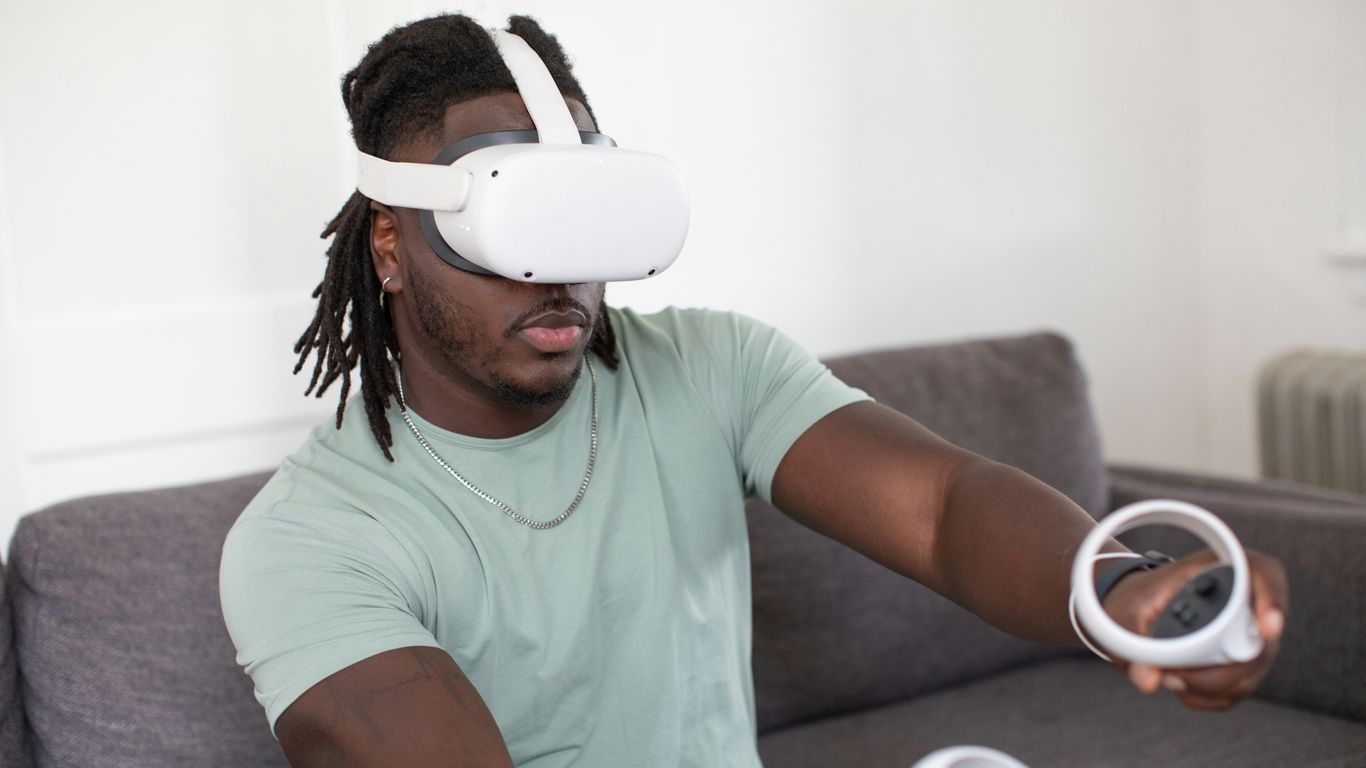
Getting your HP Reverb G2 up and running is pretty straightforward, but there are a few steps to make sure everything goes smoothly. It’s designed to work with Windows Mixed Reality (WMR), and you’ll want to get that software ready before you even plug in the headset.
Initial PC Compatibility Checks
Before you connect anything, it’s a good idea to check if your computer is ready for virtual reality. The Reverb G2 isn’t the most demanding headset out there, but it does have some minimum requirements. You’ll generally need at least an Intel Core i5 processor and a graphics card like an NVIDIA GeForce GTX 1080 or an AMD Radeon RX 5700. Running a quick compatibility check through the Windows Mixed Reality Portal software is the easiest way to confirm your system meets the needs. This check happens automatically when you first launch the WMR software, so you don’t have to do much beforehand.
Navigating the Windows Mixed Reality Portal
Once your PC is deemed compatible, the Windows Mixed Reality Portal will guide you through the rest of the setup. It’s pretty user-friendly. You’ll plug the headset into your computer using the DisplayPort and USB connections. The software will then prompt you to install itself if it’s not already on your system. After that, it walks you through pairing your controllers and making sure they’re connected properly. It’s all about getting you into the virtual space as quickly as possible.
Defining Your Play Area
This is an important step for safety and immersion. The WMR portal will ask you to set up your play space. You have two main options:
- Roomscale: This is for when you have enough physical space to move around. You’ll use a controller to trace the boundaries of your safe play area. The system recommends at least 6.5 by 5 feet for this, which gives you a decent amount of room to walk and dodge.
- Stationary: If you don’t have a lot of space, or you plan to play seated or standing in one spot, you can choose the stationary option. This creates a smaller, circular boundary around you.
Setting this up correctly means the headset will warn you if you get too close to the edge of your defined space, preventing you from bumping into walls or furniture. It’s a simple but really useful feature.
Comfort and Design Enhancements in the Reverb G2
When you’re strapping on a VR headset for any length of time, comfort really matters, doesn’t it? HP seemed to get this with the Reverb G2. They kept a lot of the same general shape as the original Reverb, but they added some nice touches. The headset itself is mostly black plastic, with a smooth visor on the front. You’ll notice two cameras right on the front, and then a couple more on the sides. This is actually an improvement over the first Reverb, giving it more eyes on the virtual world. Unlike some other headsets that use external sensors, the Reverb G2 relies solely on these cameras to know where it is and where you’re moving. There’s a little slider on the bottom of the visor to adjust how far apart the lenses are, which is handy for getting a clear picture.
Facial Interface Materials
The part that touches your face, the facial interface, is pretty important for comfort and hygiene. The Reverb G2 uses a soft material that feels decent against the skin. While it’s not quite as plush as some higher-end options, it does a good job. For shared use, having a material that’s easy to clean or swap out is a big plus. If you plan on letting friends try your headset, or if you’re using it in a more public setting, being able to quickly wipe it down or even swap out a replacement interface makes a world of difference. It helps keep things hygienic and comfortable for everyone.
Headset Weight Distribution
Nobody likes a headset that feels like it’s constantly pulling your face forward. HP put some thought into how the Reverb G2’s weight is spread out. While the exact weight might not be the absolute lightest on the market, the way it’s balanced makes a noticeable difference. The weight feels pretty evenly distributed, so it doesn’t put too much pressure on any one spot on your head. This means you can wear it for longer sessions without feeling that uncomfortable strain. It’s a subtle thing, but when you’re deep in a virtual world, you appreciate not being constantly reminded of the hardware on your head.
Camera Placement for Tracking
The cameras on the Reverb G2 are key to its tracking capabilities. You’ve got those two on the front and two on the sides. This setup allows the headset to keep tabs on your movements and the position of your controllers. The side cameras are a good addition, helping to widen the tracking field. While it’s not quite as robust as systems that use external base stations, like the Valve Index, the camera placement here generally works well. It’s important to keep the controllers within the cameras’ view for the best tracking results. If you move them too far out of sight, you might experience a brief hiccup, but for the most part, the system does a solid job of keeping you grounded in your virtual space.
Performance and Visual Fidelity of the HP Reverb G2
So, how does the HP Reverb G2 actually look and feel when you’re in VR? Let’s break down the visual and performance aspects.
Image Sharpness and Clarity
One of the standout features of the Reverb G2 is its display resolution. It packs 2,160 by 2,160 pixels for each eye. This is pretty high, even compared to some other headsets out there. What this means for you is a really sharp image. Text in virtual environments is usually easy to read, and fine details in games or simulations pop out more. This level of clarity is a big deal for immersion. It really helps make virtual worlds feel more solid and less like you’re looking through a screen door.
Color Reproduction and Brightness
When it comes to colors, the Reverb G2’s LCD panels do a decent job. They produce colors that are generally accurate and vibrant enough for most applications. Brightness levels are also good, making sure that darker scenes in games don’t get lost in shadow and that bright scenes don’t feel washed out. While it might not reach the absolute peak brightness of some higher-end models, it’s more than sufficient for a really enjoyable visual experience. It strikes a good balance, making it a worthwhile option for users prioritizing high visual fidelity [30e1].
Performance in VR Applications
Running VR applications smoothly depends a lot on your PC, but the headset itself plays a role. The Reverb G2’s 90Hz refresh rate is standard for PC VR and provides a smooth experience for most games and applications. You’ll find that games like Project CARS Pagani Edition look clean, and VRChat is as good as it gets on this headset. Even simpler games like Aim Lab VR benefit from the sharp display. However, it’s worth noting that some games might push the headset’s capabilities, and you might notice occasional tracking hiccups if you move around a lot, though these usually correct themselves quickly. For those looking to get into PC VR without breaking the bank, the Reverb G2 offers a solid performance for its price point.
So, What’s the Verdict on the HP Reverb G2?
Alright, so we’ve gone through the nitty-gritty of the HP Reverb G2 specs. It’s a solid headset, especially if you’re looking for that super sharp picture without completely emptying your wallet. The audio is pretty decent, and while the controllers aren’t going to blow you away with fancy finger tracking, they get the job done. Setup is fairly straightforward, which is always a plus. It sits in a bit of a weird spot, though – not quite as budget-friendly as some standalone options, but not packing all the high-end features of the really expensive headsets. Still, for PC VR fans who prioritize visual clarity and a reasonable price, the Reverb G2 is definitely worth a look. It’s a good middle-ground option that offers a lot of bang for your buck.
Frequently Asked Questions
What makes the HP Reverb G2’s screen so good?
The HP Reverb G2 has a really clear display, showing 2,160 by 2,160 pixels for each eye. This is better than many other VR headsets, like the Valve Index and the Oculus Quest 2, meaning you’ll see sharper images and more detail in your virtual worlds.
How does the audio work on the Reverb G2?
The headset has built-in speakers that sit near your ears, giving you sound without needing separate headphones. However, there’s no headphone jack if you prefer to use your own headphones, and the sound isn’t isolated, so others nearby might hear it too.
What kind of connection does the Reverb G2 use?
It connects to your computer using a cable that plugs into both a DisplayPort and a USB-C port. The cable comes with adapters, so you can also use mini DisplayPort and USB-A ports if needed. This setup allows it to work with PC VR games.
Are the controllers for the Reverb G2 easy to use?
Yes, the controllers are designed to be comfortable and track well. They have buttons and triggers that feel natural to use, similar to other popular VR controllers. While they don’t have advanced finger tracking like some high-end options, they are a big improvement over older models.
How do I set up the Reverb G2?
Setting it up involves plugging it into your PC and running the Windows Mixed Reality software. This software will check if your computer is ready, help you pair the controllers, and guide you in setting up your safe play area. You’ll also want to install SteamVR to access a wider range of games.
Is the Reverb G2 comfortable to wear for long periods?
The headset has been updated for better comfort compared to its earlier version. It has a balanced weight and a soft facial interface. While comfort can vary from person to person, HP made efforts to improve the feel for extended use.