So, you’re thinking about getting into virtual reality, huh? It’s pretty cool stuff, like stepping into another world without leaving your living room. But before you can do all that awesome adventuring, your computer needs to be up to the task. It’s not just about plugging in a headset; there are some minimum requirements vr needs to meet. Think of it like getting your car ready for a long road trip – you wouldn’t go without checking the tires and oil, right? Same idea here. Making sure your PC has the right parts means you’ll actually have a good time, not a jerky, headache-inducing mess. Let’s break down what your computer actually needs.
Key Takeaways
- Your computer’s brain, the CPU, needs to be decent enough to handle VR’s calculations. A modern quad-core is the bare minimum, but more cores are better for a smoother ride.
- The graphics card (GPU) is super important for making virtual worlds look good. Don’t skimp here if you want clear visuals; aim for a card that’s not too old or weak.
- You’ll need enough RAM, usually 8GB is the minimum, but 16GB is a much better target for VR to run without stuttering.
- Fast storage, like an SSD, really helps VR games load quicker and keeps textures from looking weird when you move around.
- Check your computer’s ports – you’ll need the right video output (like HDMI or DisplayPort) and USB ports to connect your VR headset.
Understanding VR Minimum Requirements
So, you’re thinking about jumping into virtual reality, huh? That’s awesome! But before you get too excited about exploring new worlds, we need to talk about what your computer actually needs to run this stuff. It’s not like plugging in a regular game; VR is way more demanding. Getting this part right is the difference between a mind-blowing experience and a really frustrating, maybe even nauseating, time.
The Cornerstone Of VR: System Specifications Demystified
Think of your PC as the engine for your VR headset. It’s got to do a lot of heavy lifting. Unlike your monitor which just shows one picture, your VR headset needs to create two separate, high-resolution images – one for each eye – and do it super fast. If your PC can’t keep up, you’ll get lag, stuttering, and that unpleasant feeling some people call ‘simulator sickness’. It’s all about making sure your computer has the right parts to handle this intense workload.
Key Components For VR Readiness
What exactly are these
The Central Processing Unit: Your PC’s Brain
So, we’ve talked about the big picture, but let’s get down to the nitty-gritty of what actually makes your VR experience tick. First up is the CPU, or the Central Processing Unit. Think of it as the conductor of an orchestra, telling all the other parts what to do and when. It handles all the calculations that aren’t directly related to drawing pretty pictures, like the game’s logic, physics, and any AI characters running around.
Minimum Baseline Processor
For VR, you can’t just grab any old processor. You need something with a bit of oomph. Generally, a modern quad-core processor is the absolute floor. This means it has four processing cores. It might get you into simpler VR experiences, but don’t expect miracles. Things could get a bit sluggish if the VR application is demanding or if you have other programs running in the background. It’s like trying to run a marathon with just a light jog – you’ll finish, but it won’t be pretty.
Recommended Processor Power
To really get a smooth ride, you’ll want to aim higher. A six-core or even an eight-core processor is a much better target. This gives your system more breathing room. It means the CPU can handle the VR software itself, the game you’re playing, and any background tasks without breaking a sweat. Having more cores means it can juggle more tasks at once, which is exactly what VR needs. For most VR gaming setups, 16 GB of RAM is recommended to manage demanding environments and multitasking. For more advanced applications, 32 GB of RAM may offer improved performance. This is a good place to check if your current RAM is up to snuff.
CPU’s Role In VR Performance
Why is the CPU so important? Well, it’s not just about raw speed. It’s about how it handles different tasks. For dedicated virtual reality systems, a CPU with a low core count and the highest possible clock speed is generally recommended. This is because VR often relies on a few very fast cores rather than many slower ones. It needs to process game logic and send instructions to the graphics card very quickly. If the CPU can’t keep up, it creates a bottleneck, meaning your fancy graphics card is just sitting there waiting for instructions. That leads to dropped frames and that awful stuttering feeling that can really ruin the immersion. So, while the graphics card gets all the glory for visuals, don’t underestimate the CPU’s role in making VR feel alive and responsive.
The Graphics Processing Unit: The Visual Artist
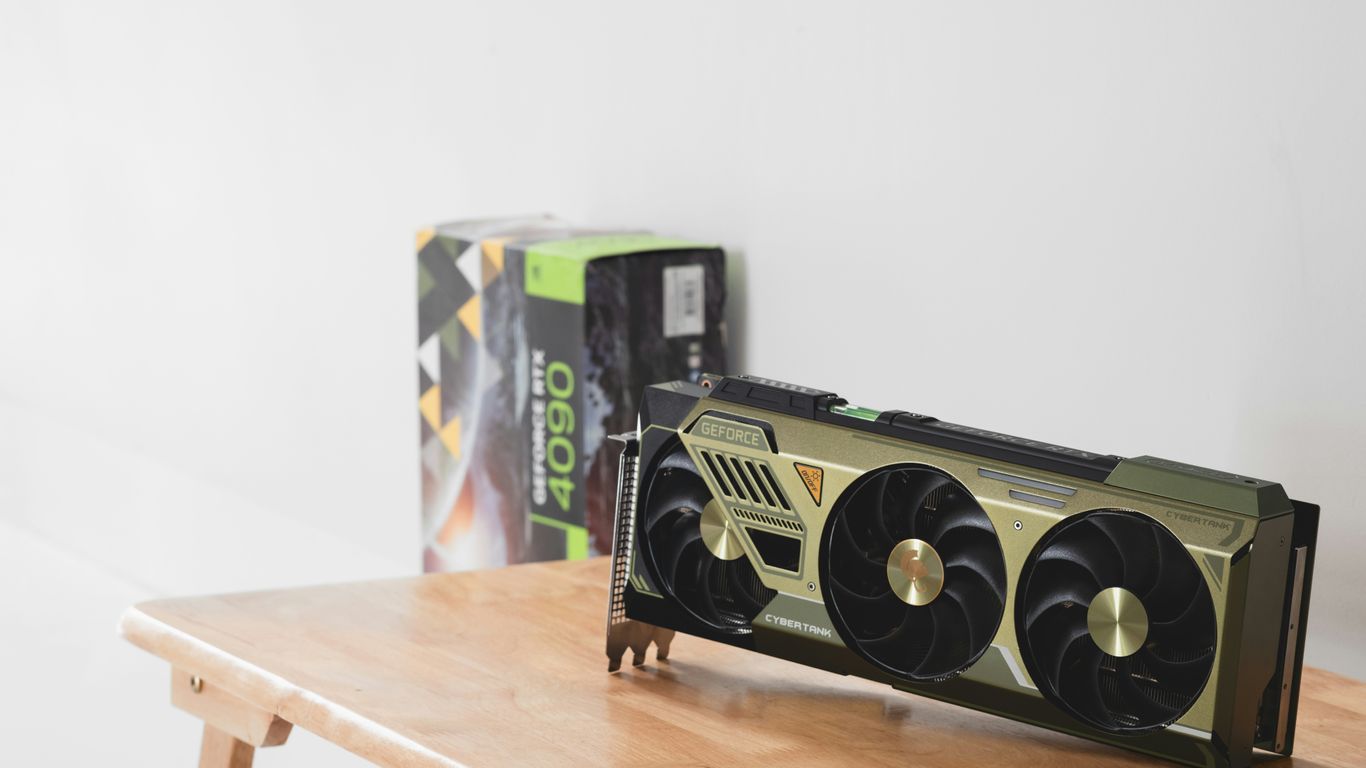
If the CPU is the brain of your computer, then the Graphics Processing Unit (GPU) is definitely the artist. This component is probably the most important piece of hardware for getting a good virtual reality experience. The GPU’s job is to create all those detailed 3D images that you see, and it has to do it twice – once for each eye – at super high speeds. It’s a big ask, and a weak GPU means a bad time.
Absolute Minimum Graphics Card
Look, you can technically get by with older, high-end graphics cards from a few years back. But honestly, don’t expect much. You’ll likely have to turn down all the graphical settings to their lowest levels. This means blurry textures and a general lack of visual pop, which really kills the whole immersive feeling. It’s like looking at VR through a dirty window. For basic entry, you’re probably looking at something like a NVIDIA GeForce GTX 970 or an AMD Radeon R9 290, but these are really just the bare minimum.
Targeting A Great Visual Experience
To actually enjoy VR and not feel like you’re constantly fighting your system, you’ll want something more current. Aim for a mid-range to high-end graphics card from the last year or two. These cards are built to handle the heavy lifting VR demands. They can push out the high frame rates needed to make virtual worlds feel real and responsive. A good rule of thumb is to look for cards with plenty of video memory (VRAM), because those high-resolution textures eat it up fast. A card with at least 6 GB of VRAM is a good starting point for a decent experience, but more is always better.
GPU’s Critical Role In Immersion
Your GPU is directly responsible for how real and believable the virtual world feels. When the GPU is struggling, you’ll notice it immediately. Things might stutter, look choppy, or even feel nauseating. This is because VR needs a consistent, high frame rate – usually 90 frames per second or more – to trick your brain into thinking you’re actually there. If your GPU can’t keep up, the illusion breaks. It’s the difference between feeling like you’re exploring a new planet and feeling like you’re stuck in a slideshow. A powerful GPU means smoother motion, sharper details, and a much more believable and comfortable experience. It’s the engine that drives the visual fidelity of your virtual adventures.
Supporting Components: RAM and Storage
Alright, so you’ve got the brain and the artist sorted with your CPU and GPU. But what about the supporting cast? RAM and storage are super important too, and skimping here can really mess with your VR experience. Think of RAM as your PC’s short-term memory – it needs to be quick and plentiful to keep things running smoothly.
Memory Requirements For Smooth Performance
When you’re jumping into virtual worlds, your PC is juggling a lot. It’s not just the game itself, but also the VR software, tracking data, and whatever else might be chugging along in the background. For a decent VR experience, 8GB of RAM is often listed as the absolute minimum, but honestly, that’s cutting it really close. You’ll likely run into stutters and slowdowns.
Most people find that 16GB of RAM is the sweet spot for VR. This gives your system enough breathing room to handle complex environments and keep everything responsive. If you’re planning on running more demanding VR applications or multitasking heavily while in VR, bumping up to 32GB can offer an even better experience, though it’s usually not strictly necessary for most games. Getting your RAM from a reputable vendor is always a good idea.
The Necessity Of Solid-State Drives
Now, let’s talk about storage. While you might have a massive hard disk drive (HDD) for storing all your movies and photos, VR games really benefit from faster storage. This is where Solid-State Drives (SSDs) come in. Loading times in VR can be a real immersion killer, and an SSD drastically cuts those down. Imagine waiting ages for a virtual world to load – not ideal, right?
An SSD means your game assets, textures, and environments get loaded into RAM much faster. This helps prevent those jarring hitches and pop-ins that can pull you right out of the experience. While some older VR setups might have worked with HDDs, it’s pretty much a requirement for a good time these days. You don’t need a massive SSD just for the VR software itself, but having your VR games installed on one is a game-changer.
Storage Space Considerations
VR games can take up a surprising amount of space. Some titles are pretty hefty, and if you plan on having a decent library, you’ll need to keep an eye on your storage. While the VR software itself might only need a few gigabytes, individual games can easily range from 20GB to over 100GB. It’s a good idea to have at least a few hundred gigabytes free on your SSD dedicated to your VR library. If you’re on a tighter budget, you could consider a smaller SSD for your operating system and frequently played VR titles, paired with a larger HDD for less critical storage. Just make sure your VR games are on that speedy SSD for the best performance. You can check out some options for fast storage solutions online.
Connectivity And System Software
So, you’ve got your CPU and GPU sorted, and enough RAM to keep things humming. But what about the bits that actually connect everything and keep it all running smoothly? We’re talking about the ports on your computer and the software that makes it all work together.
Video Output and USB Port Needs
This is where your VR headset physically plugs into your computer. Most VR headsets need a specific type of video connection, usually a DisplayPort 1.2 or higher, though some might use HDMI. It’s not just about having the port; it needs to be the right version to handle the high-resolution, high-refresh-rate video VR demands. Beyond video, you’ll need USB ports. These aren’t just for charging your phone; they’re used for data transfer to and from the headset, and sometimes for tracking sensors. You’ll generally need at least one USB 3.0 port, but having a few extra available is always a good idea. It’s easy to overlook these, but a lack of the right ports can be a real showstopper. Always check the specific requirements for your chosen headset; they’re usually pretty clear about what they need. You can check your PC’s ports by looking at the back of your computer or by using system information tools.
Compatible Operating Systems
When it comes to VR, your operating system matters. For the most part, you’ll be looking at Windows 10 or Windows 11. These versions of Windows have the best support for VR software and hardware. While some VR experiences might technically run on older versions, you’re likely to run into compatibility issues or miss out on features. It’s best to stick with a modern, supported OS to avoid headaches. If you’re still on an older Windows version, it might be time to consider an upgrade, especially if you’re serious about getting into VR. This ensures that the software you want to use will actually work without a hitch.
Driver Updates For Optimal Performance
Think of drivers as the translators between your computer’s hardware and the software you’re running. For VR, keeping these drivers up-to-date is super important. Your graphics card drivers, in particular, get regular updates that can improve performance and fix bugs in VR applications. It’s not just about graphics, though; drivers for your USB controllers and other components can also play a role. A good habit to get into is checking for updates regularly, especially before you jump into a new VR game or experience. You can usually find these updates on the manufacturer’s website for your graphics card and motherboard. It might seem like a small thing, but it can make a big difference in how smoothly your VR adventures go. Keeping your system updated is key to getting the best out of your VR hardware.
Beyond The PC: Physical And Perceptual Needs

So, we’ve talked a lot about what makes your computer tick for VR. But honestly, that’s only part of the story. There are other things to think about that aren’t inside your PC case at all. These are the physical and perceptual bits that really make or break the whole virtual reality thing.
The Need for Speed: Refresh Rate and Frame Rate
This is a big one, and it’s all about how smooth things look and feel. Your VR headset has a refresh rate, measured in Hertz (Hz). This is how many times per second the screen can update its image. Then there’s your PC’s frame rate, measured in frames per second (FPS), which is how many unique images your graphics card can actually create. For VR to feel right, these two numbers need to be in sync. You really want your PC to hit the headset’s refresh rate consistently. If your PC can’t keep up, you get judder and lag, which is a fast track to feeling queasy. Some systems try to help by creating extra frames when your PC is struggling, but this can make things look a bit blurry or ghost-like. It’s always better to have a PC that’s strong enough to avoid needing that help.
Playing in the Real World: Play Area and Tracking
VR isn’t just about what you see; it’s also about how you move. There are a couple of main ways you’ll interact with virtual spaces:
- Seated or Standing Still: This is the simplest setup. You might be sitting down for a flight sim or just standing in one spot. You just need enough room to move your arms around and turn your head without bumping into furniture. It’s pretty straightforward.
- Room-Scale VR: This is where things get more active. You have a defined space, often called a ‘play area,’ where you can physically walk around. The VR system tracks your movement within this space. You’ll need a clear area, usually at least 6.5 feet by 5 feet (2 meters by 1.5 meters), though more is always better. It’s important to clear this space of any obstacles – tripping over your coffee table in the real world while you’re dodging laser fire in VR is no fun at all. The tracking systems, whether they use external sensors or cameras built into the headset, need to see your controllers and headset to know where you are. This is how you can explore virtual worlds by actually walking through them, similar to how augmented reality works in real-world environments.
Standalone Headsets Versus PC-Connected VR
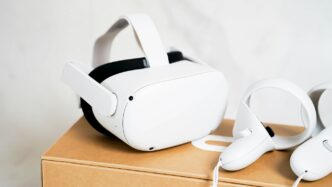
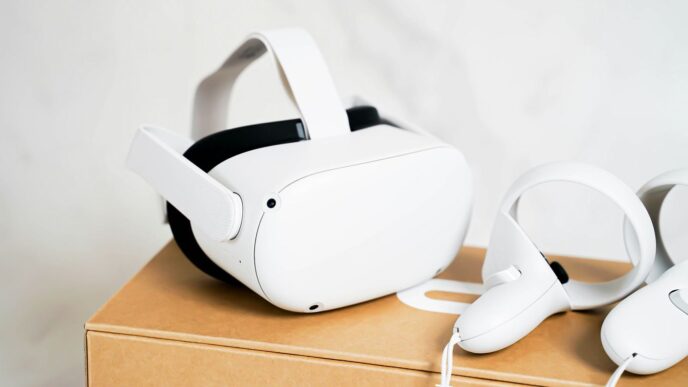
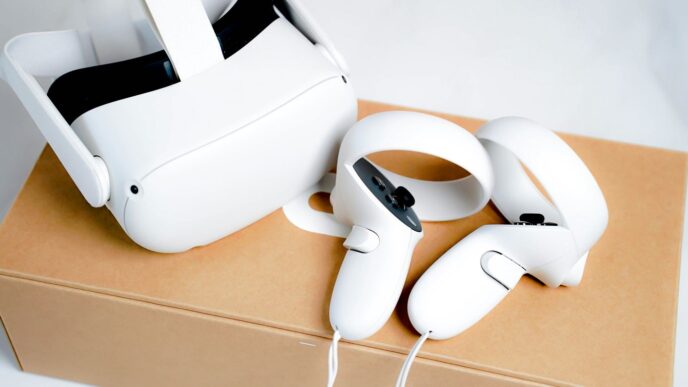
It’s worth noting that not all VR requires a powerful PC. Standalone headsets, like the Meta Quest line, have everything they need built right in. They’re super convenient because there are no wires and no PC to worry about. However, they do have their limits. The graphics might not be as fancy, and the games are made specifically for that hardware. But, many of these standalone units can also connect to a PC. This gives you the best of both worlds: the freedom of wireless VR for simpler apps, and the power of a gaming rig for the really demanding experiences. When looking at display qualities for VR, PC-connected headsets generally offer higher fidelity due to the stronger hardware.
Wrapping It Up
So, getting into virtual reality means your computer needs to be up to snuff. It’s not just about buying a cool headset; you’ve got to make sure your PC can actually run it without making you feel sick or looking like a slideshow. We’ve gone over the main parts like the processor and graphics card, and what kind of memory and storage you’ll need. It might seem like a lot, but checking these things beforehand is way better than buying a headset and then finding out your computer just can’t handle it. A good setup means a much better time in VR, so take a look at your specs and see what you need to do to get ready for those virtual worlds.
Frequently Asked Questions
What’s the main reason VR needs a powerful computer?
VR needs to show you two different, high-quality pictures at the same time, one for each eye, and do it super fast. This is way more work for your computer than just playing a regular game on a screen.
Does my computer need a super fancy graphics card for VR?
Yes, the graphics card (GPU) is super important. It’s like the artist making all the pretty pictures. A good GPU is needed to create smooth, realistic images without making you feel sick.
Is 8GB of RAM enough for VR?
While some VR systems might say 8GB of RAM is the minimum, it’s better to have 16GB or more. This helps your computer run VR games smoothly without slowing down when it needs to access game information quickly.
Why is a Solid-State Drive (SSD) better for VR than a regular Hard Drive (HDD)?
An SSD is much faster than a regular hard drive. This means games load quicker, and the virtual world can appear without delays as you move around, making the experience feel more real and less choppy.
Do I need a specific type of USB port for VR?
Yes, most VR headsets need a USB 3.0 port or newer. These ports send data faster, which is important for the headset to work correctly and track your movements smoothly.
What is ‘refresh rate’ and why does it matter for VR comfort?
Refresh rate is how many times per second the VR headset’s screen updates. If your computer can’t keep up and show new pictures fast enough (matching the headset’s refresh rate), the picture can look jerky, which can make you feel dizzy or sick.